How to Use Reference Images in Google Vids AI: Complete Guide and Examples
Last updated: November 6, 2026
Creating an AI video from a written prompt is useful, but sometimes words alone are not enough to communicate exactly what you want. You may have a product photograph, character design, company logo or background image that you want the AI to use as a visual reference.
That’s where reference images in Google Vids AI come in.
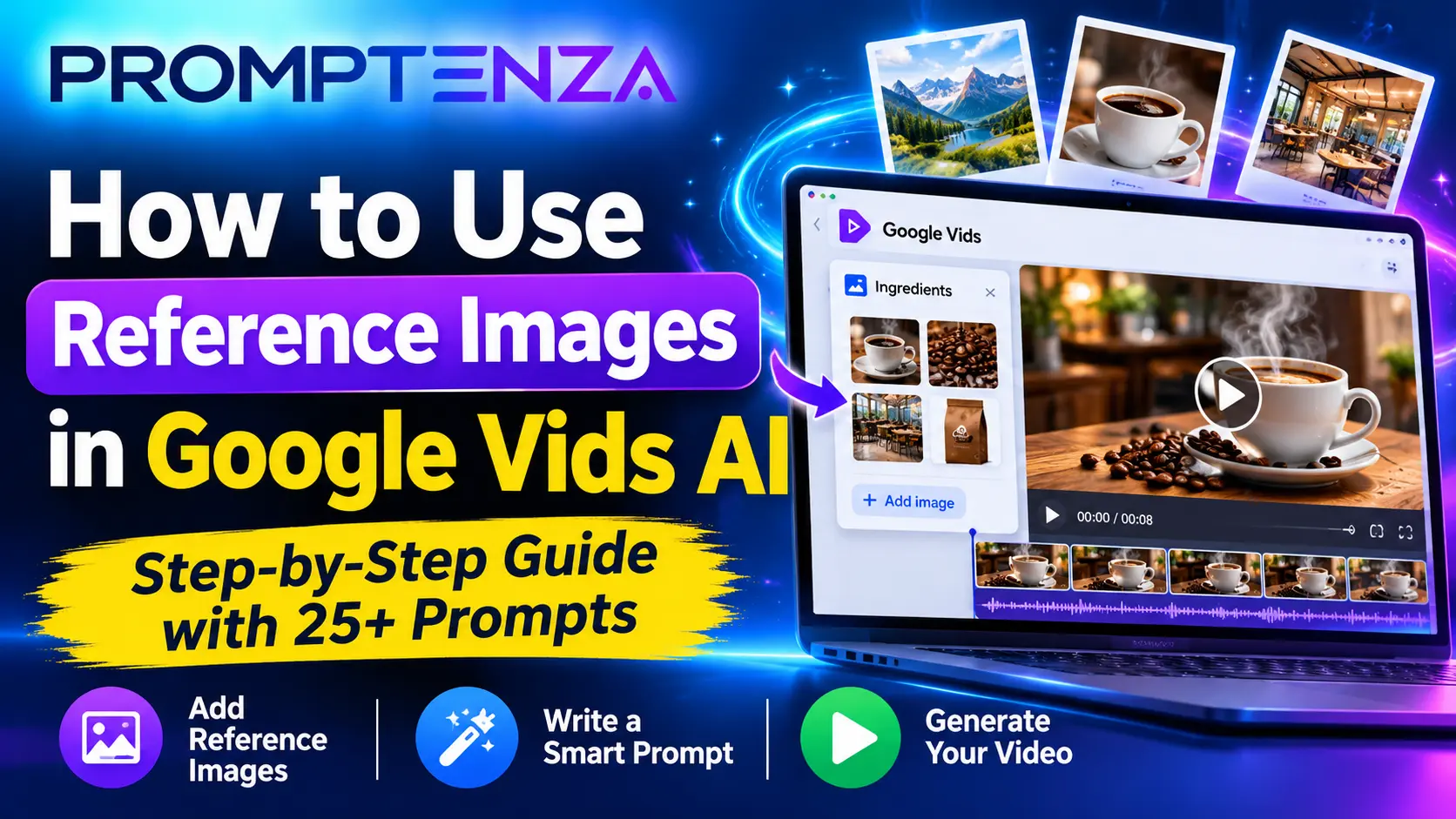
Google Vids lets you upload reference images, also called ingredients, to guide AI-generated video clips. Instead of relying entirely on a text description, you can provide visual examples of the subjects, objects or environments you want the generated video to incorporate.
In this guide, you’ll learn how to use reference images in Google Vids AI, how many images you can upload, how to write effective prompts and how to create more consistent product videos, marketing clips and visual stories.
Quick Answer: How Do You Use Reference Images in Google Vids AI?
To use reference images in Google Vids:
- Open Google Vids.
- Select Create AI videos.
- Open the Create option in the AI video panel.
- Select Ingredients to add reference images.
- Upload your images.
- Write a prompt explaining how the images should be used in the video.
- Choose your video settings and select Generate.
- Review the result and select Insert to add it to your project.
Google’s current Help documentation supports uploading up to seven reference images in the AI video-generation workflow.
What Are Reference Images in Google Vids AI?
Reference images are pictures you upload to help guide the appearance and content of an AI-generated video.
They provide visual information that a written prompt might struggle to communicate accurately.
For example, imagine you want to create a promotional video for a coffee brand.
You could upload:
- A photograph of the coffee package.
- A photograph of a coffee cup.
- A photograph showing the desired environment.
- A reference image showing the lighting or visual style.
You can then instruct Google Vids to create a short promotional video incorporating those visual references.
The AI uses the images as visual guidance when generating the clip.
This is particularly useful when you want to maintain a recognizable product, character, object or visual environment across a video.
Reference Images vs Image-to-Video: What’s the Difference?
These two Google Vids features are related, but they serve different purposes.
| Feature | Reference Images (Ingredients) | Image-to-Video (Animate) |
|---|---|---|
| Starting point | Multiple visual references or ingredients | One uploaded image |
| Main purpose | Guide the content of a newly generated clip | Animate an existing still image |
| Image uploads | Up to seven reference images | One image |
| Prompt focus | How the references should be incorporated | How the uploaded image should move |
| Best for | Product scenes, visual storytelling and consistent subjects | Bringing photographs and illustrations to life |
Which feature should you use?
Choose Reference Images when you want the AI to combine visual elements from several images into a generated scene.
Choose Animate when you already have one photograph or illustration and want to add movement to it.
For a separate step-by-step tutorial, read How to Turn Images into Videos with Google Vids AI.
What Can You Create with Google Vids Reference Images?
Reference images can support several creative workflows.
1. Product Promotional Videos
Upload photographs of a product from different angles and provide a prompt describing how you want the product presented.
This can help create short promotional clips for:
- Beauty products.
- Electronics.
- Food and beverages.
- Fashion accessories.
- Household products.
- Online stores.
2. Consistent Character Videos
You can provide character reference images to guide the appearance of a character in an AI-generated scene.
This is useful for:
- Short animated stories.
- Educational videos.
- Brand storytelling.
- Creative social media clips.
Generated characters may still vary between frames, so inspect the result rather than assuming perfect consistency.
3. Brand and Marketing Videos
You can upload visual references such as product packaging, brand imagery and backgrounds to guide a promotional video.
For important brand elements, check the generated result carefully. AI-generated text and logos may not reproduce every detail accurately. You can add the original logo during editing if exact branding is required.
4. Educational and Training Videos
Reference images can help illustrate a particular topic.
For example, you could provide photographs of equipment, diagrams or learning materials and describe how you want them incorporated into an explanatory clip.
5. Travel and Lifestyle Videos
Upload photographs of locations, environments or objects to guide a generated travel or lifestyle scene.
This can help create short visual introductions, social media clips and presentation content.
How to Use Reference Images in Google Vids AI
Follow these steps to create your first AI video using reference images.
Step 1: Open Google Vids
Visit:
Sign in using a Google account that has access to the AI video-generation feature.
You can create a new video project or work with an existing project.
Step 2: Select Create AI Videos
From the Google Vids start menu, select Create AI videos.
If you’re already inside a project, you can access the AI video-generation option from the editing interface.
Step 3: Open the Create Option
In the AI video side panel, select Create.
This opens the workflow for generating a new video clip from a written prompt.
Step 4: Select Ingredients
Look for the Ingredients option in the prompt panel.
Select it to add reference images to your video-generation request.
This is the feature that allows you to guide the generated video using uploaded visual references.
Step 5: Upload Your Reference Images
Upload the images you want Google Vids to use.
Google’s current Help documentation allows up to seven reference images in this workflow.
Depending on your project, you might upload:
- A product photograph.
- A character reference.
- A background image.
- A company logo.
- A photograph showing the desired environment.
- An object you want included in the scene.
You don’t have to upload seven images. Use only the references that help communicate your intended result.
Step 6: Write Your Prompt
After uploading the images, describe how the AI should incorporate them into the generated video.
Be specific about:
- Which subject should be the main focus.
- How the different references should be combined.
- What action should happen.
- How the camera should move.
- What lighting or atmosphere you want.
- Which visual details should remain consistent.
For example:
“Create a cinematic product advertisement using the uploaded coffee package as the main subject and the coffee shop image as the environment reference. Show the package on a wooden counter while steam rises from a nearby cup. Use a slow camera push-in, warm morning lighting and a premium commercial style. Preserve the package’s original colours and design.”
Step 7: Choose Your Video Settings
Google Vids provides settings for the generated video.
Depending on the available model and account features, you may be able to choose:
| Setting | Available options |
|---|---|
| Aspect ratio | Landscape 16:9 or Portrait 9:16 |
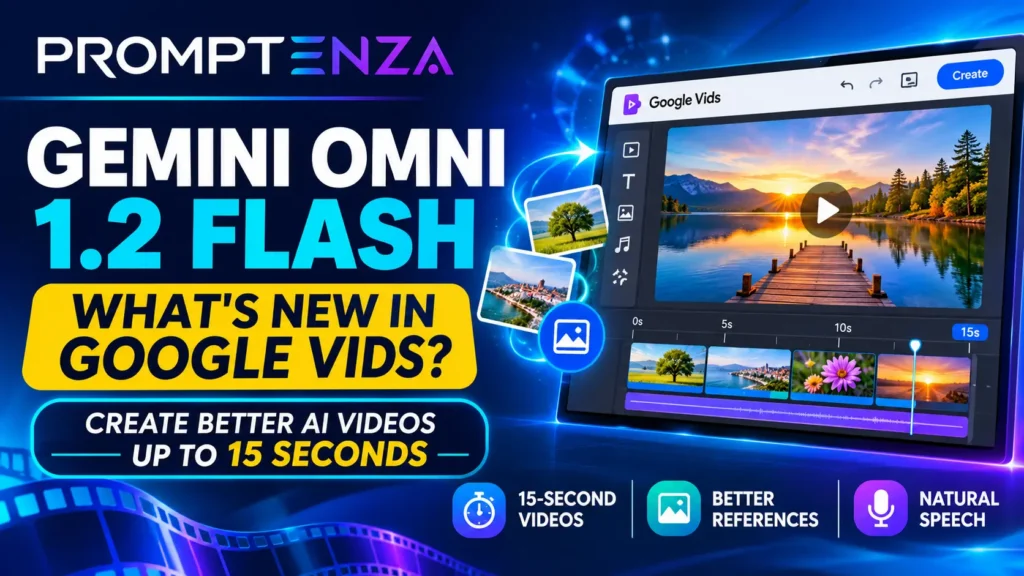
| Duration | 3–15 seconds in the current Omni workflow |
| Resolution | 720p or 1080p in the current Omni workflow |
To access the available controls, select the Omni option in the video-generation panel.
The options displayed may depend on your account and current feature availability.
Step 8: Generate Your Video
Review your reference images and prompt.
Select Generate to start creating your video.
Google Vids will use your written instructions and visual references to generate the clip.
Step 9: Review the Generated Result
Watch the video and check whether it follows your instructions.
Pay attention to:
- Whether the correct product or character appears.
- Whether the reference images have been incorporated appropriately.
- Whether the scene looks visually coherent.
- Whether the camera movement is suitable.
- Whether important brand details remain recognizable.
If something is incorrect, revise your prompt and generate another version.
Step 10: Insert the Video into Your Project
Once you are satisfied with the generated clip, select Insert.
The clip will be added to your Google Vids project, where you can arrange it on the timeline and combine it with other scenes, titles, audio and visual elements.
20+ Google Vids Reference Image Prompts to Try
The following examples show how to combine uploaded images with clear instructions.
Upload the relevant reference images first, then adapt the prompt to your project.
1. Product Advertisement Prompts
Prompt 1: Premium Product Commercial
“Use the uploaded product photograph as the main visual reference. Place the product in an elegant studio environment with soft cinematic lighting. Slowly move the camera closer while maintaining the product’s original appearance and proportions.”
Prompt 2: Product in a Lifestyle Setting
“Use the uploaded product image as the main reference and the lifestyle photograph as the environment reference. Show the product naturally placed within the scene. Use a gentle camera movement and realistic lighting.”
Prompt 3: Multiple Product Angles
“Use the uploaded product photographs as visual references. Create a short commercial-style video showing the product from different perspectives. Maintain consistent colours, proportions and packaging details.”
Prompt 4: Luxury Product Showcase
“Create a premium advertisement using the uploaded product reference. Place it in a sophisticated environment with controlled reflections, soft highlights and a slow cinematic camera movement.”
Prompt 5: Product Launch Video
“Use the uploaded product image as the main reference. Create an exciting product introduction with a smooth camera push-in, dramatic studio lighting and a clean background. Keep the product visually consistent.”
2. Character and Storytelling Prompts
Prompt 6: Consistent Character Scene
“Use the uploaded character reference as the visual guide. Show the character walking through a peaceful outdoor environment. Maintain the character’s recognizable appearance, clothing and colours throughout the clip.”
Prompt 7: Character in a New Environment
“Use the uploaded character image and environment reference. Place the character naturally within the environment, with realistic lighting and a gentle camera movement.”
Prompt 8: Animated Story Introduction
“Use the uploaded character and background references to create a cinematic story introduction. Show the character looking around the environment as the camera slowly moves forward.”
Prompt 9: Character Product Interaction
“Use the uploaded character and product images as references. Show the character naturally interacting with the product in a clean commercial setting. Preserve the recognizable appearance of both.”
Prompt 10: Educational Character Video
“Use the uploaded character reference to create a short educational video scene. Show the character presenting the topic in a bright learning environment with gentle camera movement.”
3. Marketing and Business Prompts
Prompt 11: Brand Promotion
“Use the uploaded brand imagery and product photograph as visual references. Create a professional promotional clip with a clean background, smooth camera movement and consistent visual styling. Keep important brand elements recognizable.”
Prompt 12: Restaurant Advertisement
“Use the uploaded food photograph as the main reference and the restaurant image as the environment reference. Create a warm restaurant advertisement with a slow camera push-in and inviting lighting.”
Prompt 13: Fashion Campaign
“Use the uploaded clothing and fashion campaign images as visual references. Create a premium fashion promotional scene with subtle fabric movement, elegant lighting and smooth cinematic camera motion.”
Prompt 14: Real Estate Promotion
“Use the uploaded property photograph as the main reference and the landscape image as the environmental guide. Create a polished property promotional clip with a slow camera movement and natural lighting.”
Prompt 15: Technology Product Advertisement
“Use the uploaded technology product image as the main reference. Place it in a modern studio environment with subtle blue lighting and a slow camera orbit. Preserve its original design.”
4. Travel and Lifestyle Prompts
Prompt 16: Travel Destination Video
“Use the uploaded destination photograph as the main visual reference. Create a cinematic travel scene with gentle movement in the clouds and surrounding vegetation. Use a slow forward camera movement.”
Prompt 17: Beach Holiday Promotion
“Use the uploaded beach and ocean photographs as visual references. Create a peaceful holiday promotional clip with gentle waves, moving palm leaves and warm sunlight.”
Prompt 18: Hotel Promotional Video
“Use the uploaded hotel room and exterior images as references. Create a premium hospitality promotional clip with smooth camera movement, warm lighting and a welcoming atmosphere.”
Prompt 19: Outdoor Lifestyle Scene
“Use the uploaded outdoor photographs as references. Create a natural lifestyle scene with gentle environmental movement and a slow cinematic camera pan.”
Prompt 20: City Travel Introduction
“Use the uploaded city photographs as visual references. Create a short cinematic travel introduction with a smooth camera movement and realistic evening lighting.”
5. Creative and Educational Prompts
Prompt 21: Science Explainer
“Use the uploaded science illustration and diagram as visual references. Create a short educational clip that presents the main subject clearly, with subtle movement and a clean instructional style.”
Prompt 22: Historical Learning Scene
“Use the uploaded historical photographs and environment references to create a visual introduction to the topic. Preserve the recognizable historical setting and use a documentary-inspired camera movement.”
Prompt 23: Illustration-Based Story
“Use the uploaded illustration as the main visual reference. Create a short animated scene with gentle movement while preserving the original artistic style, colours and character design.”
Prompt 24: Architecture Presentation
“Use the uploaded architectural reference images to create a polished visual presentation. Show the building from a cinematic perspective with subtle environmental movement and natural lighting.”
Prompt 25: Social Media Brand Introduction
“Use the uploaded brand and product images as visual references. Create a short vertical promotional video with a strong opening shot, smooth camera movement and consistent visual styling.”
How to Get Better Results with Google Vids Reference Images
Uploading several images does not automatically guarantee a better video. The way you select and describe those images matters.
Here are practical techniques to improve your results.
1. Give Every Image a Clear Purpose
Avoid uploading several images that communicate the same thing.
Instead, use references that provide different information.
For example:
| Reference image | Purpose |
|---|---|
| Product photograph | Identifies the product |
| Background photograph | Shows the environment |
| Packaging photograph | Provides packaging details |
| Lighting reference | Shows the desired atmosphere |
This gives your prompt a clearer visual direction.
2. Explain How the Images Should Work Together
Don’t simply upload several images and expect the AI to understand your intended arrangement.
Explain their roles in the prompt.
For example:
“Use the first image as the product reference, the second image as the background and the third image as the lighting reference. Place the product in the environment and use a smooth cinematic camera movement.”
3. Avoid Conflicting References
If you upload photographs with very different visual styles, colours or environments, the generated result may not match your expectations.
Choose images that support the same creative direction.
4. Describe the Action
Your prompt should explain what happens in the video.
Useful instructions include:
- The camera slowly moves closer.
- The product rotates gently.
- Clouds drift across the sky.
- The character walks towards the camera.
- The lighting changes gradually.
5. Protect Important Visual Details
For products, characters and brand imagery, include instructions such as:
“Maintain the original product colours, packaging design and proportions.”
However, remember that AI generation may still introduce visual differences. For exact logos, text or packaging details, consider adding the original asset during editing.
6. Start with a Simple Prompt
You do not need a very long description for every video.
Start with the main subject, the role of each reference image and the desired movement. Add more instructions only when necessary.
For more prompting techniques, read Prompt Anatomy: Parts of an Effective AI Prompt.
Google Vids Reference Images: Common Problems and Solutions
You may encounter problems when uploading images or generating clips.
| Problem | What to try |
|---|---|
| Reference image option is missing | Check whether your account has access to AI video generation |
| Image upload fails | Try a supported image format and a clear image file |
| AI ignores a reference image | Explain the role of each image more explicitly |
| Product appearance changes | Use clear product references and stronger consistency instructions |
| Generated scene looks inconsistent | Reduce conflicting images and simplify the prompt |
| Video generation fails | Check your connection and try again |
| Output does not match the requested composition | Specify the placement and role of each visual reference |
| Logo or text appears distorted | Add the original logo or text during editing |
If Google Vids AI is not working at all, see our guide to Google Vids AI Not Working? 10 Ways to Fix AI Video Generation Problems.
Google Vids Reference Images: Frequently Asked Questions
How many reference images can you upload to Google Vids AI?
Google’s current Help documentation allows users to upload up to seven reference images when generating a video using the Ingredients workflow.
What are Ingredients in Google Vids?
Ingredients are visual references that you upload to guide AI video generation. They can include images of products, characters, objects and environments.
Can Google Vids use multiple product images?
Yes. You can upload multiple product images as references and explain how they should be incorporated into the generated clip.
Can I use a company logo as a reference image?
You can upload a logo as a visual reference. However, AI-generated video may not reproduce exact lettering or logo details. For accurate branding, add the original logo during editing.
Can I use reference images to keep characters consistent?
Yes. Reference images can guide the appearance of characters in generated clips. However, they do not guarantee perfect consistency in every frame or across separate generations.
What is the difference between Ingredients and Animate in Google Vids?
Ingredients lets you use multiple visual references to guide a newly generated video. Animate takes one uploaded image and adds movement to it.
Can I create vertical videos using reference images?
Yes. Google Vids supports portrait 9:16 video generation in the current AI video workflow, making it useful for vertical social media content.
Can I use reference images for marketing videos?
Yes. You can upload product photographs, packaging images and environmental references to guide promotional video generation.
Is Google Vids AI free?
Google announced that eligible Google account holders can generate up to three 15-second videos per month at no cost using the newer Omni 1.2 Flash experience. Other usage limits may depend on the account and plan.
Final Thoughts
Reference images make Google Vids AI more useful when you need greater visual direction than a text prompt alone can provide.
You can upload product photographs, character references, backgrounds and other visual assets to guide the video-generation process.
For better results, give each image a clear purpose, explain how the references should work together and describe the movement you want to see.
Start with a simple project, experiment with different combinations of reference images and refine your prompts as you learn what works.
Explore more Google Vids tutorials and practical AI prompting guides on Promptenza.