Google Vids vs Canva vs CapCut: Which Video Editor Is Best in 2026?
Choosing between Google Vids, Canva and CapCut depends on the type of videos you want to create. All three tools can help you produce videos, but they are designed around different creative workflows.
Google Vids focuses on AI-assisted video creation, presentations and workplace communication. Canva combines video editing with graphic design, templates and brand management. CapCut focuses on video editing, short-form content and creative effects.
So, which one should you choose?
Quick answer: Choose Google Vids for AI-assisted business videos, tutorials and presentations. Choose Canva for branded marketing videos, social media graphics and promotional content. Choose CapCut for TikTok videos, Instagram Reels, YouTube Shorts and more detailed editing.
This comparison examines their features, AI capabilities, ease of use, pricing considerations, strengths and limitations to help you choose the right video editor.
Google Vids vs Canva vs CapCut: Quick Comparison
| Feature | Google Vids | Canva | CapCut |
|---|---|---|---|
| Main purpose | AI-assisted video creation and workplace storytelling | Graphic design and video creation | Video editing and social media content |
| Best for | Tutorials, presentations and business videos | Marketing videos, branded content and promotional designs | Reels, TikToks and YouTube Shorts |
| Ease of use | Beginner-friendly | Very beginner-friendly | Beginner-friendly, with more editing controls |
| AI video generation | Yes, with account and usage limits | Yes, with feature and plan limits | Yes, with feature and plan limits |
| Templates | Yes | Extensive template library | Extensive video templates |
| Captions | Yes | Automatic captions | Automatic captions |
| Voiceovers | AI voiceovers | Voice and audio tools | AI voice and audio tools |
| Timeline editing | Scene-based editing | Multi-layer timeline | Multi-track timeline |
| Collaboration | Google Workspace sharing and collaboration | Strong design and team collaboration | Collaboration options vary by plan |
| Best content type | Training, presentations and explainers | Branded content and marketing | Short-form and edited video content |
Important: Features, AI allowances and plan availability can change. Some tools also roll out features gradually, so what appears in your account may differ from another user’s experience.
1. What Is Google Vids?
https://workspace.google.com/products/vids
<figure>
</figure>
Google Vids is Google’s AI-powered video creation and editing application. It helps users create, edit, collaborate on and share videos without needing a traditional professional video-editing workflow.
Rather than starting with a complicated editing interface, users can build videos around scenes, scripts, media, voiceovers and other elements.
Google Vids is particularly useful for people who want to turn information into clear, structured video content.
Key Google Vids Features
1. AI video generation
Google Vids includes AI-powered video generation that can turn written prompts and reference material into video clips. Access and usage limits depend on the Google account and plan.
2. AI voiceovers
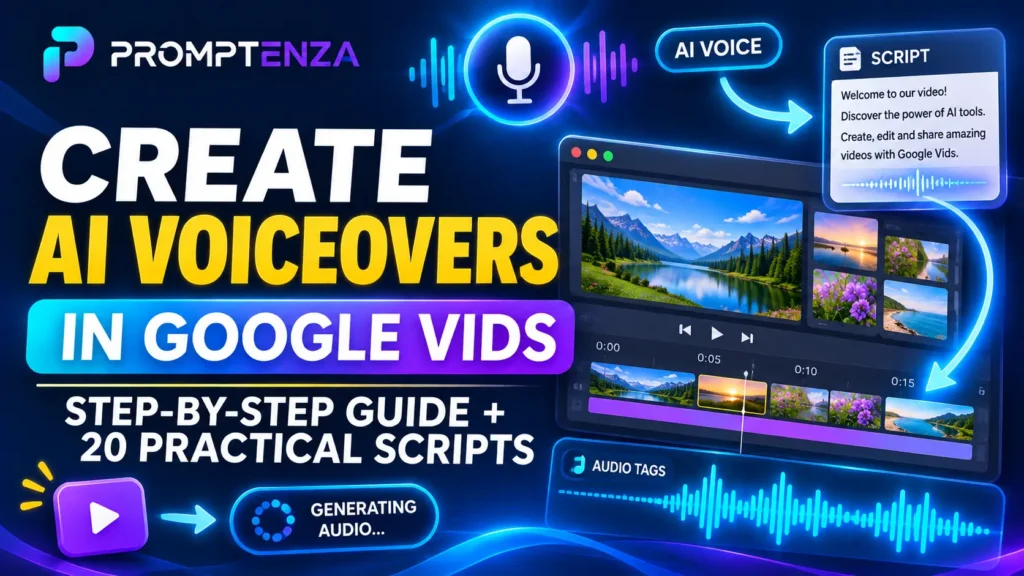
Users can add AI-generated narration to their videos, making it easier to produce tutorials, presentations and explanatory content.
3. Convert Google Slides into videos
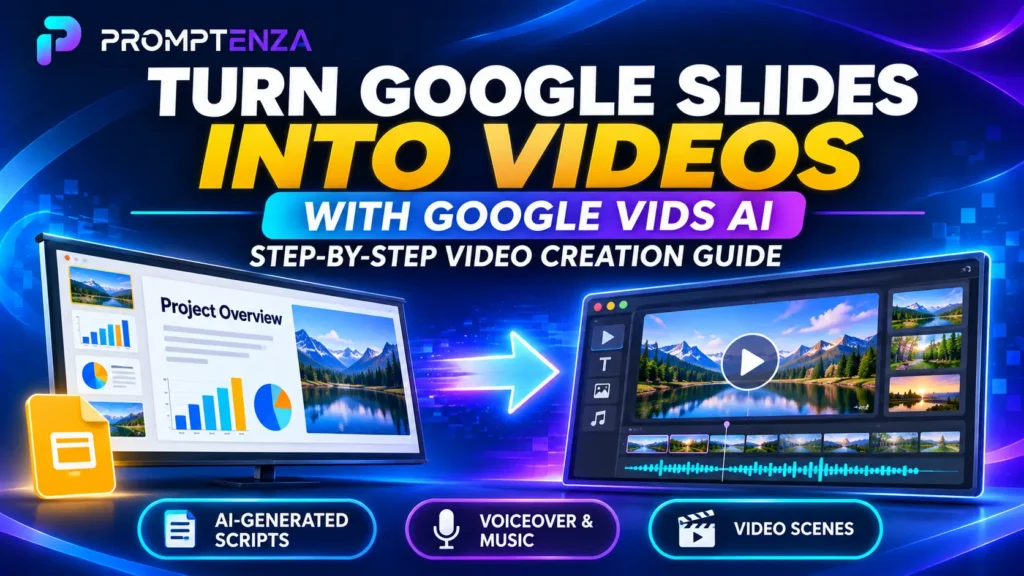
Google Vids can convert Google Slides presentations into video projects. Each slide becomes a scene, and speaker notes can be imported as scripts.
4. Screen and camera recording
Users can record their screen, camera or audio to create demonstrations, training materials and walkthroughs.
5. Captions and scene editing
Google Vids supports captions, scene-based editing, transitions and other tools for assembling a video.
6. Direct YouTube export
Google Vids supports exporting videos directly to YouTube. Videos exported this way are initially set to Private, allowing users to review them before changing their visibility.
Advantages of Google Vids
- Useful for turning presentations and documents into videos.
- AI-assisted video generation and narration.
- Integrates with Google Workspace.
- Suitable for workplace training and educational content.
- Supports landscape, portrait and square video formats.
- Supports direct YouTube export.
Disadvantages of Google Vids
- Its editing workflow is less suited to highly complex, effects-heavy projects.
- Some AI features have usage limits or require eligible plans.
- Feature availability can differ by account.
- It is currently primarily a desktop creation and editing experience.
Who Should Use Google Vids?
Google Vids is a strong choice for:
- Teachers creating educational videos.
- Businesses producing internal training materials.
- Professionals creating presentations and explainers.
- Content creators turning documents into videos.
- Teams collaborating on workplace communication.
- Beginners who want AI assistance with video creation.
Our verdict: Google Vids is particularly useful when the goal is to communicate information through video rather than spend significant time manually editing footage.
For a practical walkthrough, read our guide: Google Vids AI: How to Create Videos with AI.
2. What Is Canva?
https://www.canva.com/video-editor
Canva is an online visual design platform that includes a video editor. It allows users to create videos alongside presentations, posters, social media graphics, advertisements, documents and other visual materials.
Its biggest advantage is that video creation is part of a much larger design ecosystem.
Instead of switching between separate applications to create a video, thumbnail and promotional graphic, users can produce many of these assets within Canva.
Key Canva Video Editing Features
1. Video templates
Canva offers templates for social media videos, advertisements, presentations, product promotions and other content formats.
Users can customize the text, colors, images, clips and other design elements.
2. Drag-and-drop video editing
Canva provides a visual editing interface with a multi-layer timeline. Users can arrange clips, graphics, audio and text.
3. AI-powered video tools
Canva offers AI-assisted features such as Magic Video, which can help turn uploaded clips into social-ready videos. Other AI features include video generation and image-to-video tools, subject to availability and plan limits.
4. Automatic captions
Canva can generate captions from speech and allows users to edit caption text, timing and appearance.
5. Brand Kit
Canva Pro and eligible business plans provide brand tools that help users maintain consistent colors, fonts and visual identity.
6. Social media content creation
Canva supports video creation for platforms such as YouTube, Instagram and TikTok. Users can also create thumbnails, promotional graphics and other supporting assets.
Advantages of Canva
- Very accessible for beginners.
- Extensive templates and design resources.
- Combines video editing with graphic design.
- Useful for maintaining brand consistency.
- Supports automatic captions.
- Good for creating multiple types of marketing content.
- Offers a free plan.
Disadvantages of Canva
- Some premium templates, assets and AI features require a paid plan.
- It is not designed to replace a specialist editor for every complex video project.
- Users who primarily want detailed footage editing may prefer a dedicated video editor.
- AI usage allowances and feature availability vary by plan.
Who Should Use Canva?
Canva is a strong choice for:
- Small business owners.
- Social media managers.
- Marketing teams.
- Teachers creating visual lessons.
- Entrepreneurs creating product promotions.
- Creators who need videos, thumbnails and graphics in one platform.
Our verdict: Canva is an excellent option when video is only one part of a larger visual content strategy.
3. What Is CapCut?
CapCut is a video-editing application designed around creating and editing video content. It is particularly popular for short-form social media videos, although it can also be used for other video projects.
Unlike Canva, which combines several design tools, CapCut places greater emphasis on the video-editing process itself.
It gives creators tools to arrange footage, adjust timing, add transitions, work with audio and apply visual effects.
Key CapCut Features
1. Multi-track video editing
CapCut allows users to arrange video clips, audio, text and other elements across editing tracks.
This makes it useful for projects that require more control over timing and scene composition.
2. Automatic captions
CapCut can automatically convert spoken audio into captions. Users can review and edit the generated text and customize its appearance.
3. AI-powered editing tools
Depending on the version and account, CapCut offers AI-assisted tools for tasks such as background removal, video enhancement, script-related workflows and other editing processes.
4. Effects and transitions
CapCut provides filters, transitions, animations, effects and other creative elements that can help give videos a distinctive style.
5. Audio editing
Users can add music, sound effects, voiceovers and other audio elements to their projects.
6. Social media video creation
CapCut is particularly useful for creating vertical videos for TikTok, Instagram Reels and YouTube Shorts.
Advantages of CapCut
- Strong video-editing workflow.
- Useful multi-track editing controls.
- Automatic caption generation.
- Extensive effects and transitions.
- Useful for short-form social media content.
- Available across different devices and editing environments.
- Offers a free plan, although some features require payment.
Disadvantages of CapCut
- Some AI features and premium effects require a paid plan or credits.
- The interface can take time to learn when using more advanced editing controls.
- Feature availability can differ between mobile, desktop and web versions.
- It is less focused on presentations and general graphic design than Canva.
Who Should Use CapCut?
CapCut is a strong choice for:
- TikTok creators.
- YouTube Shorts creators.
- Instagram Reels creators.
- Video editors working with multiple clips.
- Creators who need captions and visual effects.
- People who want more direct control over video timing and editing.
Our verdict: CapCut is the strongest fit of these three when video editing itself is the main task, particularly for short-form social media content.
4. Google Vids vs Canva vs CapCut: Feature-by-Feature Comparison
Now that we have looked at each platform individually, let’s compare them across the areas that matter most.
A. AI Video Generation
AI video generation can help users create visual scenes without recording every clip themselves.
| Tool | AI video generation | Main use |
|---|---|---|
| Google Vids | Yes | Generating and editing video scenes |
| Canva | Yes | Creating video clips and social-ready designs |
| CapCut | Yes, with availability depending on version and plan | AI-assisted video creation and editing |
Google Vids is particularly interesting for users who want to build structured videos around AI-generated scenes.
Canva is useful when generated visuals need to fit into a broader branded design.
CapCut is useful when AI-assisted content needs to be combined with a more hands-on editing workflow.
Winner: Google Vids for AI-assisted, structured video creation; Canva for combining AI visuals with branded designs.
B. Video Editing Controls
Video editing controls matter when you need to adjust clip timing, combine footage, synchronize audio and create more complex sequences.
- Google Vids: Provides a scene-based workflow that is approachable for presentations, explainers and workplace videos.
- Canva: Offers a multi-layer timeline with accessible controls for arranging clips, text, audio and graphics.
- CapCut: Provides a dedicated editing workflow with multi-track controls, effects, transitions and detailed clip adjustments.
Winner: CapCut for creators who want more hands-on control over video editing.
C. Templates and Design Resources
Templates help users create videos without starting from a blank project.
Canva is particularly strong here because it combines video templates with a large library of graphics, images, stock footage and other design resources.
CapCut also offers templates and creative effects, especially for social video formats.
Google Vids provides templates and structured starting points for workplace and presentation-style videos.
Winner: Canva for the broadest design-focused workflow.
D. Captions and Voiceovers
All three platforms support tools that can help users add narration or captions, but the workflow differs.
| Tool | Captions | Voiceover |
|---|---|---|
| Google Vids | Yes | AI voiceovers |
| Canva | Automatic captions | Voice and audio tools |
| CapCut | Automatic captions | Voiceover and AI voice tools |
Google Vids is useful for narrated tutorials and presentations.
Canva is useful when captions need to match a branded visual design.
CapCut is useful for creators who want to edit captions and synchronize them with fast-moving social videos.
Winner: There is no universal winner. Choose based on whether your priority is narration, branded captions or detailed editing.
E. Social Media Content
If your main goal is producing content for TikTok, Instagram Reels and YouTube Shorts, the editing workflow matters.
Canva is useful for creating social media videos alongside thumbnails, graphics and promotional posts.
CapCut is particularly suited to editing footage, adding effects, adjusting timing and creating short-form videos.
Google Vids can also create portrait videos, but its main strength is AI-assisted storytelling and workplace-style video creation.
Winner: CapCut for editing short-form social videos; Canva for creating a complete package of branded social media assets.
F. Collaboration and Teamwork
Google Vids benefits from its Google Workspace environment, making it useful for teams already working with Google Drive and other Google applications.
Canva is also strong in collaboration, particularly for teams that need to share designs, manage brand assets and work on visual campaigns.
CapCut provides collaboration options, but the available tools depend on the platform and plan.
Winner: Google Vids and Canva, depending on whether your workflow is centered on Google Workspace or shared design projects.
5. Google Vids vs Canva vs CapCut: Pricing
Pricing is important, especially if you are creating videos regularly.
All three platforms offer ways to get started without immediately paying for a subscription. However, advanced tools, premium assets and AI usage may require payment.
| Tool | Free option | Paid options |
|---|---|---|
| Google Vids | Basic features are available with a Google Account | Eligible Google Workspace and Google AI plans provide access to additional features and usage |
| Canva | Canva Free | Canva Pro and Canva Business |
| CapCut | CapCut Free | CapCut Pro and other paid offerings, depending on availability |
Google Vids Pricing
Google Vids provides basic features through a Google Account. Access to Gemini-powered features and usage limits depends on account type and subscription.
Some AI features have monthly limits, so check Google’s current availability information before choosing a plan.
Canva Pricing
Canva offers a free plan and paid plans.
Canva Pro provides access to additional premium templates, content, design tools and AI allowances. Canva Business offers additional tools for teams and growing businesses.
CapCut Pricing
CapCut offers a free plan and paid options, including Pro. Premium features, AI credits and storage allowances depend on the selected plan.
Its displayed pricing can vary by region, billing period, account and promotional offer.
Which is cheapest?
There is no reliable universal winner because the free features and paid allowances are different.
If you only need basic video creation, try the free options first. Upgrade only when you identify a specific feature or usage limit that affects your workflow.
6. Which Video Editor Is Best for Different Types of Creators?
The best choice becomes clearer when you consider what you actually want to create.
| Your goal | Recommended tool | Why |
|---|---|---|
| Create AI-assisted business videos | Google Vids | AI-assisted scenes, narration and structured workflows |
| Turn presentations into videos | Google Vids | Google Slides integration |
| Create marketing videos | Canva | Templates, design resources and brand tools |
| Create product promotional videos | Canva | Video and graphic design in one platform |
| Edit TikTok videos | CapCut | Effects, captions and editing controls |
| Create Instagram Reels | CapCut | Strong short-form editing workflow |
| Create YouTube Shorts | CapCut | More hands-on editing for short videos |
| Create educational presentations | Google Vids | Structured scenes and narration |
| Create thumbnails and social graphics | Canva | Broad visual design tools |
| Edit multiple video clips | CapCut | Multi-track editing workflow |
| Collaborate on workplace videos | Google Vids | Google Workspace integration |
7. Can You Use Google Vids, Canva and CapCut Together?
Yes. You do not have to choose only one video editor.
In fact, combining the three platforms can create a useful content-production workflow.
For example, imagine you want to publish a product video for a small business.
You could use:
Step 1: Google Vids for AI-assisted video creation
Use Google Vids to generate video scenes, create narration and assemble an initial video concept.
Step 2: Canva for branding
Use Canva to prepare branded graphics, promotional text, product information and supporting visual assets.
Step 3: CapCut for final editing
Import the footage into CapCut if you need more detailed clip adjustments, effects, audio synchronization or short-form editing.
Step 4: Export and publish
Export the finished video in the appropriate format and review it on the platform where you intend to publish it.
This workflow is not necessary for every project. A simple video may require only one application. However, combining tools can be useful when a project needs AI generation, branding and detailed editing.
8. How to Choose the Right Video Editor
Before committing to a platform, ask yourself these five questions:
1. What type of video do I want to create?
If you are creating presentations and tutorials, Google Vids is worth considering.
If you are creating branded promotional videos, Canva may be more suitable.
If you are editing social media footage, CapCut is a strong option.
2. Do I need AI video generation?
If generating video scenes from prompts is important, compare the current AI tools and usage allowances in Google Vids, Canva and CapCut.
Do not assume that every AI feature is included in a free plan.
3. How much editing control do I need?
For simple scene-based videos, Google Vids may be enough.
For visual marketing content, Canva provides an accessible editing experience.
For more detailed footage editing, CapCut offers a dedicated multi-track workflow.
4. Do I need templates and branding?
Canva is particularly useful when you need consistent fonts, colors, logos and layouts across multiple pieces of content.
5. What is my budget?
Start with the free versions and test the actual features you need. Compare the paid plans only when you reach a meaningful limitation.
9. Frequently Asked Questions
Is Google Vids better than Canva?
Not for every task. Google Vids is better suited to AI-assisted workplace videos, tutorials and presentations. Canva is more suitable for branded visual content, marketing materials and videos that are part of a wider design project.
Is CapCut better than Canva for video editing?
CapCut is generally a stronger choice for dedicated video editing, particularly when you need detailed clip adjustments, effects, transitions and multi-track controls. Canva is better when you want to combine video editing with graphic design and branding.
Which is better for YouTube Shorts: Google Vids, Canva or CapCut?
CapCut is a strong choice for editing YouTube Shorts because of its dedicated video-editing tools. Canva is useful for creating simple Shorts and supporting graphics. Google Vids can also create portrait videos, especially when AI-assisted storytelling is important.
Which tool is best for beginners?
All three are accessible to beginners, but they suit different starting points. Canva is a good starting point for visual design, Google Vids for structured AI-assisted videos, and CapCut for learning video editing.
Can I use Google Vids, Canva and CapCut for free?
All three offer free ways to get started. However, some AI features, premium assets, templates and advanced tools may require paid plans or have usage limits.
Can Google Vids replace CapCut?
Google Vids can handle many straightforward video-creation tasks, but it is not a direct replacement for every CapCut editing workflow. If you rely on detailed footage editing, effects and multi-track control, CapCut may be more suitable.
Can Canva replace Google Vids?
Canva can create presentations, marketing videos and other visual content, but Google Vids has a more direct connection to Google Workspace and its Slides-to-video workflow. The better option depends on the type of project.
Which video editor has the best AI features?
There is no single winner across every AI task. Google Vids is useful for AI-assisted video scenes and narration, Canva combines AI tools with visual design, and CapCut provides AI-assisted editing features. Compare the specific feature you need rather than judging the tools by the number of AI features they advertise.
10. Final Verdict: Google Vids vs Canva vs CapCut
Google Vids, Canva and CapCut are all useful video creation tools, but they are not interchangeable.
Choose Google Vids if you want to:
- Create AI-assisted videos.
- Turn Google Slides into video presentations.
- Produce tutorials and workplace training videos.
- Add AI voiceovers and build structured video scenes.
Choose Canva if you want to:
- Create branded marketing videos.
- Use templates and visual design resources.
- Produce videos, thumbnails and social graphics together.
- Maintain a consistent visual identity.
Choose CapCut if you want to:
- Edit TikTok videos, Reels and Shorts.
- Work with multiple video and audio tracks.
- Add effects, transitions and captions.
- Have more hands-on control over your footage.
Our Overall Recommendation
There is no single best video editor for everyone.
For AI-assisted business videos and presentations, start with Google Vids. For branded marketing and visual content, start with Canva. For short-form video editing and creative control, start with CapCut.
The smartest approach is to test the free versions with the same video project. You will quickly discover which workflow is easiest for your needs.
Related Guides from Promptenza
Want to learn more about AI video creation and prompting? Explore these guides:
- Google Vids AI: How to Create Videos with AI
- 25+ Google Vids AI Prompts for Marketing, Social Media and Product Videos
- How to Create YouTube Shorts with Google Vids AI
- How to Turn Google Docs and PDFs into Videos with Google Vids
- How to Create AI Voiceovers in Google Vids
- Prompt Anatomy: Parts of an Effective AI Prompt
Learn how to write better prompts, explore AI tools and create more effective content with Promptenza.