Google Gemini for Students: New Features and Changes in 2026
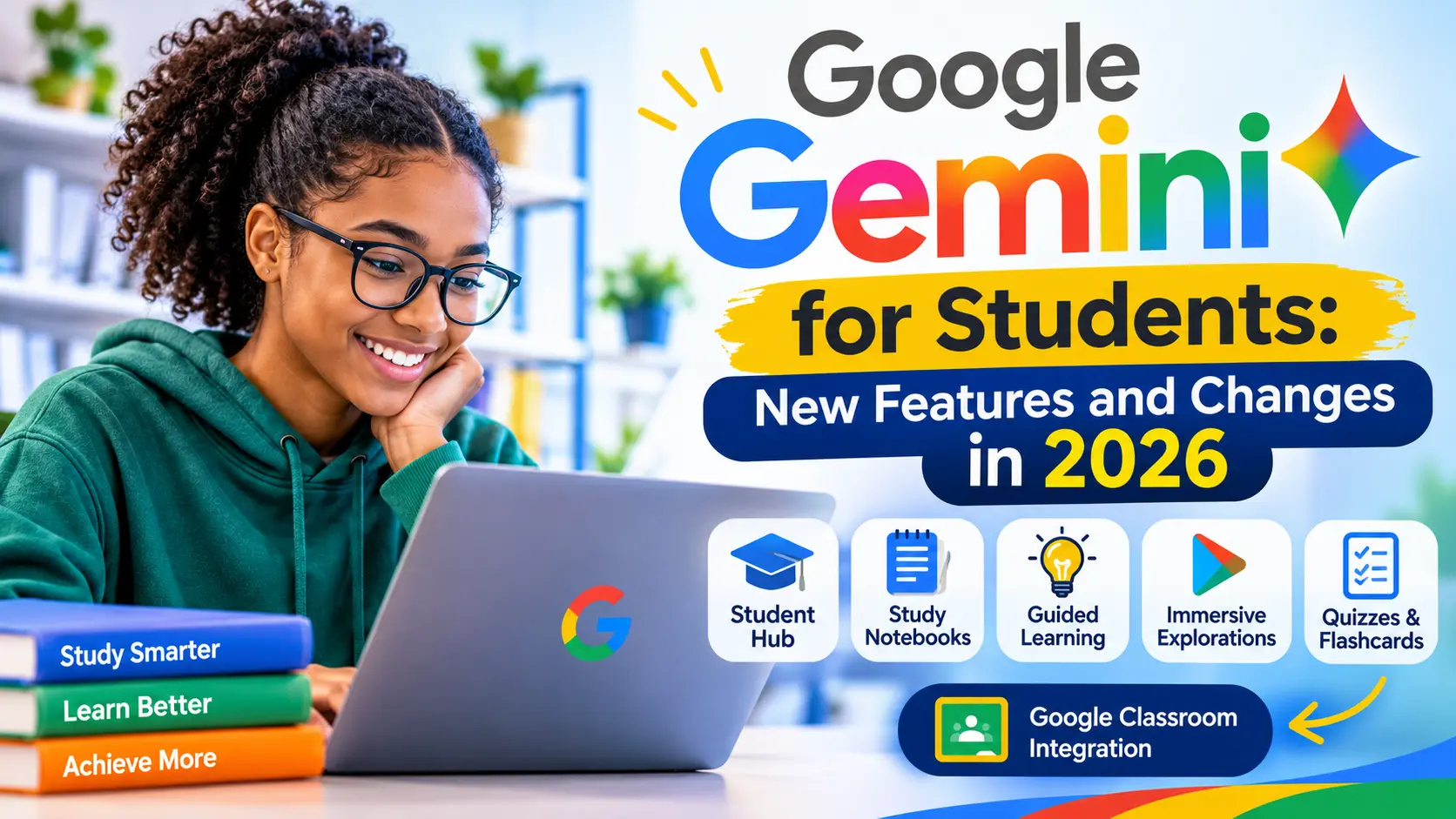
Google is expanding Gemini with new AI-powered learning features designed to help students understand difficult subjects, organize class materials, prepare for examinations and study more effectively.
The latest updates include a dedicated Student Hub, personalized Study Notebooks, Guided Learning, interactive visual explorations, AI-generated quizzes and improved connections with Google Classroom.
These changes are transforming Gemini from a chatbot that simply answers questions into a more comprehensive AI study companion. Students can upload their notes, create personalized learning plans, test their knowledge and explore complicated subjects through interactive experiences.
In this guide, we explore the latest Google Gemini features for students in 2026, explain how they work and share practical prompts students can use for studying.
Quick Answer: What Is New in Google Gemini for Students?
Google Gemini has introduced several learning-focused features and improvements in 2026:
- Gemini Student Hub: A dedicated space for accessing learning and study tools.
- Study Notebooks: Personalized learning spaces built around course materials and learning goals.
- Guided Learning: Step-by-step explanations that help students understand difficult topics.
- Immersive Explorations: Interactive visual experiences for exploring subjects and complex concepts.
- AI-generated quizzes and flashcards: Tools for testing knowledge and reviewing class materials.
- Google Classroom integration: More ways to access Gemini-powered learning assistance through school accounts.
- Gemini Notebook improvements: Additional ways to create study guides, quizzes, flashcards and other learning resources.
Feature availability depends on the student’s country, age, account type, device and school administrator settings.
1. Gemini Now Has a Dedicated Student Hub
One of Google’s major education updates is the introduction of a dedicated Student Hub inside the Gemini experience.
The Student Hub brings several learning tools together in one place, making it easier for students to organize their study activities and access available features.
Instead of searching through different tools, students can use the hub as a starting point for activities such as creating Study Notebooks, generating flashcards and taking practice quizzes.
What can students do in the Student Hub?
Students can use the hub to:
- Start a Study Notebook for a particular subject.
- Create flashcards from learning materials.
- Generate practice quizzes.
- Explore interactive learning resources.
- Organize course-related activities.
- Access additional study tools as Google introduces them.
How to access the Gemini Student Hub
- Visit Gemini.
- Sign in with your Google account.
- Look for Students in the Gemini app menu.
- Alternatively, visit gemini.google.com/students.
- Explore the study tools available to your account.
The Student Hub is also available to eligible Google Workspace users, including users with school-managed accounts, subject to the relevant administrator settings.
This is particularly useful for students who want one place to access their AI-powered learning resources.
2. Study Notebooks Create Personalized Learning Plans
Study Notebooks are among the most important additions to Gemini’s learning experience.
Rather than asking questions in separate conversations, students can create a dedicated learning space around a particular subject, course or examination.
For example, a student preparing for a biology examination can upload class notes, reading materials or a syllabus. Gemini can use those materials to assess what the student understands and identify topics that need more attention.
How Study Notebooks work
The process generally follows four stages:
Step 1: Upload your learning materials
Add relevant notes, course documents, reading materials or a syllabus.
Step 2: Complete a diagnostic quiz
Gemini can generate an initial assessment to identify areas of strength and topics that require more practice.
Step 3: Follow personalized lessons
The notebook creates learning activities based on the student’s learning goal and assessment results.
Step 4: Track your progress
Follow-up quizzes help measure understanding and update recommendations as the student progresses.
Example: Creating a biology Study Notebook
Imagine a student preparing for a biology examination covering photosynthesis, respiration, plant cells and ecosystems.
The student can upload relevant class notes and use this prompt:
Prompt:
“Use my uploaded biology notes to create a personalized study plan. First, assess my understanding of each topic with a diagnostic quiz. Identify the areas where I need more practice, then organize the topics into short lessons. Include explanations, examples and practice questions. Base the lessons on my uploaded materials.”
This approach turns ordinary class notes into a more structured revision resource.
Study Notebooks also connect with Google’s broader NotebookLM learning experience, allowing students to work with their sources and create additional study materials.
3. Guided Learning Helps Students Understand Difficult Topics
Guided Learning takes a different approach from simply asking Gemini for an answer.
Instead of immediately providing a solution, it helps students work through a topic using explanations, questions and step-by-step guidance.
For example, a student struggling with a mathematics problem can request an explanation of the method, work through an example and receive hints when necessary.
How to use Guided Learning
Depending on the account and interface, students can access Guided Learning through available Gemini learning tools or Gemini Notebook.
A typical workflow is:
- Open Gemini or the relevant learning notebook.
- Select the Guided Learning option, if available.
- Enter the topic or question you want to study.
- Upload relevant learning materials when necessary.
- Follow the explanations and questions.
- Practise the concept using the activities provided.
Example prompt:
“Help me understand quadratic equations. Start by checking what I already know. Explain the basic concept in simple language, show me a worked example and then give me a similar problem to solve. If I make a mistake, give me a hint before showing the solution.”
Guided Learning is particularly useful for mathematics, science, history, language learning and other subjects that require students to understand concepts rather than memorize isolated facts.
For more guidance on writing effective AI instructions, read Promptenza’s guide to Prompt Engineering.
4. Immersive Explorations Make Learning More Visual
Google introduced Immersive Explorations in the Gemini app in October 2026.
This feature gives students an interactive and visual way to explore subjects. Rather than relying entirely on written explanations, learners can explore visual scenes and move through different layers of a topic.
For example, students can explore:
- The solar system and space.
- Scientific systems and processes.
- Engineering and mechanical systems.
- Historical trade routes.
- Physical phenomena such as lightning.
- Topics involving microscopic structures.
Imagine studying the solar system. Instead of only reading about planets, students can explore a visual experience and investigate different elements of the subject.
How to access Immersive Explorations
- Open the Gemini app or visit the Gemini website.
- Select Students in the app menu, or visit the Immersive Explorations page.
- Choose an available interactive topic.
- Explore the visual elements.
- Select individual layers or nodes to learn more.
Students can also visit:
Google Gemini Immersive Explorations
Google announced the feature on October 28, 2026. Its initial language availability includes English, Indonesian, Hindi, Brazilian Portuguese, French and Simplified Chinese. Users in other languages may receive an English-only experience.
5. Gemini Can Generate Quizzes and Flashcards from Class Materials
Students often spend considerable time creating revision questions and flashcards from their notes.
Gemini can simplify this process by turning uploaded learning materials into practice activities.
For example, a student can upload a document containing history notes and ask Gemini to create questions based on the information.
Types of study materials students can create
| Study tool | How students can use it |
|---|---|
| Practice quizzes | Test understanding before an examination |
| Flashcards | Review definitions, dates and important concepts |
| Study guides | Organize important information into revision notes |
| Multiple-choice questions | Practise examination-style questions |
| Short-answer questions | Develop deeper understanding |
| Fill-in-the-blank questions | Test recall of key information |
Example prompt: Create a practice quiz
“Use my uploaded geography notes to create a 20-question practice quiz. Include multiple-choice, short-answer and fill-in-the-blank questions. Cover the most important topics in the document. Do not show the answers immediately. After I complete the quiz, mark my responses and explain any mistakes.”
Example prompt: Create flashcards
“Turn my uploaded chemistry notes into 30 revision flashcards. Put a question on the front and a clear explanation on the back. Focus on important definitions, chemical processes and concepts that require careful understanding.”
These tools support active recall, a learning technique in which students try to retrieve information from memory instead of simply rereading their notes.
6. Gemini Notebook Adds More Ways to Review Learning Materials
Google has also continued improving its Notebook experience with additional ways to transform learning materials into study resources.
Students can use their uploaded sources to create different types of learning content, including:
- Study guides.
- Flashcards.
- Practice quizzes.
- Visual summaries.
- Infographics.
- Audio and video learning overviews, where supported.
Short Video Overviews
Video Overviews provide a way to turn source materials into short video explanations.
Students can use them to review a topic, understand the main ideas in a document or get a quick introduction before studying more deeply.
Interactive learning resources
Gemini Notebook can also help students transform uploaded materials into visual and interactive learning resources.
For example, students can use their notes to create infographics, visual summaries and other study materials.
Expanded quiz formats
Additional quiz formats include:
- Short-answer questions.
- Multiple-select questions.
- Fill-in-the-blank questions.
The availability and usage limits of these tools depend on the account and applicable Google plan.
For more information, visit Google’s Gemini Notebook education page.
7. Gemini Is Becoming More Connected to Google Classroom
Google is also expanding the relationship between Gemini and Google Classroom.
The Classroom experience allows eligible students to access AI-powered learning assistance through their school environment.
Depending on the tools enabled by the school, students can use Gemini to:
- Create study guides.
- Generate practice quizzes.
- Make flashcards.
- Understand difficult topics through Guided Learning.
- Work with course materials.
- Prepare for assessments.
This connection can make AI assistance more relevant to what students are actually learning in class.
However, access is controlled by the school’s Google Workspace settings. Students may not see every feature if their school administrator has not enabled it.
For official information, visit Google’s education updates.
8. Gemini Live Helps Students Discuss and Practise What They Learn
Gemini Live provides a conversational way to interact with Gemini using voice.
Rather than typing every question, students can discuss a subject, ask follow-up questions and request further explanations.
Depending on the device and available permissions, Gemini Live can also support camera-based interactions.
Students can use it to:
- Practise explaining a science topic aloud.
- Discuss difficult concepts.
- Practise a new language.
- Prepare for an oral presentation.
- Ask questions about learning materials.
Example prompt:
“Act as my study tutor. I am preparing for a biology test on the human digestive system. Ask me one question at a time. Let me explain my answer, then tell me what I understood correctly and what I need to improve.”
Gemini Live is particularly useful when students want a conversational learning experience instead of a long written response.
9. Google Is Expanding Student Subscription Offers
Another important development is Google’s student-focused subscription offers.
Google has announced promotional Google AI plans for eligible college and university students in selected countries.
Depending on the country and offer, benefits may include:
- Higher Gemini usage limits.
- Additional cloud storage.
- Access to more advanced AI features.
- Expanded use of study tools.
- Additional creative and productivity features.
However, these offers are not automatically available to every student.
Eligibility can depend on:
- Country or region.
- Age.
- University or college enrollment.
- Student verification.
- Offer deadlines.
- The Google account being used.
Important for students outside the United States: Do not assume that a US student promotion is available in your country. Check the offer page for your region and read the subscription terms before signing up.
Visit Google’s official Gemini for Students page to check the latest offers and eligibility requirements.
10. How Students Can Use Gemini More Effectively
Having access to AI tools does not automatically improve learning. The way students use them matters.
Here are practical ways to incorporate Gemini into a study routine.
| Study activity | How to use Gemini |
|---|---|
| Preparing for an examination | Create a study plan and diagnostic quiz |
| Understanding difficult topics | Request step-by-step explanations |
| Reviewing class notes | Generate summaries and flashcards |
| Practising mathematics | Request hints and worked examples |
| Learning science | Explore visual explanations and diagrams |
| Improving writing | Request feedback on clarity and grammar |
| Preparing presentations | Practise explaining ideas with Gemini Live |
| Revising after a lesson | Generate a quiz based on the lesson materials |
5 Practical Gemini Prompts for Students
The following prompts can help students get more useful results from Gemini.
1. Create a personalized study timetable
“Help me organize my revision for the next seven days. My subjects are mathematics, biology, chemistry and English. Create a realistic timetable with short study sessions, revision periods and practice questions. Ask me about my available study time before finalizing the schedule.”
2. Explain a difficult topic
“Explain [TOPIC] in simple language suitable for a secondary school student. Start with the basic idea, use everyday examples, explain the important terms and finish with five questions to test my understanding.”
3. Generate examination practice questions
“Create 15 practice questions on [SUBJECT OR TOPIC]. Include a mixture of easy, intermediate and challenging questions. Do not reveal the answers until I have attempted them. Afterward, explain the correct answers and identify the topics I should revise.”
4. Turn notes into revision materials
“Use my uploaded notes to create a structured revision guide. Organize the information under clear headings, highlight important definitions, explain difficult concepts and create flashcards for the key facts. Do not introduce information that contradicts my source material.”
5. Improve an essay
“Review my essay for grammar, clarity, organization and strength of argument. Identify areas that need improvement and explain why. Suggest ways to make my writing clearer while preserving my original ideas and writing style.”
Students who want to explore more AI instructions can also visit the Promptenza ChatGPT Prompts Library for examples of structured prompts that can be adapted to other AI assistants.
11. Is Google Gemini for Students Free?
Gemini offers free access options, but not every student feature or subscription benefit is necessarily free.
Some learning tools are available through standard Gemini access, while higher usage limits, additional storage and certain advanced features may require a paid plan or an eligible student promotion.
Google Workspace for Education accounts may also have different access arrangements controlled by the school.
Before assuming a feature is included, check:
- Whether you are using a personal or school-managed Google account.
- Whether the feature is available in your country.
- Whether your age meets the feature’s requirements.
- Whether your school administrator has enabled the tool.
- Whether the feature requires a particular Google AI plan.
You can review Google’s official Gemini release notes for product changes and availability information.
12. Important Things Students Should Know Before Using Gemini
Although Gemini can be a useful study assistant, students should use it responsibly.
AI responses can contain mistakes. Always verify important facts, calculations, quotations and explanations against textbooks, teachers’ instructions and reliable sources.
Do not rely on AI to complete all your learning. Try solving problems yourself before asking Gemini for help. Use explanations and hints to improve your understanding.
Protect personal information. Avoid uploading passwords, personal identification documents, confidential school records or other sensitive information.
Follow your school’s academic rules. If an assignment requires independent work, do not submit AI-generated material as your own. Use Gemini in ways permitted by your teacher.
Check feature availability. Some tools are restricted by age, location, account type or school administrator settings.
The best way to use Gemini is as a learning assistant that supports your own effort, not as a replacement for studying.
Frequently Asked Questions About Google Gemini for Students
1. What is the Gemini Student Hub?
The Gemini Student Hub is a dedicated area in the Gemini experience that brings together learning tools such as Study Notebooks, quizzes, flashcards and other study resources.
2. What are Gemini Study Notebooks?
Study Notebooks are personalized learning spaces that use students’ course materials and assessment results to create structured lessons, identify knowledge gaps and track learning progress.
3. Can Gemini create quizzes from class notes?
Yes. Students can provide relevant learning materials and ask Gemini to generate practice questions, including multiple-choice, short-answer and other quiz formats.
4. What is Guided Learning in Gemini?
Guided Learning is an interactive learning experience that helps students understand subjects through explanations, questions, hints and step-by-step guidance.
5. Can students use Gemini in Google Classroom?
Eligible students can access Gemini learning tools through Google Classroom. Available tools depend on the school’s Google Workspace settings and permissions.
6. Is Gemini free for students?
Some Gemini features are available without a paid subscription. Google also offers student promotions in selected countries, subject to eligibility requirements and offer terms.
7. Can Gemini help students prepare for examinations?
Yes. Students can use it to create study plans, generate practice questions, explain difficult topics, make flashcards and review course materials.
8. Is Gemini available on mobile devices?
Many Gemini learning tools are available on mobile, although individual features may have different rollout schedules or device requirements. Some experiences may work best on a computer.
9. Can Gemini replace a teacher?
No. Gemini can explain concepts and provide practice activities, but it cannot replace a teacher’s guidance, classroom instruction or professional judgment.
10. Where can students find the latest Gemini features?
Students can visit Gemini, the official Gemini release notes and Google’s education announcements to learn about new features and availability.
Test Your Knowledge: Google Gemini for Students
1. What is the main purpose of the Gemini Student Hub?
A. To replace Google Classroom
B. To bring student learning tools together in one place
C. To create social media accounts
D. To replace school textbooks
2. What do Study Notebooks use to personalize learning?
A. Only random internet articles
B. Students’ course materials and assessment results
C. Social media posts
D. Entertainment videos
3. Which learning experience provides step-by-step guidance?
A. Guided Learning
B. Google Photos
C. Google Maps
D. Google Drive
4. What can students create from their class notes using Gemini?
A. Only photographs
B. Flashcards and practice quizzes
C. Music playlists
D. Social media advertisements
5. Why should students verify Gemini’s answers?
A. AI can sometimes produce inaccurate information
B. Gemini cannot explain subjects
C. All AI responses are automatically incorrect
D. Gemini only works with mathematics
Answers: 1-B, 2-B, 3-A, 4-B, 5-A.
Final Thoughts
Google Gemini is becoming a more comprehensive learning platform for students. The introduction of the Student Hub, Study Notebooks, Guided Learning, Immersive Explorations and expanded Notebook features shows Google’s growing focus on personalized and interactive education.
The biggest change is the shift from simply asking an AI chatbot questions to using AI tools that can help organize learning materials, identify knowledge gaps, create practice activities and guide students through difficult subjects.
For students, the most valuable approach is to use these features to understand lessons, practise independently and prepare more effectively for examinations.
As Google continues expanding its education tools, Gemini could become an increasingly useful part of the modern study routine.