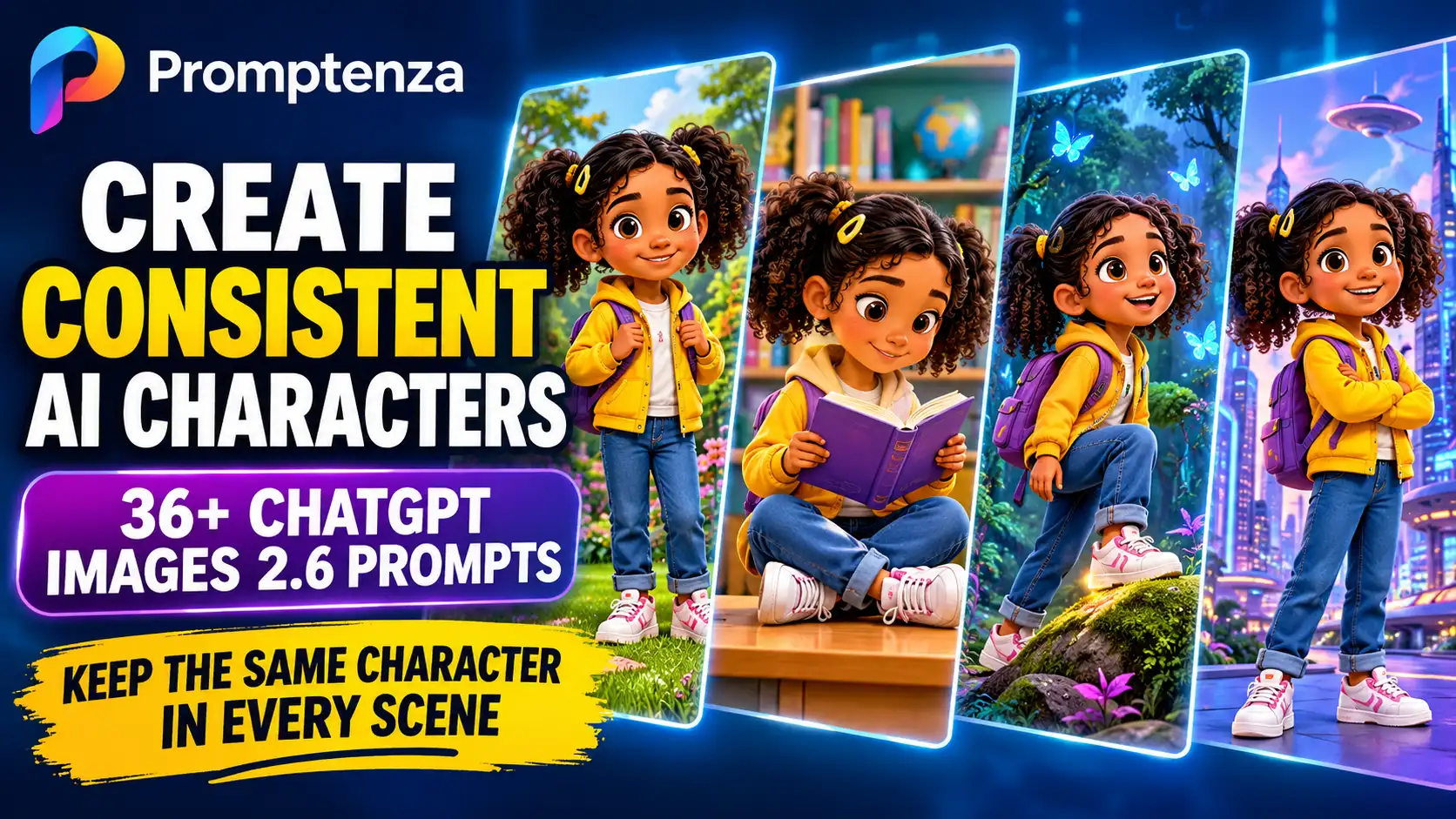
36+ ChatGPT Images 2.6 Prompts for Consistent Characters
Creating an AI-generated character is relatively easy. The challenge is making that same character look recognizable across different images, outfits, poses, backgrounds and scenes.
ChatGPT Images 2.6 makes this process easier by improving its ability to preserve character details during image editing. You can establish an original character, reuse its reference image and create new scenes while instructing ChatGPT to retain important visual features.
In this guide, you will find 36 ChatGPT Images 2.6 prompts for consistent characters, including prompts for children’s book illustrations, cartoon characters, comics, mascots, storyboards, fantasy characters and social media content.
You will also learn how to create a reusable character reference, maintain visual consistency across multiple generations and correct images when a character starts looking different.
Quick Answer: How Do You Keep Characters Consistent in ChatGPT Images 2.6?
To maintain character consistency in ChatGPT Images 2.6:
- Create an original character with clearly defined facial features, hairstyle, clothing, colours and proportions.
- Generate a reference image that clearly shows the character.
- Reuse that reference image when creating new scenes.
- Repeat the character’s defining details in your prompts.
- Describe what should change and what must remain unchanged.
- Make one major change at a time and review the result.
The most important tip: Do not rely entirely on text descriptions. Use the same approved character reference image whenever possible.
What Is Character Consistency in AI Image Generation?
Character consistency means keeping the defining appearance of a character recognizable across multiple AI-generated images.
For example, imagine creating a cartoon girl with:
- Curly black hair.
- Round glasses.
- A yellow jacket.
- A small beauty mark on her left cheek.
- Brown eyes.
- A distinctive cartoon illustration style.
If you generate five different illustrations, those features should remain recognizable even when the character changes location, pose or facial expression.
Without clear instructions and a reusable reference, an AI image generator may change the hairstyle, clothing, facial features or proportions between generations.
ChatGPT Images 2.6 is designed to preserve important visual details more effectively across editing rounds, making it useful for creators developing characters for longer visual projects.
How to Create a Consistent Character with ChatGPT Images 2.6
Before using the prompts below, follow this workflow.
Step 1: Create Your Original Character
Start by describing the character’s appearance in detail.
Include:
- Character name.
- Age or general age category.
- Facial features.
- Skin tone, where relevant to your fictional design.
- Hairstyle and hair colour.
- Eye colour.
- Clothing and accessories.
- Body proportions and distinctive features.
- Illustration or photography style.
Avoid vague descriptions such as “a beautiful cartoon girl.” Specific details give the model a clearer visual target.
Step 2: Generate a Character Reference Image
Use this prompt to establish your character.
Character Reference Prompt
Create an original fictional character named Maya for a children’s storybook.
Character appearance:
- A cheerful young cartoon girl.
- Warm brown skin.
- Large expressive brown eyes.
- Two neatly styled curly black pigtails.
- A small yellow hair clip above her right ear.
- A bright yellow jacket.
- Blue denim trousers.
- White trainers with pink details.
- A small purple backpack.
Character design: Friendly rounded facial features, consistent proportions, expressive eyes and a warm, curious personality.
Art style: High-quality 3D animated storybook illustration, soft textures, colourful lighting and polished character design.
Composition: Show the character standing in a neutral pose, facing slightly toward the camera. Make her entire outfit visible.
This image will serve as the permanent visual reference for future illustrations. Keep the character design clear and recognizable.
No text, no watermark, no additional characters.
Save the generated image. You will use it as your main character reference.
Step 3: Reuse the Character Reference
When creating another image, upload or reuse the approved reference image and explain what you want to change.
For example:
Use the uploaded image as the exact character reference for Maya. Create a new illustration showing her reading a book beneath a large tree in a colourful garden.
Preserve her original facial features, warm brown skin, curly black pigtails, yellow hair clip, yellow jacket, blue denim trousers and purple backpack.
Change only her pose and environment. Do not redesign the character.
Step 4: Keep Editing One Element at a Time
If the character looks different, do not immediately rewrite the entire prompt.
Instead, identify the incorrect feature.
For example:
Correct the character’s hairstyle to match the original reference. Restore the two curly black pigtails and the small yellow hair clip above her right ear. Keep the face, outfit, pose, background, lighting and illustration style unchanged.
This makes it easier to identify and correct unwanted changes.
36 ChatGPT Images 2.6 Prompts for Consistent Characters
The following prompts are ready to copy and customize. For the best results, use your approved character reference image with prompts that ask for new scenes or edits.
Category 1: Create and Establish Consistent Characters
1. Create a Reusable Cartoon Character
Create an original cartoon character named Alex. He is a friendly young explorer with short curly dark hair, expressive brown eyes, a green hoodie, beige trousers, white trainers and a small orange backpack.
Use a polished 3D animated illustration style with soft lighting, appealing proportions and detailed textures.
Show the character standing in a neutral pose with his full outfit visible. Use a simple background.
This is the master character design for a series of future illustrations. Keep every defining feature clearly visible and consistent.
2. Create a Character Design Sheet
Using the uploaded character reference, create a professional character design sheet.
Show the same character in four views: front view, side view, back view and three-quarter view.
Preserve the exact facial features, hairstyle, clothing, accessories, body proportions and colour palette from the reference.
Arrange all four views neatly against a plain background. Maintain identical character proportions across every view.
Do not redesign or reinterpret the character.
3. Create Multiple Facial Expressions
Use the uploaded reference image as the exact character design.
Create a facial expression sheet showing the same character with six expressions: happiness, surprise, sadness, curiosity, excitement and confusion.
Preserve the original facial structure, hairstyle, eye colour and distinctive features.
Show only changes in facial expression. Keep the character’s identity and illustration style consistent.
4. Create Different Poses
Use the uploaded image as the character reference.
Create a pose sheet showing the same character standing, sitting, walking, waving and jumping.
Preserve the character’s face, hairstyle, outfit, accessories and proportions in every pose.
Use a clean background and consistent lighting. Do not introduce new clothing or redesign any part of the character.
5. Create a Consistent Character in 2D and 3D
Use the uploaded character as the design reference.
Create two interpretations of the same original character: one in a polished 2D animated illustration style and another in a high-quality 3D animated style.
Preserve the same facial structure, hairstyle, clothing colours, accessories and recognizable features.
The artistic rendering may change, but the character’s identity must remain recognizable.
6. Create a Character Colour Reference Sheet
Create a professional colour reference sheet for the character in the uploaded image.
Identify and visually display the character’s main clothing colours, hair colour, eye colour and accessory colours using clean colour swatches.
Include a full-body illustration of the original character beside the swatches.
Do not change the character’s design or introduce new colours into the outfit.
Category 2: Keep Characters Consistent Across Different Scenes
7. Change the Background Without Changing the Character
Use the uploaded image as the exact character reference.
Place the same character in a beautiful green forest with tall trees, colourful flowers and soft sunlight.
Preserve the character’s facial features, hairstyle, outfit, accessories, body proportions and original illustration style.
Change only the environment. Do not redesign the character.
8. Move the Character to a City
Recreate the same character from the reference image in a modern city street.
Show the character walking past colourful buildings, shops and street decorations.
Keep the original face, hairstyle, clothing, accessories and proportions exactly consistent with the reference.
Maintain the same illustration style and character design. Change only the setting and pose.
9. Place the Character on a Beach
Use the uploaded reference image to recreate the same character on a sunny tropical beach.
Show the character building a sandcastle near the shoreline.
Preserve the original facial features, hairstyle, outfit colours and recognizable character design.
Keep the illustration style consistent. Do not change the character’s identity.
10. Create a Winter Scene
Create a winter illustration featuring the same character from the uploaded reference.
Show the character standing in a snowy village surrounded by snow-covered trees and small colourful houses.
Preserve the character’s face, hairstyle, proportions and original design.
If additional winter clothing is necessary, layer a winter coat over the existing outfit while keeping the original clothing recognizably consistent.
11. Create a Classroom Scene
Use the uploaded character reference to create a children’s storybook illustration of the same character sitting in a classroom.
Show the character writing in a notebook at a wooden desk. Include a chalkboard, bookshelves and colourful classroom decorations.
Preserve the original facial features, hairstyle, outfit and proportions.
Keep the character’s identity and illustration style unchanged.
12. Create a Family-Friendly Adventure Scene
Recreate the same character from the reference image exploring a mysterious tropical garden.
Show the character holding a small map and looking curiously at colourful plants, butterflies and unusual flowers.
Preserve the original character design, face, hairstyle, clothing and accessories.
Use cinematic storybook lighting and a detailed environment without changing the character.
Category 3: Change Clothing, Pose and Appearance Carefully
13. Change the Character’s Outfit
Use the uploaded image as the exact character reference.
Change only the character’s clothing to a red winter jacket, dark trousers and brown boots.
Preserve the original face, facial features, hairstyle, eye colour, skin tone, body proportions and identity.
Keep the character’s original illustration style and pose. Do not modify anything except the clothing.
14. Create a Formal Outfit
Recreate the same character from the reference image wearing a smart formal outfit consisting of a navy blazer, white shirt, dark trousers and polished shoes.
Preserve the original face, hairstyle, facial features, body proportions and recognizable identity.
Use the same illustration style and maintain natural clothing details.
15. Change the Character’s Pose
Use the uploaded image as the character reference.
Change the character’s pose so that they are waving with one hand and smiling toward the camera.
Preserve the original facial features, hairstyle, clothing, accessories, proportions and overall character design.
Change only the pose and expression.
16. Create a Running Character
Show the same character from the reference image running through a colourful park.
Use a dynamic running pose with natural movement in the arms and legs.
Preserve the exact character design, hairstyle, face, clothing colours, accessories and proportions.
Maintain the same art style and recognizable identity.
17. Create a Character Holding an Object
Use the uploaded reference image to recreate the same character holding a small blue gift box.
Keep the original face, hairstyle, clothing, body proportions and illustration style unchanged.
Make the gift box fit naturally into the character’s hands.
Do not alter any other character details.
18. Create a Character with Different Accessories
Use the uploaded character reference.
Add a small red scarf and a pair of round glasses to the character.
Preserve the original face, hairstyle, clothing, proportions and identity.
Do not change the character’s illustration style or other accessories. Make the new additions look natural.
Category 4: Children’s Books, Comics and Storytelling
19. Create a Children’s Storybook Character
Create a colourful children’s storybook illustration featuring the same character from the uploaded reference image.
Show the character helping a small rabbit find its way home in a magical forest.
Preserve the character’s exact facial features, hairstyle, clothing, accessories and proportions.
Use a warm watercolor storybook style with soft outlines, gentle lighting and an inviting atmosphere.
20. Create a Three-Scene Storyboard
Use the uploaded character reference to create a three-scene storyboard.
Scene 1: The character discovers a mysterious golden key.
Scene 2: The character follows a path through an enchanted forest.
Scene 3: The character discovers a beautiful hidden garden.
Keep the same character design, face, hairstyle, clothing and proportions in all three scenes.
Arrange the scenes in a clear left-to-right sequence. Do not redesign the character between panels.
21. Create a Four-Panel Comic
Create a four-panel comic strip using the same character from the uploaded reference image.
Panel 1: The character finds a mysterious box.
Panel 2: The character carefully opens it.
Panel 3: A colourful collection of glowing stars appears.
Panel 4: The character reacts with excitement.
Preserve the exact character design, outfit, hairstyle and facial features across all four panels.
Use a consistent cartoon illustration style and clear panel separation.
22. Create a Consistent Comic Book Hero
Use the uploaded reference image as the permanent design reference for this original comic book hero.
Show the character standing confidently on a rooftop overlooking a futuristic city.
Preserve the character’s original face, hairstyle, costume colours, accessories and proportions.
Use a dramatic comic book illustration style, detailed city architecture and cinematic lighting.
Do not introduce a new costume design.
23. Create a Children’s Book Cover
Create a professional children’s storybook cover featuring the same character from the uploaded reference.
Show the character standing in a magical forest surrounded by friendly woodland animals.
Preserve the original character design and illustration style.
Leave clear space at the top for a book title and at the bottom for an author’s name.
Do not add random lettering or change the character’s appearance.
24. Create a Character in Different Story Chapters
Use the uploaded image as the exact reference for the main character.
Create three separate illustrations showing the character at different stages of an adventure:
- Beginning: The character prepares for a journey at home.
- Middle: The character explores a mysterious forest.
- Ending: The character celebrates reaching a beautiful destination.
Maintain the same facial features, hairstyle, outfit, proportions and illustration style across all three images.
Make the scenes visually connected as illustrations from the same storybook.
Category 5: Brand Mascots and Social Media Characters
25. Create a Brand Mascot
Create an original friendly mascot for a modern educational technology brand.
The mascot is a small, expressive blue cartoon owl with large round eyes, a yellow beak, tiny wings and a small purple graduation cap.
Use a polished 3D illustration style with smooth textures and friendly proportions.
Show the mascot in a neutral standing pose against a simple background.
This is the master mascot reference for future marketing illustrations. Preserve its design and colours in all future generations.
26. Create a Mascot for Social Media
Use the uploaded mascot reference image.
Create a social media illustration showing the same mascot pointing toward an empty space on the right side of the image.
Preserve its original face, eye shape, colours, proportions, graduation cap and overall design.
Use a clean, colourful background and leave sufficient negative space for a promotional headline to be added later.
27. Create a Consistent Brand Mascot in Multiple Activities
Using the uploaded mascot reference, create four separate illustrations showing the same mascot:
- Reading a book.
- Teaching a lesson.
- Celebrating an achievement.
- Welcoming new visitors.
Preserve the mascot’s original appearance, proportions, colour palette and accessories in every illustration.
Keep the same 3D illustration style and lighting.
28. Create a Seasonal Mascot Campaign
Use the uploaded mascot reference image to create a festive holiday illustration.
Show the same mascot standing beside a decorated tree with colourful lights and wrapped gifts.
Preserve its original facial features, body shape, colours and accessories.
Add a festive hat without changing the mascot’s underlying design.
Use a cheerful, polished 3D illustration style.
29. Create a Consistent Character for Educational Videos
Use the uploaded character reference to create a friendly educational presenter.
Show the same character standing beside a large blank presentation board, gesturing toward it as if explaining a lesson.
Preserve the original facial features, hairstyle, outfit, proportions and illustration style.
Leave the board empty so educational text can be added later.
30. Create a Consistent Profile Character
Use the uploaded reference image to create a professional profile illustration of the same original character.
Show a head-and-shoulders portrait with a friendly expression and a simple gradient background.
Preserve the character’s facial features, hairstyle, eye colour and recognizable design.
Keep the same illustration style and colour palette.
Category 6: Advanced Character Consistency and Editing
31. Restore a Character’s Original Face
The character in this image has drifted away from the original design.
Use the uploaded master reference to restore the original facial structure, eye shape, nose, mouth, hairstyle and distinctive facial features.
Keep the current scene, pose, clothing, lighting and background unchanged.
Correct only the character’s identity-related facial details.
32. Restore the Original Outfit
Compare the current image with the uploaded master character reference.
Restore the original clothing design, including the correct colours, patterns, accessories and outfit details.
Preserve the current pose, facial expression, background and lighting.
Do not redesign the character or change any other element.
33. Match the Original Illustration Style
Use the uploaded master reference image to restore the original illustration style.
Preserve the character’s identity, face, hairstyle, clothing and proportions.
Match the reference’s rendering style, texture, lighting, colour palette and level of detail.
Keep the current scene composition unchanged.
34. Combine Two Reference Images
Use the first uploaded image as the main scene reference and the second uploaded image as the character reference.
Place the character from the second image naturally into the environment shown in the first image.
Preserve the character’s original face, hairstyle, outfit, proportions and accessories.
Match the lighting, perspective, shadows and illustration style of the main scene.
Do not redesign the character or unnecessarily change the background.
35. Create a Consistent Character Across Different Camera Angles
Use the uploaded master character reference.
Create three illustrations of the same character from different camera angles: front view, side view and three-quarter view.
Preserve the original face, hairstyle, clothing, accessories, proportions and overall character identity.
Keep the lighting and illustration style consistent across all three views.
36. Create a Final Character Consistency Check
Compare the current character image with the uploaded master reference.
Check the facial features, hairstyle, eye colour, clothing, accessories, body proportions and overall illustration style.
Correct any visible differences so the character matches the original reference as closely as possible.
Preserve the current scene, pose, expression and background wherever possible.
Do not introduce new design elements or make unnecessary creative changes.
How to Make ChatGPT Images 2.6 Remember Your Character
A detailed prompt is useful, but a reusable reference image is an even more practical way to maintain a character’s appearance.
ChatGPT also introduced saved reference images, which can make it easier to reuse selected images in later chats where the feature is available.
Here are some practical tips:
| Technique | How it helps |
|---|---|
| Master character image | Establishes the character’s original appearance |
| Character design sheet | Shows the character from multiple angles |
| Repeated visual details | Reinforces important identity features |
| Reference image reuse | Gives ChatGPT a visual guide |
| Specific editing instructions | Helps prevent unwanted changes |
| One change at a time | Makes corrections easier to control |
| Saved reference images | Makes selected visual references easier to reuse |
Important: Character consistency is not guaranteed in every generation. Complex poses, multiple characters, unusual camera angles and major clothing changes may still introduce differences. Always review the final images before using them in a finished project.
Common Mistakes to Avoid When Creating Consistent Characters
1. Changing Too Many Details at Once
If you change the character’s hairstyle, clothing, pose, background and art style in one request, it becomes harder to preserve the original design.
Better approach: Change one or two elements at a time.
2. Using Vague Character Descriptions
A prompt such as “create the same cartoon girl” may not provide enough information when no reference image is available.
Better approach: Repeat the defining features, including hairstyle, clothing, accessories and proportions.
3. Not Reusing the Original Reference
Creating each image from scratch can lead to visual differences.
Better approach: Reuse the approved character image whenever possible.
4. Changing the Art Style Unexpectedly
Switching from 3D animation to watercolor or realistic photography can affect the character’s appearance.
Better approach: Keep the original style unless you intentionally want a style transformation.
5. Expecting Every Detail to Remain Perfect
Even with a reference image, small details can change between generations.
Better approach: Inspect the output and use targeted editing prompts to correct differences.
Practical Workflow: Create a Character for a Children’s Book
Here is an example of how to use the prompts in a real project.
Imagine you want to create a short children’s story about Maya, a curious girl who discovers a magical garden.
| Stage | What to do | Prompt to use |
|---|---|---|
| 1 | Establish Maya’s design | Prompt 1 |
| 2 | Create her character sheet | Prompt 2 |
| 3 | Create the first story scene | Prompt 19 |
| 4 | Develop the story sequence | Prompt 20 |
| 5 | Create the book cover | Prompt 23 |
| 6 | Correct character differences | Prompt 36 |
Use the same approved character reference throughout the project.
This workflow can also be adapted for comics, educational illustrations, animated storyboards, social media campaigns and brand mascots.
Can You Turn Consistent Characters into Animated GIFs?
Yes. ChatGPT Images 2.6 also supports GIF creation, allowing creators to bring characters to life through short looping animations.
For example, after generating a consistent character, you can ask ChatGPT to animate that character waving, blinking, smiling or performing another simple action.
Try this prompt:
Bonus GIF Animation Prompt
Use the uploaded character image as the exact visual reference.
Create a short, seamless looping GIF of this same character waving one hand and smiling at the viewer.
Preserve the original face, hairstyle, clothing, accessories, body proportions, illustration style and background.
Animate only the character’s arm and subtle facial expression. Keep the camera fixed and the background unchanged.
Make the movement smooth and natural, with the final frame transitioning smoothly into the first frame.
For more animation ideas, read our guide to ChatGPT Photo-to-GIF Prompts and explore Funny ChatGPT GIF Prompts.
Frequently Asked Questions
1. Can ChatGPT Images 2.6 create the same character in multiple images?
Yes. ChatGPT Images 2.6 is better at preserving important character details across editing rounds. For better results, reuse the original character reference and repeat the character’s defining features.
2. How do I keep the same face in ChatGPT image generations?
Upload or reuse the original character image. Tell ChatGPT to preserve the character’s facial structure, eyes, hairstyle and distinctive features while changing only the scene or pose.
3. Can I change a character’s clothes without changing their face?
Yes. Use a reference image and explicitly instruct ChatGPT to change only the clothing. Also identify the facial features, hairstyle, proportions and other details that must remain unchanged.
4. Can I use ChatGPT Images 2.6 to create consistent cartoon characters?
Yes. You can create original cartoon characters and reuse their reference images for different poses, expressions, backgrounds and scenes.
5. Can ChatGPT Images 2.6 create characters for children’s books?
Yes. It can help create character reference sheets, story illustrations, book covers and multiple scenes featuring the same fictional character.
6. Can I create a character once and reuse it in future conversations?
You can reuse a saved reference image where the saved reference images feature is available. You can also upload the original character image again when starting a new project.
7. Does ChatGPT Images 2.6 guarantee perfect character consistency?
No. It improves consistency but does not guarantee that every detail will remain identical in every image. Reviewing and correcting generated images is still important.
8. Can I create a consistent character for GIF animations?
Yes. You can use an existing character image as a visual reference and request a short animation while instructing ChatGPT to preserve the character’s design.
Test Your ChatGPT Images 2.6 Knowledge
Question 1: What is the most useful starting point for creating a consistent AI character?
A. Generating every image from scratch
B. Creating a master character reference image
C. Changing the character’s appearance each time
D. Using different art styles for every scene
Question 2: What should you do when changing a character’s background?
A. Redesign the character
B. Change the hairstyle and clothing
C. Preserve the character’s defining features
D. Remove the reference image
Question 3: What is the best way to correct a character’s face when it changes?
A. Rewrite the entire project
B. Use the original reference and request a targeted correction
C. Change the illustration style
D. Generate an unrelated character
Question 4: Does ChatGPT Images 2.6 guarantee identical character details in every generation?
A. Yes, always
B. Only for cartoons
C. No, results still need reviewing
D. Only when using a white background
Question 5: What is a character design sheet useful for?
A. Showing a character from different angles and expressions
B. Changing the character’s identity
C. Removing the original design
D. Generating unrelated backgrounds
Answers
- B — Creating a master character reference image.
- C — Preserve the character’s defining features.
- B — Use the original reference and request a targeted correction.
- C — Results still need reviewing.
- A — Showing a character from different angles and expressions.
Final Thoughts
ChatGPT Images 2.6 gives creators more control when developing characters for visual storytelling, children’s books, comics, marketing campaigns and social media.
The most effective approach is to create one well-defined character, establish a master reference image and reuse it throughout the project. Instead of describing an entirely new character every time, focus your prompts on the scene, pose, expression or specific change you want.
Start with the 36 prompts in this guide, customize the character descriptions and build a reusable collection of original AI-generated characters.
Explore More on Promptenza
- ChatGPT Photo-to-GIF Prompts
- Funny ChatGPT GIF Prompts
- ChatGPT Prompts for Different Tasks
- Learn Prompt Engineering
- Explore AI Tools