What ChatGPT features are people not using? Many users rely on ChatGPT mainly for questions and writing, but it also offers features for analyzing files, understanding images, conducting research, organizing projects, using voice, and customizing how it responds. Availability can vary by plan, region, and current ChatGPT features.
Most people use ChatGPT for the same three things: asking questions, writing text, and brainstorming ideas.
But ChatGPT has evolved far beyond a simple chatbot.
You can use it to research complicated topics, organize long-term projects, analyze files, learn interactively, create images, work with data, remember useful preferences, build customized assistants, and even automate recurring tasks.
The problem is that many of these capabilities are easy to overlook.
This guide covers 15 ChatGPT features you may not be using yet, with practical examples you can copy and try.
Quick answer: ChatGPT has several powerful features beyond basic chatting that can help you research, write, analyze information, create content, organize tasks, and work more efficiently. In 2026, features such as file analysis, image understanding, voice conversations, custom instructions, projects, and advanced tools can make ChatGPT much more useful for everyday work, study, and productivity.
15 ChatGPT Features You Probably Aren’t Using Yet
Here’s what we’ll cover:
- ChatGPT Projects
- Deep Research
- Study Mode
- Canvas
- Scheduled Tasks
- File Uploads
- Data Analysis
- Memory
- Custom GPTs
- Image Generation
- Image Analysis
- Voice Mode
- ChatGPT Record
- Connected Apps
- Search
Let’s look at each one.
1. ChatGPT Projects: Turn Your Chats Into an Organized Workspace
1. ChatGPT Projects: Turn Your Chats Into an Organized Workspace
If you use ChatGPT regularly for the same project, you probably know the frustration of starting a new conversation and having to explain everything again.
ChatGPT Projects solve that problem.
A Project gives you a dedicated workspace where you can keep related chats, files, instructions, and context together. Instead of treating every conversation as a separate session, you can build an ongoing workspace around a specific goal.
What does ChatGPT Projects do?
Think of a Project as a dedicated folder for a long-running task—but one that ChatGPT can actually work inside.
You can:
- Create a Project for a specific goal or topic
- Add PDFs, documents, spreadsheets, images, and other reference material
- Add custom instructions that tell ChatGPT how to work within that Project
- Keep multiple related conversations together
- Move existing eligible chats into a Project
- Return later and continue working with the same project context
- Use tools such as web search and image generation within Project conversations, where available
For example, instead of having separate chats called “Blog ideas,” “Keyword research,” “Article outline,” and “Content calendar,” you could create one Project called Promptenza Content Strategy and keep all of that work together.
Who should use ChatGPT Projects?
Projects are particularly useful if you regularly work on something over several days or weeks.
Students can create a Project for a course, upload their study materials, and use multiple chats to study different topics.
Writers and content creators can keep research, outlines, drafts, style guidelines, and reference documents together.
Business owners can create Projects for marketing campaigns, product launches, client work, or business planning.
Researchers can keep papers, notes, datasets, research questions, and conversations in one workspace.
Anyone working on a long-term goal can use a Project to avoid repeatedly explaining the same background information.
Example: Build a content-writing Project
Imagine you’re running a website and want ChatGPT to help you publish articles consistently.
Create a Project called:
“Website Content Strategy”
Then add:
- Your website’s writing guidelines
- Your target audience
- Examples of your existing articles
- Your brand voice
- Keyword research
- Content ideas
- Competitor research
- Editorial calendar
You can then start separate conversations inside the same Project:
Chat 1: Find article ideas
Chat 2: Research topic #1
Chat 3: Create an outline
Chat 4: Write the article
Chat 5: Improve the introduction
Chat 6: Create social media posts
Because the material is organized within the Project, you don’t have to rebuild the entire context every time you start another conversation.
Try this prompt
Once you’ve added your website information and writing guidelines to a Project, try:
Act as my content strategist. Using the information, files, and instructions in this Project, identify the 10 highest-potential article ideas for my audience. For each idea, explain the target reader, search intent, potential Discover appeal, suggested headline, and why someone would want to click it. Prioritize ideas that provide a genuinely useful or interesting reason to read the article.
One limitation to know
Projects are powerful, but they aren’t a guarantee that ChatGPT will remember or understand everything perfectly.
The quality of the answers still depends on the information and instructions you provide. It’s also important to understand that Project memory settings matter: Projects can use default memory or project-only memory, depending on how the Project is configured. Project-only memory keeps the context focused on conversations within that Project rather than using conversations outside it.
So don’t treat a Project as a replacement for clear instructions. Give ChatGPT the important information it needs, specify how you want it to work, and periodically check important outputs.

Quick takeaway
ChatGPT Projects are best thought of as persistent workspaces for ongoing work. If you repeatedly return to the same topic, use the same reference files, or need ChatGPT to follow the same instructions across multiple conversations, creating a Project can save you from repeatedly starting from scratch.-term work, this can be much more useful than treating every ChatGPT conversation as a separate interaction.
2. ChatGPT Deep Research: Let ChatGPT Do the Research for You
Need to research a complicated topic?
Instead of opening 20 browser tabs, reading dozens of articles, taking notes, and trying to figure out which sources you can trust, you can ask ChatGPT to do the research for you.
Deep Research is ChatGPT’s research-focused tool for complex questions.
It can search across the web, analyze information from multiple sources, work with files you provide, and produce a structured report with citations and source links. You can also review the research plan before the task begins and follow its progress while it works.
What does ChatGPT Deep Research do?
Deep Research is designed for questions that require more than a quick search.
You give it a research goal, and it can:
- Break your question into multiple research steps
- Search the public web
- Investigate information across multiple sources
- Analyze and compare what it finds
- Work with uploaded documents and files
- Focus on specific websites or domains when you want
- Use supported connected apps and data sources
- Produce a structured report
- Include citations or source links so you can check the evidence
- Let you monitor its progress and refine the research while it runs
You can start Deep Research from the tools menu in ChatGPT, from the sidebar, or by typing /Deepresearch in a prompt.
Who should use Deep Research?
Deep Research is particularly useful when a question requires multiple sources, comparisons, evidence, or substantial investigation.
Students can use it to research difficult subjects, compare academic perspectives, or build evidence-backed reports.
Writers and journalists can use it to investigate topics and collect sources before writing.
Content creators can research competitors, industries, trends, products, and emerging technologies.
Business owners can investigate markets, competitors, customer trends, and potential opportunities.
Researchers can use it to gather and synthesize information from many sources instead of manually opening and comparing everything themselves.
If you only need a quick fact, regular ChatGPT Search is usually faster. Deep Research is designed for questions where you need depth and synthesis rather than just a few links.
Example: Research an AI market for a new article
Imagine you want to write an article called:
“The Best AI Tools for Small Businesses in 2026”
Instead of manually researching dozens of AI products, you could ask Deep Research to investigate them.
For example, you could ask it to:
- Find the leading AI tools for small businesses
- Compare their pricing
- Identify their main features
- Determine which tools offer free plans
- Look for important limitations
- Compare independent reviews
- Identify which tools are best for different types of businesses
- Provide links to the sources used
Deep Research can then investigate the question and turn the information it finds into a structured report.
You could take that report and use it as the research foundation for your article, while checking the cited sources yourself before publishing.
Try this prompt
Don’t simply ask:
Research the best AI tools for small businesses.
Give Deep Research a much more specific assignment.
Try this:
Research the best AI tools for small businesses in 2026.
Compare at least 15 widely used tools across writing, customer support, marketing, automation, research, design, meetings, and productivity.
For each tool, investigate:
- What it does
- Best use case
- Pricing and free-plan limitations
- Key features
- Main advantages
- Important disadvantages
- Who should use it
Prioritize information from official product websites and reputable independent sources. Clearly distinguish verified facts from opinions or reviews.
Create a comparison table followed by detailed recommendations for different types of small businesses. Include source links for important claims and identify information that may have changed recently.
That prompt gives Deep Research a goal, scope, criteria, source preference, and desired output instead of leaving the research task vague.
You can control where Deep Research looks
One of the most useful features is the ability to influence its sources.
If you’re researching a topic where certain websites are particularly trustworthy, you can specify those sites. OpenAI’s current Deep Research interface allows users to manage specific sites and either restrict research to those domains or prioritize them while still allowing broader web research.
For example, if you’re researching AI products, you might want Deep Research to prioritize:
- Official company websites
- Official documentation
- Government sources
- Academic sources
- Industry reports
This can make the resulting research more useful than simply asking an AI chatbot to answer from memory.
You can also give it your own files
Deep Research isn’t limited to information it finds online.
You can provide files and ask it to incorporate them into the research. Depending on your available features and connected sources, Deep Research can also work with supported connected apps and data services.
For example, you could upload:
- A PDF report
- A spreadsheet
- Research notes
- A competitor analysis
- A company report
- A collection of documents
Then ask:
Compare the information in these files with the latest information available online and identify the most important changes.
That turns Deep Research into something closer to a research assistant than a conventional chatbot.
One important limitation
Don’t assume everything in a Deep Research report is automatically correct.
Deep Research is designed to provide citations and source links, but OpenAI explicitly notes that ChatGPT can still make mistakes, misinterpret information, or draw incorrect conclusions. OpenAI recommends checking important information and reviewing the underlying sources.
This is especially important when researching:
- Medical information
- Financial decisions
- Legal issues
- Scientific claims
- Statistics
- Current events
- Pricing
- Product specifications
The citations make verification easier—but citations don’t automatically make every conclusion correct.

Quick takeaway
Use regular ChatGPT Search when you need a quick answer. Use Deep Research when you need an investigation.
The biggest difference is that Deep Research is designed to plan, investigate, compare, and synthesize information from multiple sources rather than simply returning a handful of search results.
3. ChatGPT Study Mode: Turn ChatGPT Into a Personal Tutor
Most people use ChatGPT like a search box: ask a question, get an answer, and move on.
Study Mode works differently.
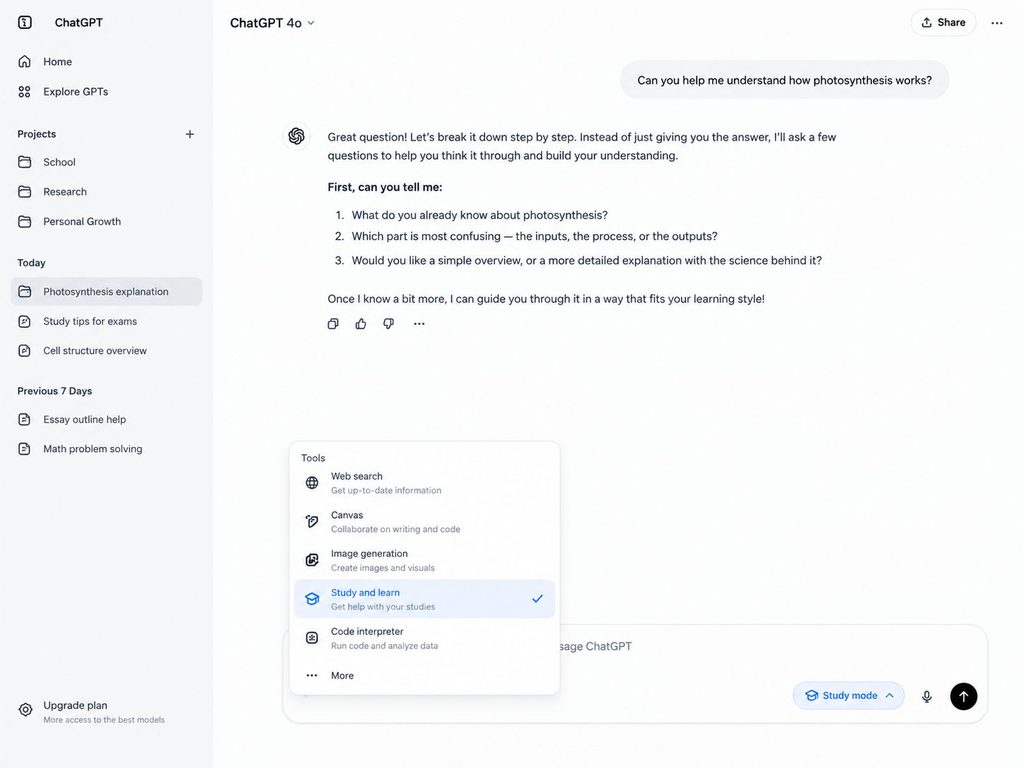
Instead of immediately giving you the answer, ChatGPT can guide you through a problem, ask questions to test what you already understand, explain difficult concepts step by step, and give you opportunities to practice.
It’s essentially a way to make ChatGPT behave more like an interactive tutor than an answer machine.
What does ChatGPT Study Mode do?
Study Mode is designed around learning rather than simply getting the correct answer.
It can:
- Ask questions to understand your current knowledge level
- Break complicated subjects into smaller, easier sections
- Explain concepts step by step
- Give hints instead of immediately revealing an answer
- Ask you to explain your reasoning
- Quiz you one question at a time
- Give feedback on your answers
- Create practice questions
- Help you review class notes, slides, readings, and syllabi
- Work with uploaded PDFs, images, worksheets, and other study materials
OpenAI describes this approach as a Socratic-style learning experience: instead of simply telling you what to think, Study Mode can ask questions that help you work toward the answer yourself.
How to turn on Study Mode
On the web, start a regular ChatGPT conversation and type @study, or select the + menu and search for Study.
You can also access Study Mode directly at ChatGPT’s Study Mode page.
Important: the exact menu can vary between the web, iOS, and Android versions of ChatGPT, so don’t rely on an old screenshot showing a particular button location.
Who should use Study Mode?
Students are the obvious audience, but you don’t have to be in school to benefit from it.
It can be useful for:
High school students who need help understanding difficult concepts or preparing for exams.
College and university students who are dealing with more complex subjects and large amounts of reading.
People learning independently who want a structured way to learn something new.
Professionals who are studying for certifications or trying to understand a new technical subject.
Parents and tutors who want to create additional practice questions or explanations.
OpenAI specifically designed Study Mode around use cases such as homework help, exam preparation, learning new concepts, and working through difficult problems.
Example: Use Study Mode to prepare for an exam
Imagine you have a biology exam next week covering cellular respiration.
Instead of asking:
“Explain cellular respiration.”
Upload your class notes or study materials and tell Study Mode what you’re preparing for.
For example:
I’m a first-year college student preparing for a biology exam next week. I’ve uploaded my class notes. Start by asking me what I already understand about cellular respiration. Then teach me the topic step by step. Don’t give me the answers immediately—ask questions and give hints when I get stuck. At the end, quiz me one question at a time and explain anything I get wrong.
Study Mode can then use your materials while guiding you through the subject.
You can even tell it to adjust the difficulty:
That was too easy. Increase the difficulty and give me exam-style questions.
Or:
I don’t understand this part. Explain it using a simple analogy before continuing.
OpenAI recommends giving Study Mode information about your level, subject, goals, what you already understand, deadlines, and relevant course materials because this can help it provide more useful guidance.
The real power: upload your study materials
One of the most useful aspects of Study Mode is that you don’t have to start with a completely blank conversation.
You can provide:
- Class notes
- A syllabus
- A worksheet
- Lecture slides
- A PDF
- A textbook excerpt
- A photo of a math or science problem
Then ask ChatGPT to help you learn directly from those materials.
For example:
I’ve uploaded my lecture slides. Identify the five concepts I am most likely to struggle with. Teach me the first one, then ask me questions to check whether I understand it before moving on.
That is much more useful than simply asking ChatGPT to summarize the slides.
Try this Study Mode prompt
Here’s a prompt you can copy:
I have an exam in 7 days and I want you to act as my personal tutor.
Subject: [subject]
Topic: [topic]
My level: [high school/college/beginner/advanced]First, ask me 3–5 questions to determine what I already understand.
Then create a learning plan based on my weaknesses.
Teach me one concept at a time using simple explanations, examples, and questions.
Don’t immediately give me the answer when I make a mistake. Give me a hint and let me try again.
After each section, test my understanding with one or two questions.
At the end, give me a short exam-style quiz and explain the concepts I still need to review.
Use my uploaded study materials as the primary reference whenever relevant.
The key instruction here is:
“Don’t immediately give me the answer.”
That encourages the tutoring behavior Study Mode is designed to provide.
3. Study Mode can adapt when you’re struggling
You don’t have to accept the first explanation it gives you.
If something isn’t clicking, tell it.
Try:
Explain this like I’m completely new to the subject.
Or:
Use a real-world analogy.
Or:
Stop after each step and ask me whether I understand before continuing.
If the material is too easy, go the other direction:
I understand the basics. Give me a harder problem and don’t provide hints unless I ask.
OpenAI’s current guidance specifically recommends asking Study Mode to slow down, simplify explanations, or increase difficulty depending on your needs.
One important limitation
Study Mode can still make mistakes.
It is designed to guide learning, but it isn’t a substitute for your teacher, textbook, course materials, or your school’s academic requirements. OpenAI also warns users to double-check important information, particularly for exams and other high-stakes subjects.
There’s another limitation worth knowing: Study Mode doesn’t always behave perfectly like a tutor. OpenAI says it is designed to guide students through questions and reasoning, but it may sometimes give a direct answer. If that happens, tell it explicitly:
Don’t give me the answer yet. Ask me a question that helps me figure it out.
Study Mode also follows the same plan, model, message, and rate-limit rules that apply outside Study Mode—it doesn’t give you unlimited ChatGPT usage or unlock models that aren’t available on your plan.
Quick takeaway
Study Mode is best when you want to learn something—not simply get an answer.
Give it your level, your goal, your study materials, and instructions about how you want to learn. Then let it question you, explain difficult concepts, give you practice, and identify what you still don’t understand.
Used this way, ChatGPT can become much more useful as a study partner and interactive tutor than as a simple question-and-answer tool.
4. Canvas Is Useful When Chat Gets Too Messy
Have you ever asked ChatGPT to edit a long document and ended up scrolling through dozens of messages?
That’s where Canvas can help.
Canvas provides a workspace for writing, editing, coding and other longer tasks. OpenAI describes it as an interactive environment where you can work alongside ChatGPT rather than keeping everything inside a normal chat thread.
You can use Canvas for:
- Articles
- Essays
- Reports
- Scripts
- Code
- Editing
- Rewriting
- Long-form documents
- Project drafts
Try this
Create a detailed article outline in Canvas about how artificial intelligence is changing education. Organize it into sections, identify areas that need evidence, and make the structure easy to expand into a complete article.
Canvas becomes especially useful when you’re repeatedly editing the same piece of work.
5. Scheduled Tasks Can Make ChatGPT Proactive
Here’s a feature many casual users overlook.
ChatGPT can create one-time or recurring scheduled tasks for eligible accounts.
For example:
“Remind me every Monday morning to review my weekly goals.”
Or:
“Give me a weekly summary of important developments in AI.”
OpenAI’s current documentation says scheduled tasks can handle reminders, recurring work and monitoring, although availability and limits depend on account and plan.
Practical examples
Daily:
“Every morning, remind me to review my priorities for the day.”
Weekly:
“Every Friday, help me create a summary of what I accomplished this week.”
Recurring research:
“Provide me with a weekly update on major AI developments.”
The important distinction is that you’re not simply asking ChatGPT something now.
You’re asking it to do something on a schedule.
6. Upload a PDF Instead of Copying Everything
You don’t always need to paste a huge document into the chat.
ChatGPT can work with uploaded files, including documents and other supported formats. It can summarize, extract information and answer questions about the material.
For example
Upload a long report and ask:
“Summarize this report in 10 key points. Then identify the three most important recommendations and explain what evidence the authors use to support them.”
Or:
“Find every section that discusses artificial intelligence and create a table showing the topic, conclusion and supporting evidence.”
This is particularly useful for
- PDFs
- Reports
- Class notes
- Presentations
- Research papers
- Business documents
- Spreadsheets
- Long articles
Instead of asking:
“Can you summarize this?”
you can give ChatGPT a specific job.
That usually produces a much more useful result.
7. ChatGPT Can Analyze Data
If you have a spreadsheet full of numbers, you don’t necessarily need to manually calculate everything.
ChatGPT’s data-analysis capabilities can work with supported structured files and help analyze, summarize and visualize data.
Example
Upload a spreadsheet containing website traffic and ask:
Data Analysis Prompt:
Analyze this website traffic data. Identify the pages with the largest increases and decreases, calculate the percentage change, identify unusual patterns, and create a concise summary of the most important findings.
You can also ask questions such as:
- Which month had the highest traffic?
- Which pages grew fastest?
- What are the biggest changes?
- Are there unusual values?
- Can you create a chart?
- What patterns should I investigate?
The important part
Don’t just upload data and say:
“Analyze this.”
Tell ChatGPT what decisions you want the analysis to help you make.
8. Memory Can Make ChatGPT More Personalized
ChatGPT can use Memory, when available and enabled, to remember useful information from your interactions.
For example, preferences, goals or other information that helps personalize future conversations.
OpenAI notes that users can review, edit or delete saved memories.
Example
You could tell ChatGPT:
“Remember that I prefer explanations with practical examples and short paragraphs.”
Later, your responses may be better aligned with that preference.
Why this matters
Without memory, you may have to repeat your preferences.
With memory enabled, ChatGPT can potentially use relevant information from previous interactions.
Of course, you should still review your Memory settings and avoid putting sensitive information into prompts unnecessarily.
9. You Can Build a Custom GPT
If you repeatedly perform the same type of task, you can create a specialized assistant.
Custom GPTs can be configured with:
- Instructions
- Knowledge files
- A specific behavior
- Selected tools
- A specialized purpose
OpenAI’s capabilities documentation describes Custom GPTs as tailored versions of ChatGPT that can use instructions, uploaded knowledge and selected tools.
Example
Imagine you frequently create SEO briefs.
Instead of starting from scratch every time, you could build a specialized assistant with instructions such as:
You are an SEO content strategist. Create search-intent-focused content briefs with keyword variations, heading structures, FAQ opportunities, internal-link suggestions and content gaps. Prioritize useful, original content over keyword stuffing.
Then you can use that assistant repeatedly.
Other ideas
You could create specialized assistants for:
- Studying
- Coding
- Writing
- Research
- Content planning
- Brainstorming
- Business analysis
- Language practice
10. ChatGPT Can Create Images
ChatGPT isn’t limited to text.
It can generate images from natural-language instructions and can also make changes to supported images using conversational instructions.
Instead of:
“Create an image.”
give it a specific visual objective.
Try this
Create a clean editorial illustration showing how AI helps a student research a topic. Use a modern technology aesthetic, readable visual hierarchy, minimal clutter, and a wide composition suitable for a website featured image.
For better results, specify:
- Subject
- Composition
- Style
- Lighting
- Aspect ratio
- Text requirements
- Brand colors
- Intended use
This is especially useful for:
- Blog featured images
- Social media graphics
- Concept illustrations
- Diagrams
- Presentations
- Marketing visuals
11. You Can Ask ChatGPT About an Image
The reverse is also possible.
Instead of generating an image, upload one and ask ChatGPT to analyze it.
ChatGPT can analyze supported images, screenshots, diagrams and charts.
For example
Upload a screenshot and ask:
“Explain everything visible in this screenshot and identify the three most important elements.”
Or upload a chart:
“Analyze this chart and explain the main trend in simple language.”
You can also use images as part of learning.
For example:
“I uploaded a diagram from my science notes. Explain it step by step and then quiz me on it.”
12. Voice Mode Makes ChatGPT Feel More Like a Conversation
Typing isn’t always the easiest way to interact with AI.
With Voice Mode, you can have a spoken conversation with ChatGPT on supported platforms.
Try using it for:
- Language practice
- Brainstorming
- Asking quick questions
- Practicing presentations
- Explaining concepts
- Conversational learning
For example:
“Let’s practice English conversation. Ask me questions one at a time and correct my grammar after I answer.”
That turns ChatGPT into a conversational practice partner rather than just a text interface.
13. ChatGPT Record Can Turn Conversations Into Useful Notes
If you’re eligible for the feature, ChatGPT Record can transcribe and summarize audio recordings such as meetings, brainstorming sessions and voice notes.
OpenAI says the resulting summaries can be saved as canvases and turned into outputs such as project plans, emails or code. Currently, the feature is limited by workspace type and is available through the macOS desktop app.
Imagine this workflow
Record a brainstorming session.
Then ask:
“Turn this discussion into a structured project plan. Identify decisions, unresolved questions, action items and next steps.”
That’s significantly more useful than simply getting a transcript.
Important: If you’re recording other people, make sure you have the appropriate consent and follow applicable laws.
14. Connected Apps Can Bring Other Information Into Your Workflow
ChatGPT can work with supported connected apps depending on your account and workspace.
This can make it possible to bring information from other services into ChatGPT for supported tasks.
OpenAI’s current documentation also describes integrations with apps in areas such as research and scheduled workflows.
The idea is simple
Instead of constantly moving information manually between applications, supported connections can allow ChatGPT to work with information from those services according to the permissions you’ve granted.
Before connecting an app
Always check:
- What information it can access
- What actions it can take
- Which permissions you’re granting
- Whether your account or workspace allows it
The goal isn’t to connect everything.
It’s to connect the tools that genuinely improve your workflow.
15. ChatGPT Search Is Different From Relying Only on Its Built-In Knowledge
When you need current information, searching the web can be important.
ChatGPT Search can bring current web information into conversations, which is useful for topics that change frequently.
OpenAI describes Search as a way to access up-to-date information from the internet, while Deep Research is intended for more extensive multi-step research.
Use Search when you need things like:
- Current news
- Recent product information
- Latest developments
- Current market information
- Recent events
- Updated statistics
- Niche information
Search vs Deep Research
ChatGPT Search
Best for:
“What happened today?”
Deep Research
Better for:
“Research how the AI search industry has changed during the past year, compare the major developments, cite reliable sources and explain the implications for publishers.”
Knowing the difference can dramatically improve your workflow.
The Real Secret: Combine ChatGPT Features
The most powerful use of ChatGPT isn’t necessarily one individual feature.
It’s combining several features into a workflow.
For example, imagine you’re researching a new topic.
You could:
Step 1: Create a Project.
Step 2: Add your reference documents.
Step 3: Use Search to find current information.
Step 4: Use Deep Research for complicated questions.
Step 5: Use Canvas to organize your findings.
Step 6: Use Data Analysis if your research contains structured data.
Step 7: Generate an image for the final presentation.
Step 8: Save the final material inside the Project.
That’s much more powerful than simply asking:
“Write an article about this.”
5 ChatGPT Workflows You Can Try Today
Workflow 1: Research a Topic
Use:
Search → Deep Research → Canvas → Writing
Prompt:
Research [TOPIC] using current reliable sources. Identify the most important facts, competing viewpoints and unanswered questions. Organize the findings into a structured research brief that I can use to write an original article.
Workflow 2: Study for an Exam
Use:
Study Mode → Uploaded Notes → Quiz
Prompt:
Teach me [SUBJECT] using the material I uploaded. Start with the fundamentals, ask me questions to determine what I understand, explain difficult concepts step by step, and finish each section with a short knowledge check.
Workflow 3: Analyze a Spreadsheet
Use:
File Upload → Data Analysis → Visualization
Prompt:
Analyze this dataset. Identify the most important trends, unusual values and changes over time. Calculate useful percentages, create appropriate visualizations, and explain the findings in language a beginner can understand.
Workflow 4: Build a Content Strategy
Use:
Project → Search → Research → Canvas
Prompt:
Help me build a content strategy around [TOPIC]. Identify important subtopics, search intent, content gaps, supporting articles and opportunities for a topical cluster. Organize everything into a practical publishing plan.
For more on building better AI instructions, see Promptenza’s guide to Prompt Engineering.
Workflow 5: Turn an Idea Into a Finished Project
Use:
Project → Files → Canvas → Image Generation
Prompt:
I want to create a project about [TOPIC]. Help me define the objective, organize the research, create the structure, identify missing information, develop the final content and suggest visuals where they would genuinely improve understanding.
How to Get More From ChatGPT
Knowing these features isn’t enough.
The quality of your instructions still matters.
A weak prompt might be:
“Write about AI.”
A stronger prompt is:
“Write a beginner-friendly explanation of generative AI for readers who have never used an AI tool. Explain what it is, how it works at a high level, give three practical examples, explain common misconceptions, and finish with five questions readers should ask before using an AI tool.”
The second prompt gives ChatGPT:
- A role
- An audience
- A topic
- A goal
- Required sections
- Examples
- A desired outcome
For a deeper explanation, see How to Write Better Prompts and Prompt Anatomy.
Don’t Use Every Feature for Every Task
More features don’t automatically mean better results.
You don’t need Deep Research to answer:
“What does CPU stand for?”
You don’t need a Project for:
“Give me three dinner ideas.”
And you probably don’t need Data Analysis to rewrite a short email.
The goal is to match the feature to the task.
| Your goal | Feature to consider |
|---|---|
| Current information | Search |
| Complex research | Deep Research |
| Long-term work | Projects |
| Learning | Study Mode |
| Long documents | Canvas |
| Recurring work | Scheduled Tasks |
| PDFs and documents | File Uploads |
| Numbers and spreadsheets | Data Analysis |
| Personalization | Memory |
| Specialized assistant | Custom GPTs |
| Visual creation | Image Generation |
| Understanding images | Image Analysis |
| Spoken conversations | Voice |
| Meeting notes | Record |
ChatGPT Features Beginners Should Learn First
If you’re new to ChatGPT, don’t try to learn everything at once.
Start with these five:
1. Better prompting
Learn how to give ChatGPT clear instructions.
Read: Prompting for Beginners
2. Projects
Use Projects for work that continues over multiple conversations.
3. Search
Use Search when information needs to be current.
4. File uploads
Give ChatGPT the actual document you’re working with instead of describing it manually.
5. Study Mode
If you’re learning, use ChatGPT to help you understand rather than simply generate answers.
Once you’re comfortable with those, move into more advanced workflows such as Deep Research, Canvas, scheduled tasks and custom assistants.
Common Mistakes When Using ChatGPT Features
Using the most powerful feature for everything
Deep Research isn’t necessary for every question.
Match the tool to the problem.
Giving vague instructions
“Analyze this” gives ChatGPT very little direction.
Explain what you want to discover.
Uploading files without a goal
Don’t simply upload a 100-page document and say:
“Tell me about this.”
Ask specific questions.
Assuming ChatGPT is always correct
AI can make mistakes.
Important information should be checked against reliable sources, especially when decisions depend on accuracy.
Ignoring availability differences
Not every ChatGPT feature is available to every account, plan, device or region.
Some features also change over time.
Frequently Asked Questions About ChatGPT Features
What are the most useful ChatGPT features?
For many users, some of the most useful features include Projects, Search, Deep Research, Study Mode, file uploads, Canvas, data analysis, Memory and image generation. The best feature depends on what you’re trying to accomplish.
Is Deep Research better than ChatGPT Search?
They’re designed for different purposes. Search is useful when you need current information quickly, while Deep Research is designed for more complex, multi-step research that requires gathering and synthesizing information from multiple sources.
Can ChatGPT analyze PDF files?
Yes. ChatGPT supports file uploads for supported documents and can summarize, extract information and answer questions about uploaded material.
Can ChatGPT help students study?
Yes. Study Mode is specifically designed to support learning through guided explanations, questions, practice and knowledge checks. It can also work with supported uploaded study materials.
Can ChatGPT remember information about me?
When Memory is available and enabled, ChatGPT can remember useful information to personalize future conversations. You can manage saved memories through your settings.
Can ChatGPT automate recurring tasks?
Eligible users can create scheduled tasks for reminders, recurring work and supported monitoring. Availability and limits vary by account and plan.
Can ChatGPT create images?
Yes. ChatGPT supports image generation and can also analyze supported uploaded images.
Is every ChatGPT feature available on every plan?
No. Feature availability can vary depending on your account, subscription, device, workspace and region. Always check what is available in your ChatGPT interface.
Final Takeaway
ChatGPT is no longer just a place to type a question and receive an answer.
It can function as a research assistant, study partner, writing workspace, data analyst, image creator, project workspace and automation tool, depending on the features available to your account.
The biggest upgrade isn’t simply learning more prompts.
It’s learning which ChatGPT capability to use for which job.
If you’re ready to go deeper, explore Promptenza’s ChatGPT Tutorial, ChatGPT Research Guide, ChatGPT Writing Guide, ChatGPT Coding Guide, and 100+ ChatGPT Prompts. You can also find ChatGPT alternatives here.