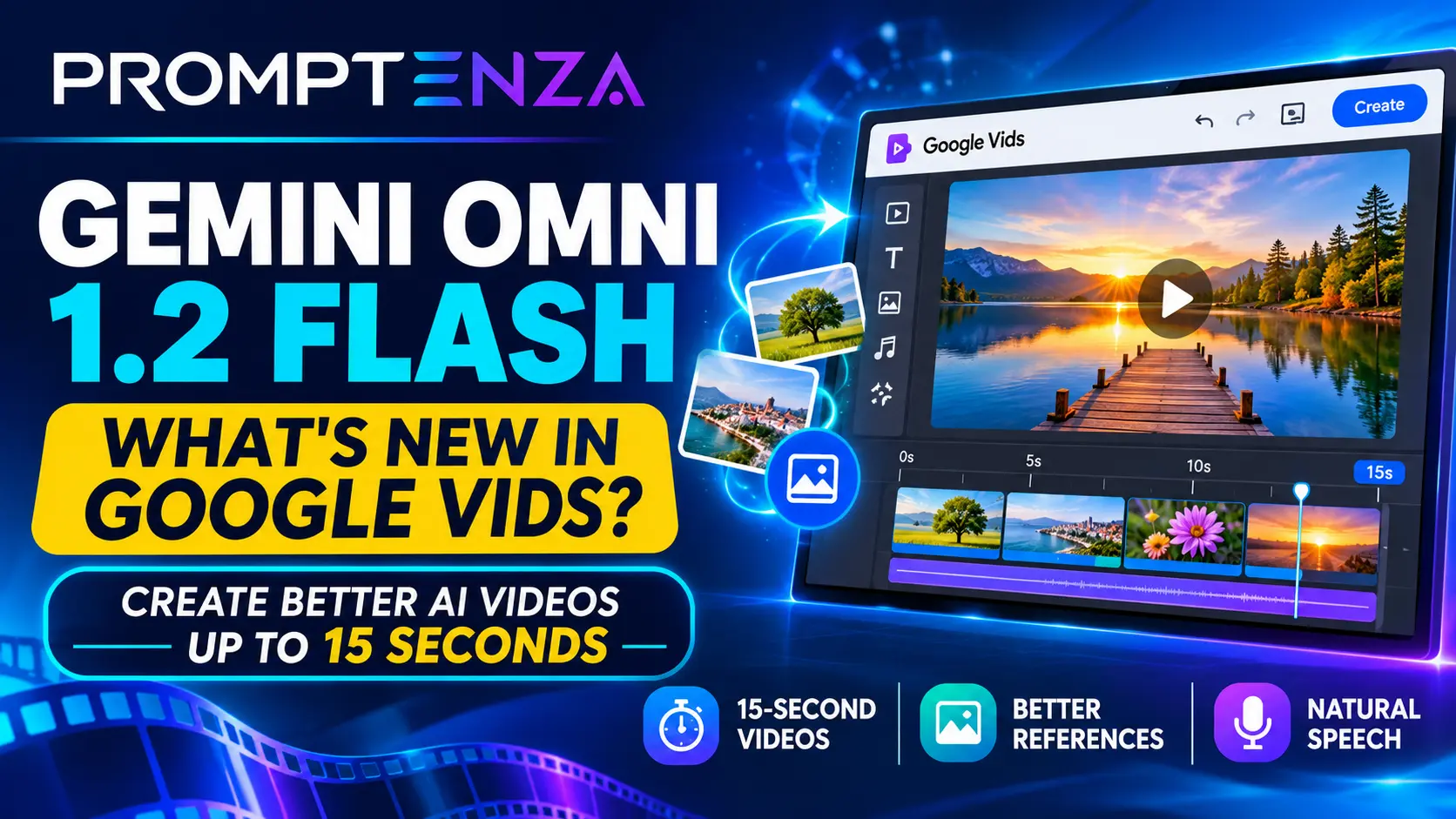
Gemini Omni 1.2 Flash in Google Vids: What’s New and How to Use It
Google Vids has received a major AI video-generation upgrade with the introduction of Gemini Omni 1.2 Flash. Announced on November 5, 2026, the new model brings longer video clips, improved visual consistency, more natural speech and better control over generated content.
The update makes Google Vids more useful for people creating product advertisements, social media videos, educational content and business promotions. Instead of relying entirely on short, disconnected clips, users can now generate videos lasting up to 15 seconds and benefit from improved reference-image consistency.
Google has also announced that eligible users with a Google Account or Google Workspace subscription can generate up to three 15-second videos per month at no cost through Google Vids.
But what exactly has changed, and how can you use the new features?
This guide explains Gemini Omni 1.2 Flash in Google Vids, its main improvements, how to generate videos and practical prompts you can try.
Quick Answer: What Is Gemini Omni 1.2 Flash in Google Vids?
Gemini Omni 1.2 Flash is Google’s upgraded AI video-generation model integrated into Google Vids. It allows users to generate video clips of up to 15 seconds, with improved reference-image consistency and more realistic speech.
The November 5, 2026 update introduces three important improvements:
- Longer video clips: Generate videos lasting between 3 and 15 seconds.
- Better reference consistency: Keep products, characters and visual details more consistent throughout generated clips.
- Improved speech: Create more natural-sounding voices with greater speaker variety.
These improvements make Google Vids more useful for creating promotional videos, product demonstrations, short explainers and social media content.
What Is Gemini Omni 1.2 Flash?
Gemini Omni 1.2 Flash is Google’s latest video-generation model announced on November 5, 2026.
It builds on the earlier Gemini Omni Flash model and improves the way AI-generated videos follow instructions, maintain visual details and produce speech.
The model can work with different types of inputs, including text instructions and visual references. It is designed to help users create and refine video content without having to produce every scene manually.
Within Google Vids, the upgrade focuses on helping users generate better video clips for presentations, business communication, promotional content and other creative projects.
Google has also introduced Gemini Omni 1.2 Flash through its developer and business platforms, but the features and available controls can differ between products.
You can read Google’s official announcement here:
Google: Create longer AI videos with Omni 1.2 in Google Vids.
What’s New in Gemini Omni 1.2 Flash for Google Vids?
The November 5 update introduces several improvements that affect how users create AI-generated videos.
1. Generate Videos Up to 15 Seconds Long
One of the biggest improvements is the ability to generate clips lasting up to 15 seconds.
Previously, the earlier Omni generation workflow supported shorter clips. The new version allows users to select a duration between 3 and 15 seconds.
This gives creators more room to develop a visual idea within a single generated clip.
For example, a business could create a short product advertisement showing:
- The product appearing in a studio environment.
- The camera moving closer to reveal its design.
- A final product shot suitable for adding a promotional message.
A longer clip does not automatically guarantee a better result, but it provides more room for visual storytelling.
2. Improved Reference-Image Consistency
Another important improvement is better consistency when using reference images.
Reference images help guide the appearance of the generated video. They can show the model what a particular product, character or visual style should look like.
With Gemini Omni 1.2 Flash, Google says generated videos do a better job of maintaining these visual details throughout a clip.
This is particularly useful for:
- Product advertisements.
- Fashion and clothing showcases.
- Brand promotional videos.
- Character-based animations.
- Educational demonstrations.
For example, if you upload a reference image of a particular product, the generated video can use that image to guide its appearance rather than relying entirely on a written description.
However, AI-generated results can still contain visual differences. Always review the final video before using it commercially.
3. More Natural-Sounding Speech
Gemini Omni 1.2 Flash also improves speech generation.
Google says the update provides greater speaker variety and more natural vocal delivery.
This can make generated scenes more suitable for:
- Short promotional videos.
- Product explainers.
- Educational clips.
- Social media announcements.
- Videos featuring dialogue.
The improvement is useful when you want generated characters or speakers to sound more natural.
However, generated speech should still be reviewed for pronunciation, accuracy and suitability.
4. Better Control Over Video Duration
The updated Google Vids workflow provides a duration slider that lets users select a clip length between 3 and 15 seconds.
This gives creators more control over the pacing of their videos.
For example:
| Video duration | Suitable use |
|---|---|
| 3–5 seconds | Short visual transitions and product reveals |
| 6–8 seconds | Simple promotional scenes |
| 9–12 seconds | Product demonstrations and social clips |
| 13–15 seconds | Longer visual sequences and short explainers |
These are suggested creative uses, not Google’s required duration categories.
5. More Creative Possibilities for Product and Social Media Videos
The combination of longer clips, stronger reference consistency and improved speech makes the update particularly relevant to marketing and content creation.
You can use Google Vids to experiment with:
- Product launch announcements.
- Social media advertisements.
- Short business promotions.
- Educational explainers.
- Product demonstrations.
- Visual storytelling.
For more ideas, explore our collection of Google Vids AI prompts for marketing, social media and product videos.
How to Use Gemini Omni 1.2 Flash in Google Vids
If you want to try the upgraded model, follow these steps.
Step 1: Open Google Vids
Visit vids.new and sign in with your Google Account.
You can start a new video project or open an existing one.
Step 2: Find the AI Video Generation Feature
From the Google Vids starting screen or an existing project, look for the AI video-generation option.
The exact interface may vary depending on your account and feature availability.
Step 3: Enter Your Video Prompt
Describe the video you want to create.
A useful prompt should explain:
- What the main subject is.
- Where the scene takes place.
- What happens in the video.
- How the camera should move.
- What lighting and visual style you want.
- Whether speech or other audio is needed.
For example:
“Create a 10-second promotional video showing a premium wireless headphone on a clean studio surface. Slowly move the camera around the product to reveal its design. Use soft lighting, realistic reflections and a modern technology-advertising style.”
Step 4: Add Reference Images When Needed
If you want the video to feature a particular product, character or visual design, upload an appropriate reference image when the workflow supports it.
This can help guide the generated result.
For example, an online store could upload a product photograph and request a short promotional video showing the item from a different camera angle.
Step 5: Select the Video Duration
Open the available Omni settings and use the duration slider to select a clip length between 3 and 15 seconds.
Choose a duration that gives the scene enough time to communicate its main idea.
Step 6: Generate Your Video
Review your prompt and settings, then select the generation option.
Wait for the clip to finish processing.
Step 7: Review and Insert the Result
Watch the generated video and check:
- Whether the subject looks correct.
- Whether the movement is natural.
- Whether the product or character remains consistent.
- Whether the speech is understandable.
- Whether the video matches your original instructions.
If the result is suitable, insert it into your Google Vids project and continue editing.
For more detailed instructions, read Google’s official Google Vids AI video-generation guide.
10 Gemini Omni 1.2 Flash Prompts to Try in Google Vids
The upgraded model gives creators more room to experiment with longer clips and reference images. Here are 10 prompts you can adapt to your own projects.
1. Product Advertisement Prompt
“Create a 15-second premium advertisement featuring [product name]. Begin with a close-up of the product against a dark studio background. Slowly move the camera around the product to reveal its design and important details. Use dramatic studio lighting, realistic reflections and a sophisticated commercial style. End with a clean product hero shot.”
2. Fashion Showcase Prompt
“Create a 15-second fashion promotional video featuring [clothing item]. Show the clothing in a stylish environment with natural fabric movement and smooth camera transitions. Use elegant lighting, realistic textures and a premium fashion-campaign aesthetic. Maintain the clothing’s original colors and design.”
3. Social Media Product Promotion Prompt
“Create a 10-second vertical promotional video for [product]. Begin with an attention-grabbing close-up, followed by a smooth camera movement revealing the product’s main feature. Use bright lighting, energetic pacing and a modern social media advertising style.”
4. Restaurant Advertisement Prompt
“Create a 15-second promotional video for [restaurant name]. Show a beautifully presented [dish name] on a dining table, followed by close-up shots highlighting its ingredients and presentation. Use warm lighting, smooth camera movement and an inviting restaurant-commercial style.”
5. Technology Explainer Prompt
“Create a 15-second educational video explaining [technology concept]. Use simple visual elements to demonstrate how the concept works. Begin with a wide view, then move closer to the central subject. Use a clean digital environment, smooth transitions and a modern educational style.”
6. Business Introduction Prompt
“Create a professional promotional video introducing [business name], a company specializing in [industry]. Show the business environment, its main service and a polished final visual representing the brand. Use realistic lighting, smooth camera movement and a professional commercial style.”
7. Travel Destination Prompt
“Create a cinematic 15-second travel video showcasing [destination]. Begin with a wide establishing shot of the location, followed by a smooth camera movement revealing its most recognizable scenery. Use natural lighting, realistic environmental movement and an inspiring travel-film aesthetic.”
8. Educational Animation Prompt
“Create a 12-second educational animation explaining [topic] to beginners. Use simple visual elements to communicate the main idea. Show the concept developing step by step with smooth transitions and clear composition. Use a friendly, modern educational animation style.”
9. Coffee Advertisement Prompt
“Create a 10-second cinematic advertisement showing a freshly prepared cup of coffee in a modern café. Begin with a close-up of coffee being poured into a cup, followed by a slow camera push-in toward the finished drink. Use warm natural lighting, realistic steam and a premium lifestyle-commercial style.”
10. Brand Story Prompt
“Create a 15-second cinematic brand story video for [brand name]. Show the journey from an initial idea to a finished product. Use connected visual scenes, natural lighting and smooth camera movement. Create an authentic, inspiring atmosphere that communicates the brand’s purpose.”
You can find more ready-to-use examples in Google Vids AI Prompts.
Gemini Omni 1.2 Flash vs. Earlier Gemini Omni Flash
The November 5 update improves several aspects of the earlier model.
| Feature | Earlier Omni generation | Gemini Omni 1.2 Flash |
|---|---|---|
| Maximum native clip duration | Up to 10 seconds | Up to 15 seconds |
| Reference consistency | Earlier reference following | Improved reference following |
| Speech generation | Earlier speech quality | More natural speech and speaker variety |
| Duration control | Shorter clip options | Adjustable from 3–15 seconds |
| Editing experience | Earlier generation workflow | Improved capabilities in the broader Omni ecosystem |
The improvements described above are based on Google’s November 5 announcement. Not every feature available through the Gemini API or other Google products is necessarily available inside Google Vids.
Is Gemini Omni 1.2 Flash Free in Google Vids?
Google announced that users with a Google Account or Google Workspace subscription can generate up to three 15-second videos per month in Google Vids at no cost.
This makes the updated feature accessible to a wider range of users who want to experiment with AI video creation.
However, it is important to distinguish the free Google Vids offer from the separate subscription and usage arrangements available across Google’s other AI products.
The Gemini API, Google Cloud and other Gemini-powered services have their own pricing and usage rules.
For the latest information, check Google’s official Google Vids announcement and Gemini feature availability guide.
What Are the Limitations of Gemini Omni 1.2 Flash?
Although the update introduces useful improvements, it does not mean that every generated video will be perfect.
There are several things to consider.
1. Generated Videos Can Still Contain Errors
AI-generated clips may contain visual inconsistencies, unexpected movements or inaccurate details.
Review each result before publishing it.
2. Product Details May Not Be Perfect
Even with improved reference consistency, generated videos can alter small product details, packaging or text.
If you are advertising a real product, check that the final video accurately represents what you sell.
3. Short Clips Are Not Complete Long-Form Videos
A 15-second generation limit is useful for short promotional scenes, but it does not replace a complete video-production workflow.
You may need to combine several clips, add narration, insert captions and edit the final sequence.
4. Availability Depends on Google’s Feature Rules
Some Google Vids AI features have account and subscription requirements. The availability of individual capabilities can also change over time.
5. More Complex Prompts Still Need Careful Planning
Longer video duration does not automatically make complicated prompts easier to generate.
For the best results, describe one clear scene and use specific visual instructions.
Frequently Asked Questions About Gemini Omni 1.2 Flash in Google Vids
1. What is Gemini Omni 1.2 Flash?
Gemini Omni 1.2 Flash is Google’s upgraded AI video-generation model announced on November 5, 2026. It introduces longer video generation, improved reference consistency and more natural speech.
2. What is new in Google Vids AI?
The November 5, 2026 update introduces Gemini Omni 1.2 Flash, allowing video clips of up to 15 seconds, improved consistency when using references and better speaker variety.
3. Can Google Vids generate 15-second videos?
Yes. The updated Omni workflow supports video durations from 3 to 15 seconds.
4. Is Gemini Omni 1.2 Flash free?
Google announced up to three 15-second AI-generated videos per month at no cost in Google Vids for users with a Google Account or Google Workspace subscription. Other Google AI products and services have separate access and pricing rules.
5. Can I use reference images with Gemini Omni 1.2 Flash?
Yes. Google Vids supports reference-image workflows for guiding generated videos. These can help maintain the appearance of products, characters and other visual elements.
6. Can Gemini Omni 1.2 Flash create videos with speech?
Google says the updated model provides more natural-sounding speech and greater speaker variety. The availability of particular audio controls depends on the product and workflow.
7. Is Gemini Omni 1.2 Flash available in Google Vids?
Yes. Google announced its rollout in Google Vids on November 5, 2026. Feature visibility may take time during rollout.
8. How do I access Gemini Omni 1.2 Flash?
Open Google Vids, sign in with an eligible account and select the AI video-generation feature. Follow the available instructions to enter a prompt, select a duration and generate a clip.
9. Is Gemini Omni 1.2 Flash the same as the Gemini API model?
They are related to the same model family, but the available features, settings, pricing and usage limits can differ between Google Vids, the Gemini API and other Google products.
10. Can I use Gemini Omni 1.2 Flash for marketing videos?
Yes. It is suitable for experimenting with short promotional clips, product showcases, social media advertisements and business videos. Always review generated content for accuracy before publishing.
Final Thoughts
Gemini Omni 1.2 Flash is an important upgrade for Google Vids because it gives creators more room to develop short video ideas while improving the consistency of generated visuals and speech.
The ability to generate clips lasting up to 15 seconds, combined with improved reference-image handling, makes the tool more useful for product promotions, business videos and social media content.
However, the best results still depend on clear prompts, suitable reference images and careful editing.
If you are new to the platform, start with our Google Vids AI tutorial, then explore our Google Vids AI prompt collection for practical examples you can customize.
Create a professional, high-quality 16:9 featured image for a Promptenza.com article titled “Gemini Omni 1.2 Flash in Google Vids: What’s New and How to Use It.”
Design concept: Showcase the latest AI video-generation technology inside Google Vids, highlighting longer video clips, improved reference-image consistency, and natural AI speech.
Main headline (large, bold):
GEMINI OMNI 1.2 FLASH
Supporting headline:
WHAT’S NEW IN GOOGLE VIDS?
Small subtitle:
CREATE BETTER AI VIDEOS UP TO 15 SECONDS
Visual composition:
- Place the Promptenza wordmark/logo prominently in the upper-left corner. Use the supplied Promptenza logo without changing its design.
- On the right, show a sleek, modern video-editing interface inspired by Google Vids, displayed on a large digital editing screen.
- Inside the interface, show a cinematic AI-generated video preview with a vibrant, realistic scene.
- Include a visible video timeline with several clips to communicate AI video editing.
- Add three small visual feature indicators: 15-SECOND VIDEOS, BETTER REFERENCES, and NATURAL SPEECH.
- Use subtle visual elements such as glowing video frames, AI generation particles, and connected reference-image thumbnails.
Brand style:
- Dark navy and deep indigo background.
- Electric blue, cyan, teal, and purple gradient accents.
- Strong contrast and polished technology-editorial styling.
- Professional, clean composition suitable for a premium AI technology website.
Typography:
- Bold, modern sans-serif font.
- Clear hierarchy and excellent readability.
- Keep all text correctly spelled and within safe margins.
Important restrictions:
- Do not use human faces or humanoid robots.
- Do not invent or imitate official Google or Gemini logos.
- Do not overcrowd the design.
- Keep the Promptenza logo readable.
- Make the headline the main focal point.
Output: 16:9 landscape composition, 1536 × 1024 pixels, suitable for a WordPress featured image.