How to Add and Customize Captions in Google Vids: Complete Step-by-Step Guide
Captions can make your videos easier to understand, more accessible and more engaging, especially when people watch without sound.
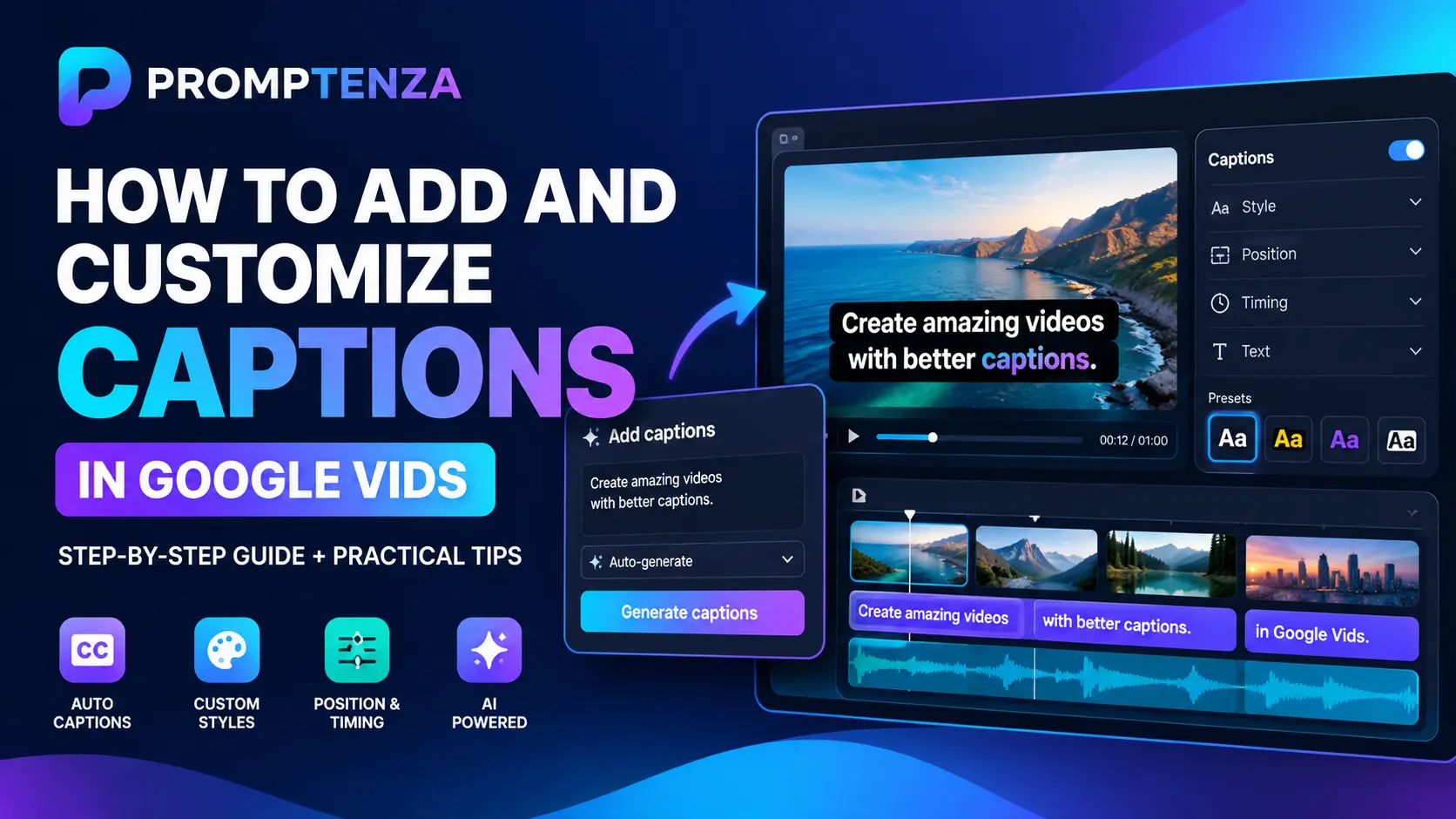
Google Vids includes several captioning options that allow you to add automatically generated captions, create styled animated captions, edit caption tracks and customize how words appear on screen.
You can change caption fonts, colours, backgrounds, positioning and animations to match your video or brand.
Whether you’re creating YouTube videos, social media content, educational tutorials, product advertisements or business presentations, this guide explains how to add and customize captions in Google Vids.
You’ll also learn how to correct caption mistakes, upload your own caption files and create professional-looking captions for different types of videos.
Quick Answer: How Do You Add Captions in Google Vids?
To add captions in Google Vids:
- Open your video project at Google Vids.
- Open the video you want to edit.
- Select Captions from the sidebar.
- Choose All scenes or Current scene.
- Select a caption style.
- Click Edit to customize the appearance.
- Adjust the font, size, colour, background and emphasis effects.
- Preview your captions.
- Make any necessary corrections.
You can also enable autogenerated closed captions through View → Closed captions → Autogenerated.
If you want to add your own captions, open Tools → Closed captions, create a new caption track and either upload a supported caption file or type the captions manually.
What Are Captions in Google Vids?
Captions are text displayed alongside a video’s audio or narration.
They help viewers follow spoken information, understand dialogue and watch videos when the sound is unavailable or turned off.
Google Vids provides two main caption experiences.
1. Closed captions
These display spoken words during video playback. Google Vids can automatically generate closed captions for inserted media containing English speech.
2. Styled captions
These are more visually customizable captions that can be added to individual scenes or an entire video.
You can choose different styles, customize typography and apply animated word emphasis.
For example, a social media video could display each spoken word in a highlighted style as the narration progresses.
What’s New with Google Vids Captions?
Google has expanded its caption customization options, making it easier to create captions that match the appearance of a video.
Some important capabilities include:
| Feature | What it allows you to do |
|---|---|
| Styled captions | Apply visual caption styles to your video |
| Font customization | Change the caption font and typography |
| Colour customization | Choose text and highlight colours |
| Background settings | Adjust caption background colour and opacity |
| Positioning | Customize where captions appear |
| Animated captions | Control how words appear and leave the screen |
| Word emphasis | Highlight important words |
| Multiple scenes | Apply captions across all scenes or selected scenes |
| Caption editing | Review and correct generated captions |
Google announced additional caption styling controls on September 30, 2026, including typography, positioning and animation customization.
These options are particularly useful for creators and marketing teams that want their captions to match their visual branding.
How to Add Autogenerated Captions in Google Vids
If your video contains spoken English, Google Vids can automatically generate closed captions for inserted media.
Follow these steps.
Step 1: Open Google Vids
Visit:
Sign in with your Google account and open the video project you want to edit.
Step 2: Open the View Menu
At the top of the Google Vids interface, select View.
This opens the available viewing options.
Step 3: Select Closed Captions
Choose:
View → Closed captions → Autogenerated
Google Vids will make the autogenerated caption track available for playback.
Step 4: Play Your Video
Start playback in the editor.
The autogenerated captions will appear as the video plays.
You can review the words and check whether they match the spoken narration.
Step 5: Enable Captions in Full-Screen Playback
If you want to view the captions in full-screen playback:
- Start full-screen playback.
- Locate the Closed captions control.
- Select Autogenerated.
Your captions should now appear during playback.
Important: Google’s documentation describes autogenerated closed captions for inserted media with English speech. If your video uses another spoken language, do not assume this automatic track will generate accurate captions for it. Consider creating or uploading a suitable caption track instead.
How to Add Styled Captions in Google Vids
Styled captions are useful when you want your captions to become part of the video’s visual design.
Unlike ordinary closed captions, styled captions can use different fonts, colours, backgrounds and animated emphasis.
Here’s how to add them.
Step 1: Open Your Video Project
Open Google Vids and select the video you want to edit.
Step 2: Select Captions
Locate the Captions option in the right-side panel.
You can also access Captions through the Insert menu, depending on the current interface.
Step 3: Choose the Scenes
Select where you want the captions to appear.
Google Vids provides two options:
| Option | Description |
|---|---|
| All scenes | Apply captions across the entire video |
| Current scene | Apply captions to the selected scene |
Choose All scenes if you want a consistent caption style throughout your project.
Choose Current scene if you want to customize individual scenes.
Step 4: Select a Caption Style
Browse the available caption styles and select one that matches your video.
Consider the type of content you’re creating.
For example:
- Educational videos benefit from clear, readable captions.
- Product advertisements can use more expressive styles.
- Social media videos can use animated word emphasis.
- Business presentations often benefit from simple, professional captions.
Step 5: Click Edit
After selecting your preferred style, click Edit.
This opens the customization options.
Step 6: Customize Your Captions
Adjust the appearance of your captions.
You can customize typography, colours, backgrounds and word emphasis.
Step 7: Preview the Result
Play your video to see how the captions appear.
Make any necessary adjustments before sharing or exporting the video.
How to Customize Caption Fonts, Colours and Backgrounds
Google Vids allows you to customize several aspects of styled captions.
These settings can help you create a consistent visual identity across your videos.
1. Change the Caption Font
Choose a font that is easy to read.
For example, a clean sans-serif font may work well for educational videos, tutorials and business presentations.
Avoid overly decorative fonts that make longer captions difficult to understand.
2. Adjust Font Size
Choose a size that remains readable on smaller screens.
Remember that many viewers watch videos on mobile devices.
Preview your captions at different screen sizes if possible.
3. Change Text Colour
You can change the colour of the caption text.
Choose colours that contrast clearly with the video background.
For example:
- White text works well against darker backgrounds.
- Dark text can work against light backgrounds.
- Bright accent colours can highlight selected words.
4. Adjust Text Opacity
You can change the opacity of the caption text.
For the main spoken words, keep the text sufficiently visible to avoid reducing readability.
5. Customize the Background
Google Vids allows you to change the caption background colour and opacity.
A background can help separate captions from busy video footage.
For example, white text on a dark, slightly transparent background can remain readable across different scenes.
6. Match Captions to Your Brand
If you’re creating videos for a business or website, use colours that match your brand identity.
For example, Promptenza content could use:
- White for the main caption text.
- Cyan or teal for selected words.
- Dark navy for caption backgrounds.
- Purple for occasional emphasis.
The goal is to create captions that complement the video without distracting viewers.
How to Create Animated Captions in Google Vids
Animated captions can make a video more visually engaging.
Instead of displaying an entire sentence at once, some caption styles emphasize individual words as the narration progresses.
Google Vids allows you to customize how words appear, stand out and leave the screen.
Follow these steps:
- Open your Google Vids project.
- Select Captions.
- Choose All scenes or Current scene.
- Select a caption style.
- Click Edit.
- Locate the emphasis settings.
- Choose how words should appear and disappear.
- Select a highlight colour.
- Preview the animation.
Example of an Animated Caption
Imagine you’re creating a product advertisement.
Your narration says:
“Discover a smarter way to organize your workspace.”
Instead of displaying the entire sentence in one static block, you could use a caption style that emphasizes important words as they are spoken.
For example:
- DISCOVER
- SMARTER
- ORGANIZE
- WORKSPACE
This can make the narration easier to follow visually.
Tip: Use animated captions selectively. Too many visual effects can distract viewers from the message.
How to Add Captions to Individual Scenes
Not every scene needs to use exactly the same caption style.
For example, you might want simple captions for an introduction and more expressive captions for a promotional section.
Google Vids allows you to apply captions to the current scene.
Follow these steps:
- Open your video project.
- Select the scene you want to edit.
- Open Captions.
- Choose Current scene.
- Select your preferred caption style.
- Click Edit.
- Customize the caption appearance.
- Preview the scene.
You can repeat the process for other scenes.
This gives you more control over the visual presentation of your video.
How to Edit and Correct Autogenerated Captions
Autogenerated captions can contain mistakes.
For example, the software may misunderstand a person’s name, technical term, brand name or unfamiliar word.
You should review the captions before sharing your video.
Google Vids provides a workflow for reviewing and editing the autogenerated caption track.
Step 1: Open Tools
Open your video project and select:
Tools → Closed captions
Step 2: Locate the Autogenerated Track
Find the autogenerated caption track in the Closed captions panel.
Step 3: Review the Captions
Open the track’s options menu and select View.
You can review the caption content by timestamp.
Step 4: Duplicate the Track
To edit the autogenerated captions, select the track’s options menu and choose Duplicate.
This creates a separate copy for editing.
Step 5: Edit the Duplicated Track
Open the options menu beside the duplicated track and select Edit.
Correct any spelling mistakes, incorrect words or other errors.
Step 6: Preview Your Corrections
Play the video again.
Check that the corrected captions match the narration and appear at the right time.
Why duplicate the track?
Duplicating gives you a separate version to edit while preserving the original autogenerated track.
How to Manually Add Captions in Google Vids
You don’t have to rely entirely on automatically generated captions.
Google Vids also allows you to create a caption track manually or upload a supported caption file.
This is useful when you already have a prepared transcript or need to provide captions in a particular language.
Method 1: Type Captions Manually
Follow these steps:
- Open your video project.
- Select Tools → Closed captions.
- In the Closed captions panel, click + Caption track.
- Choose Type manually.
- Select the caption language.
- Add a track title if necessary.
- Add caption entries with their start and end times.
- Enter the text for each caption.
- Add additional caption entries.
- Select Create new track.
Your manually created caption track will be available in the project.
Method 2: Upload a Caption File
If you already have a caption file, you can upload it instead of typing everything manually.
Follow these steps:
- Open Google Vids.
- Select Tools → Closed captions.
- Click + Caption track.
- Select Upload file.
- Choose your supported caption file.
- Select the caption language.
- Add a track title if needed.
- Select Create new track.
- Review the captions and timing.
Google documents support for caption file formats including TTML and DFXP. Check the upload interface for the file formats supported by your current version.
How to Turn Captions On and Off During Playback
Adding a caption track does not necessarily mean captions will automatically appear for every viewer.
You may need to enable the appropriate track during playback.
Turn Captions On in the Editor
- Open your video project.
- Select View → Closed captions.
- Choose the caption track you want to use.
- Start playback.
Turn Captions On in Full-Screen Playback
- Open the video in full-screen playback.
- Locate the Closed captions control.
- Select the caption track you want to display.
You can also use the C keyboard shortcut in supported full-screen playback sessions.
Important: Captions and Sharing
Google notes that caption playback settings are specific to browser sessions.
If you enable captions during your own playback session, that does not automatically mean captions will be enabled for someone else viewing the shared video.
If captions must always appear in the final video, use an appropriate styled-caption workflow and check the exported result rather than relying only on a playback setting.
10 Practical Ways to Use Google Vids Captions
Here are ten ways to use captions in different types of video projects.
1. Add Captions to YouTube Videos
Captions help viewers follow your explanations, particularly when watching without sound.
Use readable fonts and avoid covering important visual content.
2. Create Captions for Instagram Reels
Short-form videos often compete for attention.
Animated captions can emphasize important phrases and help viewers understand the video quickly.
3. Add Captions to TikTok-Style Videos
Use clear, concise captions that follow the narration.
Avoid placing text where platform controls or other interface elements might cover it.
4. Improve Educational Videos
Captions can help learners follow explanations and review important information.
For technical subjects, double-check specialist terms and definitions.
5. Create Accessible Business Presentations
Add captions to business videos so viewers can follow important information during playback.
6. Caption Product Demonstrations
Use captions to highlight product features, instructions and important benefits.
7. Create Training Videos
Captions can help employees follow training instructions and review key information.
8. Improve Marketing Videos
Highlight important phrases such as product names, campaign messages and calls to action.
9. Add Captions to Interview Videos
Captions can help viewers follow conversations, especially when multiple people are speaking.
Check speaker names and dialogue carefully.
10. Create Captioned News Summaries
Use readable captions to communicate the main points of a news summary.
Make sure names, dates and statistics are accurate.
7 Tips for Creating Professional Captions in Google Vids
Good captions should make a video easier to understand, not harder to watch.
Use these recommendations when editing your captions.
1. Keep Captions Readable
Choose a font size that works on mobile screens.
Avoid very small text.
2. Use Strong Colour Contrast
Make sure your captions remain visible against the video background.
3. Avoid Covering Important Visuals
Position captions so they do not block faces, product details, diagrams or important information.
4. Highlight Important Words Carefully
Use emphasis to draw attention to key phrases.
Avoid highlighting every word with multiple colours and effects.
5. Correct Automatic Caption Errors
Always review autogenerated captions, especially when your video contains technical terms, names or numbers.
6. Keep the Style Consistent
Use a consistent caption design throughout the video unless there is a clear reason to change it.
7. Preview Before Sharing
Watch the complete video and check that the captions match the narration and remain readable.
Google Vids Captions: Common Problems and Solutions
| Problem | Possible solution |
|---|---|
| Captions are not appearing | Check that the correct caption track is enabled |
| Autogenerated captions are missing | Check whether the inserted media contains English speech |
| Captions contain spelling errors | Duplicate and edit the autogenerated track |
| Caption style is unavailable | Check the Captions sidebar and current account availability |
| Captions are too small | Increase the font size |
| Text is difficult to read | Adjust text colour and background contrast |
| Captions cover important visuals | Change their position or style |
| Captions are not synchronized | Review the caption timestamps |
| Uploaded caption file is rejected | Check the supported file format and file structure |
| Captions do not appear for someone viewing a shared video | Check the playback settings and whether captions are included in the exported video |
If you’re experiencing wider Google Vids problems, read our guide: Google Vids AI Not Working? 10 Ways to Fix AI Video Generation Problems.
Google Vids Captions vs Closed Captions: What’s the Difference?
Although these terms are often used interchangeably, Google Vids provides different caption workflows.
| Feature | Styled captions | Closed captions |
|---|---|---|
| Main purpose | Visual captions integrated into the video design | Display spoken words during playback |
| Appearance | Customizable styles | Standard caption presentation |
| Animation | Supports animated styles | Standard playback captions |
| Brand colours | Can be customized | More limited visual customization |
| Manual editing | Available through caption workflows | Available through caption tracks |
| Best for | Social videos, marketing and presentations | Accessible video playback |
Which should you use?
Choose styled captions when you want visually engaging text that matches your video design.
Choose closed captions when you want viewers to be able to turn spoken-word captions on or off during playback.
You can use both approaches depending on the purpose of your video.
Frequently Asked Questions
Does Google Vids automatically generate captions?
Yes. Google Vids can automatically generate closed captions for inserted media containing English speech. You can enable them through View → Closed captions → Autogenerated.
Can I customize captions in Google Vids?
Yes. You can customize styled captions, including their fonts, sizes, colours, backgrounds, opacity, positioning and word emphasis.
Can I add animated captions in Google Vids?
Yes. Google Vids supports styled animated captions that can emphasize words as the narration progresses.
Can I change caption colours in Google Vids?
Yes. You can customize text colours, highlight colours and background colours.
Can I add captions to only one scene?
Yes. Select Current scene in the Captions panel to apply a caption style to the selected scene.
Can I apply the same captions to every scene?
Yes. Choose All scenes when adding styled captions.
Can I manually add captions in Google Vids?
Yes. Open Tools → Closed captions, create a new caption track and select Type manually.
Can I upload an SRT file to Google Vids?
Google’s Help documentation lists supported caption-file formats and specifically identifies TTML and DFXP. Check the upload interface for the formats currently accepted by your account rather than assuming every SRT file will work.
Can I edit automatically generated captions?
Yes. You can review the autogenerated track, duplicate it and edit the duplicated version.
Do captions automatically appear when I share a Google Vids video?
Not necessarily. Google distinguishes between playback caption settings and the video itself. Check the final exported video to confirm that captions appear as intended.
Are Google Vids captions available to everyone?
Styled captions are available across a range of Google Workspace and Google AI plans, but other Vids and Gemini features have separate eligibility requirements. Check Google’s current account-availability documentation.
Final Thoughts
Captions are an important part of creating clear and accessible videos.
Google Vids makes it possible to generate closed captions, apply animated caption styles, correct mistakes and customize the appearance of text to match your video.
Whether you’re creating educational content, social media clips, business presentations or marketing videos, the right caption style can improve the viewing experience.
For the best results, choose readable fonts, use strong colour contrast, correct caption errors and preview the final video before sharing it.
Explore more Google Vids tutorials on Promptenza to learn how to create, edit and improve AI-generated videos.