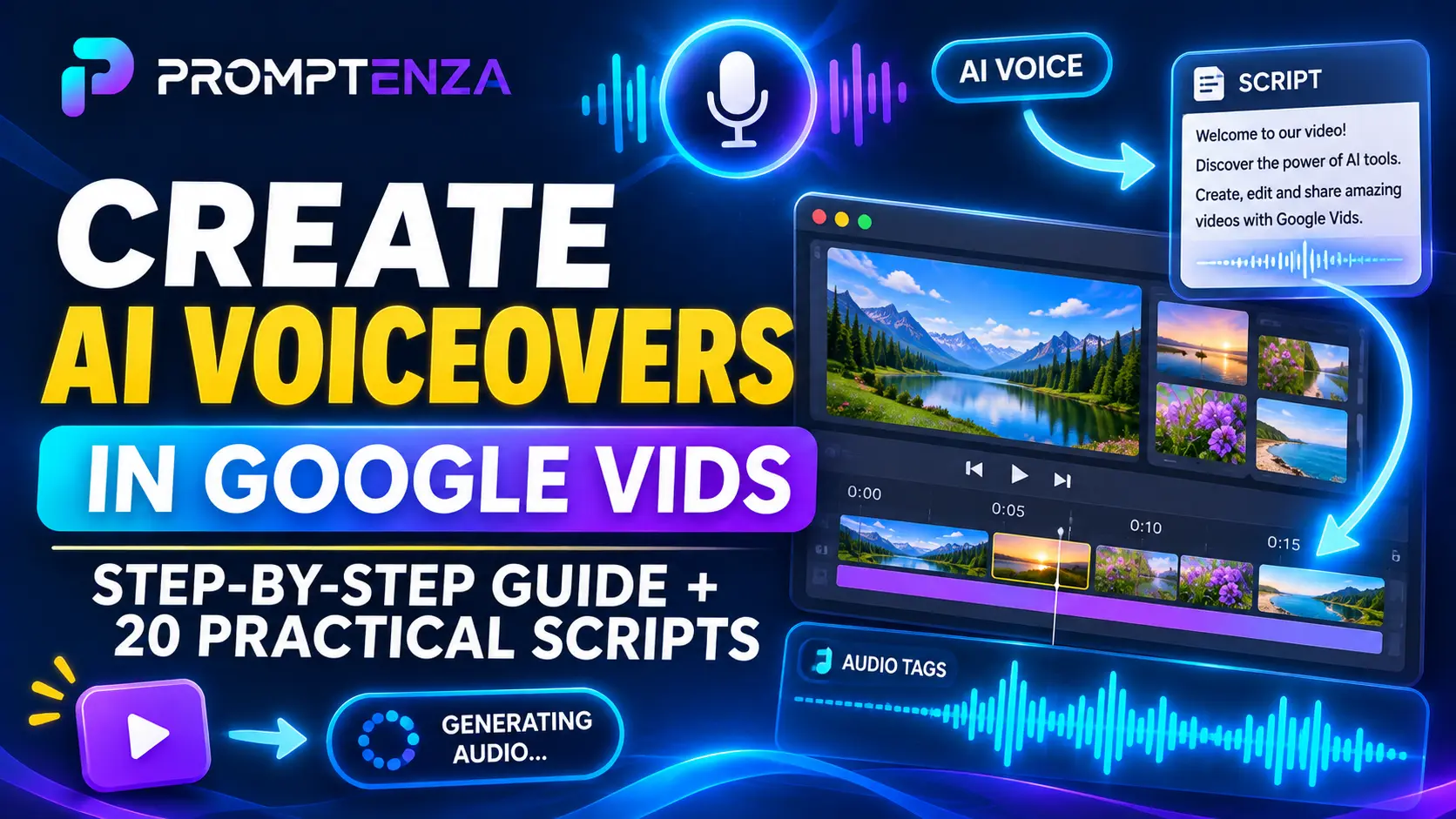
How to Create AI Voiceovers in Google Vids: Complete Guide and Practical Tips
You no longer need to record your own voice to add professional narration to a video. With Google Vids AI voiceovers, you can write a script, select an AI-generated voice and add narration to individual scenes or an entire video.
Google Vids also provides controls for adjusting how the narration sounds. You can add emotional instructions, control pauses and pacing, and use audio tags to make your voiceovers more expressive.
Whether you’re creating YouTube videos, educational content, product advertisements, business presentations or training materials, Google Vids gives you another way to produce narrated videos.
In this guide, you’ll learn how to create AI voiceovers in Google Vids, how to select voices, how to control emotion and pacing, and how to write effective narration scripts. You’ll also find practical scripts you can adapt for your own projects.
Quick Answer: How Do You Create an AI Voiceover in Google Vids?
To create an AI voiceover in Google Vids:
- Open Google Vids on your computer.
- Open an existing video or create a new project.
- Select Voiceover from the right-side panel.
- Choose Current scene or All scenes.
- Write or paste your narration script.
- Optionally add audio tags to control emotion, pauses, pacing and sound effects.
- Click Insert voiceover.
- Choose an available AI voice.
- Select Insert voiceover to generate the narration.
- Preview the audio and make any necessary changes.
You can also use AI to generate a script before creating the voiceover.
What Are AI Voiceovers in Google Vids?
AI voiceovers are computer-generated narrations that read your written script aloud.
Instead of recording yourself speaking, you provide the text and let Google Vids generate the audio.
The feature is useful when you want to:
- Add narration to presentation videos.
- Create educational videos without recording your voice.
- Produce product demonstrations.
- Narrate business presentations.
- Create employee training materials.
- Add spoken explanations to screen recordings.
- Produce video summaries from written content.
Google Vids also allows you to generate narration for individual scenes or multiple scenes in a video.
This means you can create a separate voiceover for each section or work on the narration across your entire project.
What’s New with Google Vids AI Voiceovers?
Google has continued improving its AI voiceover experience.
Some important capabilities include:
1. More expressive AI voices
Google introduced 30 conversational voice options powered by its Gemini 3.1 Flash text-to-speech technology in April 2026. The voices are designed to produce more natural and expressive narration.
2. Expanded language support
AI voiceovers now support 24 languages, including English, Spanish, French, German, Hindi, Japanese, Portuguese, Arabic and Bengali.
3. Emotion and pacing controls
You can use audio tags to guide the emotional delivery, speaking pace and pauses in your narration.
4. AI-generated audio tags
Google Vids can suggest audio tags automatically using the Apply audio tags option.
5. Script and voiceover updates
If you change a script after generating its voiceover, Google Vids can identify outdated narration and let you replace it with an updated version.
These improvements make it easier to create narration that sounds more appropriate for different types of videos.
How to Create AI Voiceovers in Google Vids Step by Step
Follow these steps to generate your first AI voiceover.
Step 1: Open Google Vids
Visit:
Sign in using a Google account that has access to the AI voiceover feature.
You can open an existing video or create a new project.
Step 2: Open Your Video Project
Choose the video you want to add narration to.
If you’re starting from scratch, create a new project and add the scenes you want to include.
Your project can contain:
- Images.
- Video clips.
- Presentation slides.
- Text and graphics.
- Screen recordings.
- AI-generated video scenes.
Step 3: Select Voiceover
Open the video editor and locate the Voiceover option in the right-side panel.
This opens the narration controls.
Step 4: Choose Current Scene or All Scenes
Google Vids lets you generate narration for one scene or multiple scenes.
| Option | What it does |
|---|---|
| Current scene | Generates narration for the selected scene |
| All scenes | Generates narration across the video project |
Choose Current scene if you only need narration for one section.
Choose All scenes if you want to work on narration for the entire video.
Step 5: Write Your Narration Script
Enter the words you want the AI voice to speak.
For example, if you’re creating a product advertisement, you could write:
“Discover a smarter way to organize your everyday workspace. Designed for convenience and simplicity, this product helps you keep everything within reach.”
Keep your script clear and natural.
Google’s current documentation sets a maximum of 2,500 characters per voiceover script.
Step 6: Add Audio Tags (Optional)
Audio tags help control how the AI voice delivers your script.
Type an opening square bracket [ in the script box to access the available audio-tag suggestions.
Depending on the available controls, you can add instructions for:
- Emotion.
- Speaking pace.
- Pauses.
- Style.
- Sound effects.
For example:
“[excitedly] Welcome to our latest product launch!”
Or:
“Introducing a better way to organize your workspace. [pause] Simple, practical and designed for everyday use.”
You can also select Apply audio tags to let Google Vids suggest suitable tags automatically.
Step 7: Click Insert Voiceover
After reviewing your script and audio tags, click Insert voiceover.
Google Vids will prepare the narration.
Step 8: Choose an AI Voice
Under the Voiceover section, select an available voice.
Listen to the available options where previews are provided and choose one that suits your video.
Consider the audience, subject and style of your content before making your selection.
Step 9: Generate and Insert the Narration
Select the voice and choose Insert voiceover again to generate and add the audio to your project.
The generated narration appears as an audio track in your video timeline.
Step 10: Preview Your Video
Play the video from beginning to end.
Check whether:
- The narration matches the displayed scenes.
- The voice sounds appropriate.
- The speaking pace is comfortable.
- Pauses occur at the right moments.
- Important words are pronounced clearly.
- The narration starts and ends at the right time.
If something sounds wrong, edit the script and replace the generated voiceover.
How to Use Audio Tags to Make Google Vids Voiceovers More Natural
Audio tags are one of the most useful ways to customize AI narration.
Rather than asking the AI to read every sentence in the same tone, you can provide instructions about how certain sections should sound.
Here are examples you can experiment with.
1. Excited Narration
Use this style for product launches, announcements and promotional videos.
Example:
“[excitedly] Something exciting is here! Discover our latest collection and explore what’s new.”
2. Calm Narration
Useful for educational videos, documentaries and instructional content.
Example:
“[calmly] In this lesson, we’ll explore the basic principles of effective communication and how they influence everyday interactions.”
3. Professional Narration
Suitable for business presentations and company introductions.
Example:
“[professionally] Welcome to our company presentation. Today, we’ll introduce our services, our approach and the solutions we provide.”
4. Dramatic Narration
Useful for storytelling, introductions and cinematic video presentations.
Example:
“[dramatically] Every great idea begins with a question. What if there were a better way?”
5. Pauses for Emphasis
Pauses can help separate ideas and make important statements easier to understand.
Example:
“Your next opportunity starts here. [pause] Take the first step today.”
6. Conversational Narration
Useful for tutorials and informal educational videos.
Example:
“[conversationally] Let’s take a look at how this works, step by step.”
Important: Audio tags are instructions for the AI voice, not words that should be spoken aloud. The available tags and exact wording can change. Use the suggestions shown in your Google Vids interface rather than assuming every example is a supported tag.
20 Practical AI Voiceover Scripts for Google Vids
Here are ready-to-adapt scripts for different types of videos.
1. YouTube Introduction
“[excitedly] Welcome back! In today’s video, we’re exploring a simple way to create better content using AI. Let’s get started!”
2. Educational Video
“[calmly] Welcome to this lesson. Today, we’ll break down the topic into simple steps and explore the most important ideas you need to understand.”
3. Product Advertisement
“[enthusiastically] Meet your new everyday essential. Designed with convenience in mind, this product makes your daily routine simpler and more efficient.”
4. Business Presentation
“[professionally] Welcome to our business overview. In this presentation, we’ll introduce our objectives, highlight our progress and explain our plans for the future.”
5. Restaurant Advertisement
“[warmly] Looking for a memorable dining experience? Discover delicious meals, welcoming service and a place to enjoy every moment.”
6. Technology Explainer
“[clearly] Artificial intelligence is changing how people work, learn and create. In this video, we’ll explore how the technology works and why it matters.”
7. Travel Video
“[enthusiastically] Welcome to one of the most beautiful destinations to explore. From breathtaking scenery to unforgettable experiences, there’s something new around every corner.”
8. Real Estate Promotion
“[professionally] Welcome to this property showcase. Explore the design, discover the available spaces and take a closer look at what makes this property special.”
9. Online Course Introduction
“[friendly] Welcome to the course! You’ll learn the essential concepts, explore practical examples and build your understanding one lesson at a time.”
10. Company Introduction
“[professionally] At our company, we focus on providing practical solutions, building lasting relationships and helping our customers achieve their goals.”
11. Social Media Promotion
“[energetically] Ready to discover something new? Take a look at what we’ve created and find out why everyone is talking about it.”
12. Fashion Advertisement
“[confidently] Discover a collection designed to bring together style, comfort and individuality. Find the pieces that express your personal taste.”
13. Fitness Education
“[encouragingly] Building healthy habits starts with understanding your goals. In this video, we’ll explore practical ways to make movement part of your routine.”
14. Financial Education
“[clearly] Understanding how money works can help you make more informed decisions. Let’s explore the basic principles of budgeting and financial planning.”
15. Event Promotion
“[excitedly] Get ready for an unforgettable experience! Discover what’s planned, meet the community and join us for an exciting event.”
16. Customer Service Training
“[calmly] Great customer service begins with listening. Understand the customer’s needs, communicate clearly and focus on finding helpful solutions.”
17. Documentary Introduction
“[thoughtfully] Behind every important development is a story worth understanding. Let’s explore the events, ideas and people that shaped this subject.”
18. App Demonstration
“[conversationally] Let’s explore how this application works. We’ll walk through its main features and show you how to use them.”
19. News Summary
“[clearly] Here are the main developments you need to know. We’ll explain what happened, why it matters and what comes next.”
20. Video Closing
“[warmly] Thanks for watching. We hope you found this video useful. Stay connected for more practical guides and helpful insights.”
How to Choose the Best AI Voice for Your Video
The best voice depends on what you’re creating.
A voice that works well for a business presentation may not be suitable for a lively product advertisement.
Use the following guide when selecting your narration.
| Video purpose | Voice characteristics to look for |
|---|---|
| Educational tutorials | Clear, steady and easy to understand |
| Business presentations | Professional and measured |
| Product advertisements | Engaging and expressive |
| YouTube explainers | Conversational and natural |
| Training videos | Calm and instructional |
| Documentary videos | Controlled and informative |
| Social media clips | Energetic and engaging |
| Customer introductions | Friendly and welcoming |
Do not select a voice simply because it sounds impressive. Make sure it suits the content and remains comfortable to listen to throughout the video.
How to Create Voiceovers for All Scenes at Once
If your video contains multiple scenes, you do not have to create every voiceover separately.
Google Vids allows you to generate narration for all scenes.
Follow these steps:
- Open your Google Vids project.
- Select Voiceover in the right-side panel.
- Choose All scenes.
- Enter the narration scripts.
- Add audio tags where appropriate.
- Select Insert voiceover.
- Choose an available voice.
- Generate and insert the narration.
- Review the audio tracks across the video.
This approach is useful for training videos, educational presentations and multi-scene explainers.
You can still work on individual scenes later if you need to make changes.
How to Update an AI Voiceover After Editing Your Script
Sometimes you may change your narration after generating the original audio.
For example, you might correct a sentence, add an explanation or remove unnecessary information.
Google Vids can identify when a voiceover no longer matches its script by displaying a Voiceover outdated indicator.
To update it:
- Open the video project.
- Select Voiceover.
- Choose the scene with the outdated narration.
- Edit the script.
- Select Update voiceover.
- Choose Replace to generate the updated narration.
You can also update all outdated voiceovers when multiple scenes have changed.
This is useful because it helps keep the spoken narration synchronized with your latest script.
How to Write Better Scripts for Google Vids AI Voiceovers
The quality of the narration depends partly on the quality of your script.
Here are six practical ways to improve it.
1. Write Like You Speak
Avoid writing sentences that sound too formal or complicated.
Instead of:
“The implementation of this solution facilitates the optimization of operational efficiency.”
Write:
“This solution helps businesses work more efficiently.”
2. Keep Sentences Short
Long sentences can make narration difficult to follow.
Break complex explanations into smaller sentences.
3. Use Punctuation Naturally
Commas, full stops and other punctuation help organize your narration.
Use pauses where the speaker needs time to emphasize an idea.
4. Avoid Unnecessary Repetition
Do not repeat the same point in several scenes unless repetition is important for teaching or emphasis.
5. Match the Script to the Scene
The narration should explain what viewers are seeing.
If the scene shows a product, the narration should introduce its relevant features rather than discussing an unrelated topic.
6. Review Pronunciation
Names, technical terms, abbreviations and unfamiliar words may not always be pronounced as expected.
Preview the generated audio and adjust the script if necessary.
Google Vids AI Voiceover Limits and Requirements
Before creating your voiceovers, keep these requirements in mind.
| Feature | Current documented information |
|---|---|
| Account eligibility | Requires an eligible Google Workspace or Google AI plan |
| Script length | Maximum 2,500 characters per voiceover script |
| Audio objects | Up to 50 per video |
| Voiceover generation | One scene or all scenes |
| Supported languages | 24 languages |
| Audio tags | Available for emotion, pacing, pauses, style and sound effects |
| Script updates | Existing voiceovers can be replaced after script changes |
Google notes that usage limits can change.
Supported Languages
Google’s current Help documentation lists these 24 languages:
- Arabic
- Bangla
- Dutch
- English
- French
- German
- Hindi
- Indonesian
- Italian
- Japanese
- Korean
- Marathi
- Polish
- Portuguese
- Romanian
- Russian
- Spanish
- Tamil
- Telugu
- Thai
- Turkish
- Ukrainian
- Vietnamese
<text> </text>
Note: The list above contains 23 languages in the current Help documentation, despite Google’s earlier April 2026 announcement describing support for 24 languages. Check the live supported-language list for the latest availability.
Google Vids AI Voiceovers: Common Problems and Solutions
Here are some common issues you may encounter when generating narration.
| Problem | Possible solution |
|---|---|
| Voiceover option is missing | Check your account’s eligibility for AI features |
| AI voice generation fails | Review your script and try again |
| Voiceover has no sound | Check your computer speakers and the audio track’s mute setting |
| Script is too long | Keep the script within 2,500 characters per scene |
| Voiceover does not match the script | Use Update voiceover and Replace |
| Narration sounds unnatural | Rewrite the script using shorter, clearer sentences |
| Audio tags do not work as expected | Select supported tags from the interface |
| Voiceover is cut off | Review the scene duration and audio track |
| Too many audio objects | Check the 50-object limit for the project |
If the feature is missing, remember that AI voiceovers require an eligible account. Basic access to Google Vids does not guarantee access to every AI feature.
For more troubleshooting advice, read our guide to Google Vids AI Not Working? 10 Ways to Fix AI Video Generation Problems.
Google Vids AI Voiceovers vs Recording Your Own Voice
Both options can work well, depending on your project.
| Feature | AI voiceover | Your own recording |
|---|---|---|
| Recording equipment | Not required | Microphone or recording device |
| Narration script | Written or AI-generated | Written or spoken naturally |
| Voice consistency | Uses selected AI voice | Depends on recording conditions |
| Personal delivery | AI-generated | Your natural voice |
| Editing | Script and audio replacement | Audio recording and editing |
| Best for | Fast narrated content | Personal presentations and authentic delivery |
Which should you choose?
Choose AI voiceovers when you want a convenient way to narrate videos without recording your voice.
Choose your own recording when personal delivery, your natural speaking style or a specific human voice is important.
You can also combine both approaches in a video project.
Frequently Asked Questions
Does Google Vids have AI voiceovers?
Yes. Google Vids includes an AI voiceover feature that converts written scripts into spoken narration.
How do I generate an AI voiceover in Google Vids?
Open your project, select Voiceover, choose Current scene or All scenes, enter your script, select Insert voiceover, choose an available voice and generate the narration.
Can Google Vids generate voiceovers automatically?
Yes. When you use the Help me create workflow, Google Vids can automatically generate scripts and voiceovers for the video scenes.
Can I choose different AI voices in Google Vids?
Yes. Google Vids provides multiple AI voice options. The available choices can change as Google updates its voice models.
Can I control the emotion of an AI voiceover?
Yes. You can use audio tags to guide emotional delivery, pacing, pauses, style and sound effects.
How many languages does Google Vids AI voiceover support?
Google’s current Help documentation lists 23 languages. Google announced an expansion to 24 languages in April 2026, so check the live Help page for the latest list.
Can I create voiceovers for all scenes at once?
Yes. Select All scenes in the Voiceover panel to work on narration across your video project.
What is the maximum voiceover script length?
Google’s current documentation specifies a maximum of 2,500 characters per voiceover script.
Can I edit an AI voiceover after generating it?
Yes. You can edit the script and replace the generated voiceover. Google Vids can also show a Voiceover outdated indicator when the script and narration no longer match.
Is Google Vids AI voiceover free?
AI voiceovers require an eligible Google Workspace or Google AI plan. Availability and usage limits depend on the account and subscription.
Final Thoughts
Google Vids AI voiceovers make it easier to create narrated videos without recording every line yourself.
You can write your own scripts, generate narration for individual scenes or an entire video, choose an available AI voice and use audio tags to control how the narration sounds.
For the best results, start with a clear script, select a voice that suits your audience and preview the finished audio before sharing your video.
Explore more Google Vids tutorials and practical AI prompting guides on Promptenza to improve your video creation workflow.