How to Create YouTube Shorts with Google Vids AI: Step-by-Step Guide
Want to create YouTube Shorts without recording and editing every scene manually? Google Vids AI gives you a way to create vertical videos using AI-generated video clips, images, scripts, voiceovers and other editing tools.
You can start with a written prompt, an existing Google Slides presentation, uploaded images or video clips. Then customize your scenes, add narration and export your finished video for YouTube.
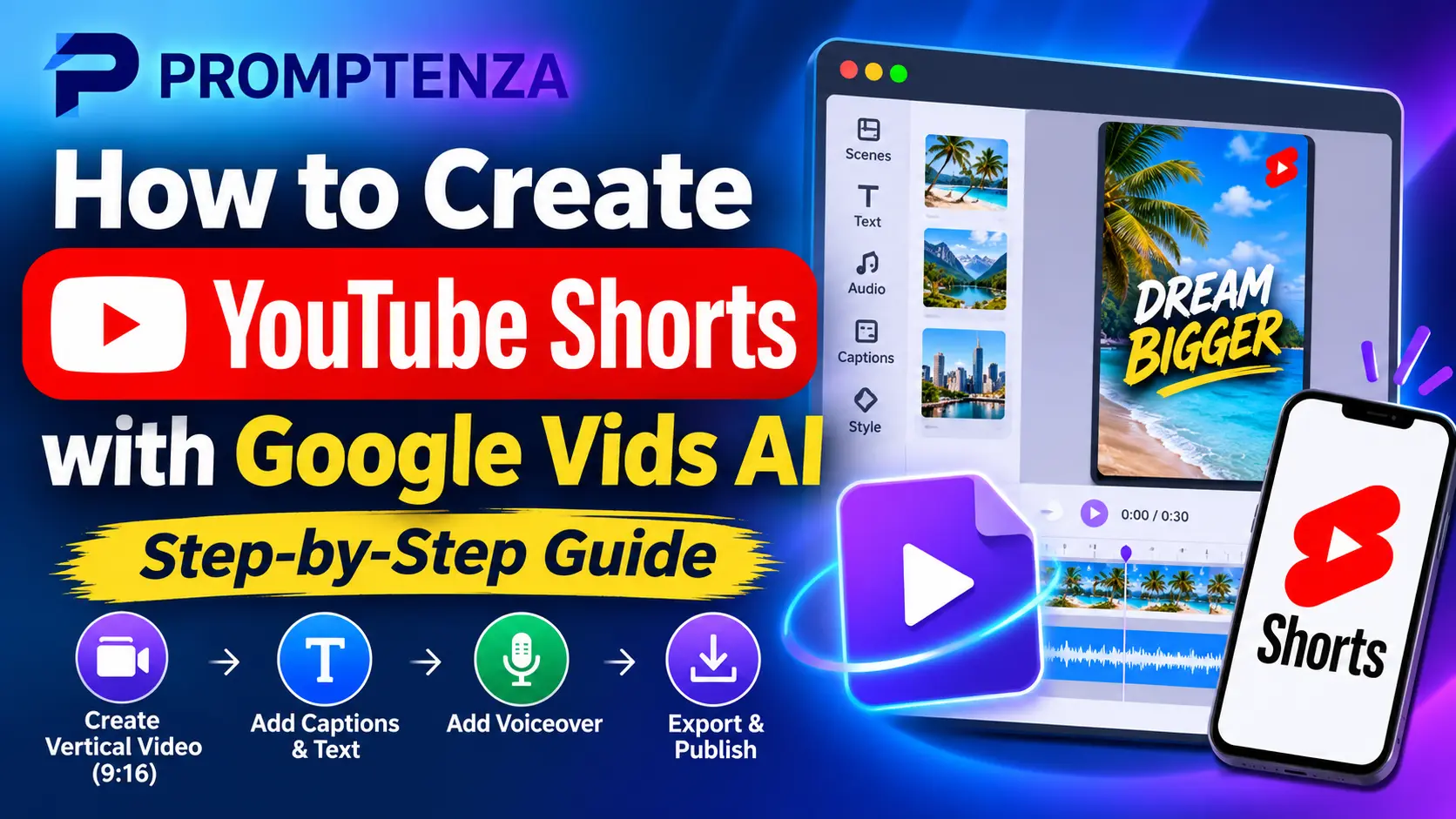
In this guide, you’ll learn how to create YouTube Shorts with Google Vids AI, choose the correct vertical format, generate video scenes, add voiceovers and captions, and prepare your video for publication.
We’ll also explore practical AI prompts you can use to create educational Shorts, product promotions, tutorials, business videos and more.
Quick Answer: Can You Create YouTube Shorts with Google Vids AI?
Yes. Google Vids supports vertical video creation in a 9:16 aspect ratio, which is suitable for YouTube Shorts.
To create one:
- Open Google Vids.
- Select Portrait when starting a new video.
- Choose an AI video creation option or start with a blank project.
- Enter a prompt or upload your images and video clips.
- Generate or arrange your video scenes.
- Add text, captions, narration and background audio.
- Preview and edit your video.
- Export it as an MP4 or use File → Export to YouTube.
- Review the uploaded video in YouTube Studio before publishing.
YouTube accepts square or vertical videos up to three minutes long as Shorts, provided they meet its eligibility requirements.
What Is Google Vids AI?
Google Vids is Google’s AI-powered video creation and editing application.
It allows users to create videos using different starting materials, including:
- Written prompts.
- Uploaded images.
- Existing video clips.
- Google Slides presentations.
- Video templates.
- Screen and camera recordings.
Depending on your account and available features, you can also use AI to generate video clips, scripts, voiceovers and other creative elements.
For YouTube Shorts, one of the most useful features is the ability to create videos in portrait format rather than having to begin with a traditional widescreen presentation.
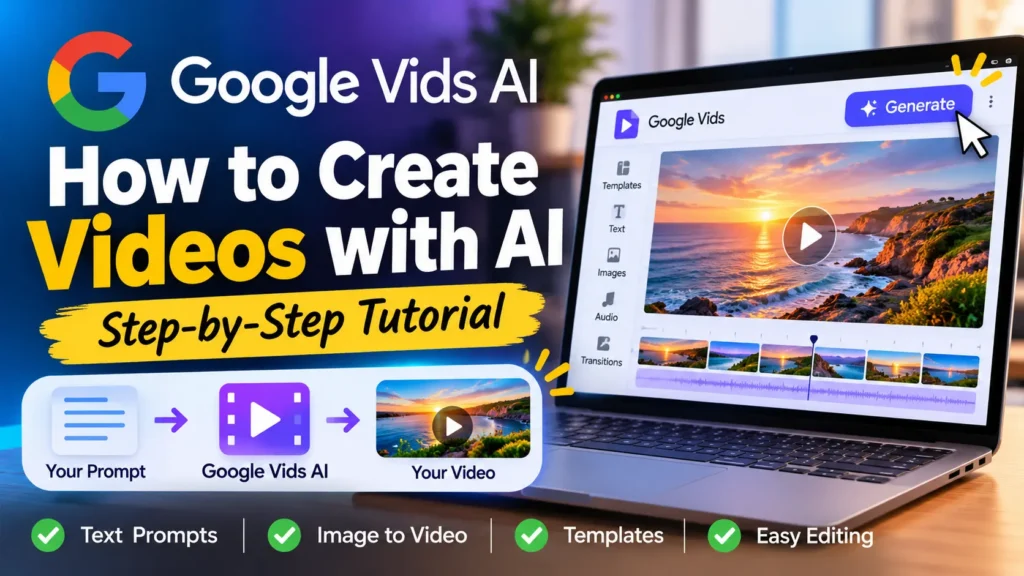
You can learn more about the application in our guide to Google Vids AI: How to Create Videos with AI.
What Are the Requirements for YouTube Shorts?
Before creating your video, understand the basic YouTube Shorts requirements.
| Requirement | Details |
|---|---|
| Recommended format | Vertical 9:16 |
| Other eligible format | Square 1:1 |
| Maximum duration | 3 minutes |
| Video format | MP4 is suitable |
| Upload destination | YouTube |
| Editing application | Google Vids or another video editor |
A vertical 9:16 video is generally the best choice for a mobile-first Shorts experience.
For example, you can create your Google Vids project in portrait format and design your scenes around a vertical screen.
Important: A video does not become a YouTube Short simply because it was created using Google Vids. YouTube determines whether it qualifies based on its format, duration and applicable platform rules.
How to Create YouTube Shorts with Google Vids AI
Let’s go through the complete process.
Step 1: Open Google Vids
Visit:
Sign in with your Google account.
If your account has access to Google Vids, you can begin creating a new video project.
Some AI features require an eligible Google Workspace or Google AI plan. Feature availability can vary by account.
Step 2: Select Portrait Video Format
When you start a new project, Google Vids gives you different video-size options.
Choose:
Portrait (9:16)
This creates a vertical video canvas suitable for YouTube Shorts.
If you have already opened a project in another format, look for Video Size in the menu and change it to portrait if the option is available.
<caption>Why choose portrait format?</caption>
A portrait video uses the screen space more effectively on mobile devices. It also helps you design text, graphics and video scenes specifically for vertical viewing.
Step 3: Choose How You Want to Create Your Short
Google Vids provides different ways to begin a video project.
You can choose:
| Creation method | Best use |
|---|---|
| Create AI videos | Generate video clips using prompts and visual references |
| Blank Vid | Build a Short manually |
| Templates | Start with a predesigned layout |
| Upload | Use your existing images and video clips |
| Record | Capture your screen, camera or audio |
| Convert Slides | Transform an existing Google Slides presentation |
For a completely new YouTube Short, the AI video creation option is a useful starting point.
Step 4: Enter Your AI Video Prompt
If you select the AI video creation workflow, describe the video you want to generate.
A useful prompt should explain:
- The subject.
- What should happen.
- The visual style.
- The camera movement.
- The lighting.
- The desired atmosphere.
- Any important visual details.
For example:
Prompt:
Create a vertical 9:16 promotional video for a modern coffee shop. Show freshly brewed coffee being poured into a ceramic cup, close-up shots of coffee beans and a beautifully arranged breakfast table. Use warm natural lighting, smooth cinematic camera movements and a premium commercial style. Keep the main subject centered and leave clear space for text overlays.
The more clearly you describe your desired result, the easier it is to evaluate whether the generated clip matches your idea.
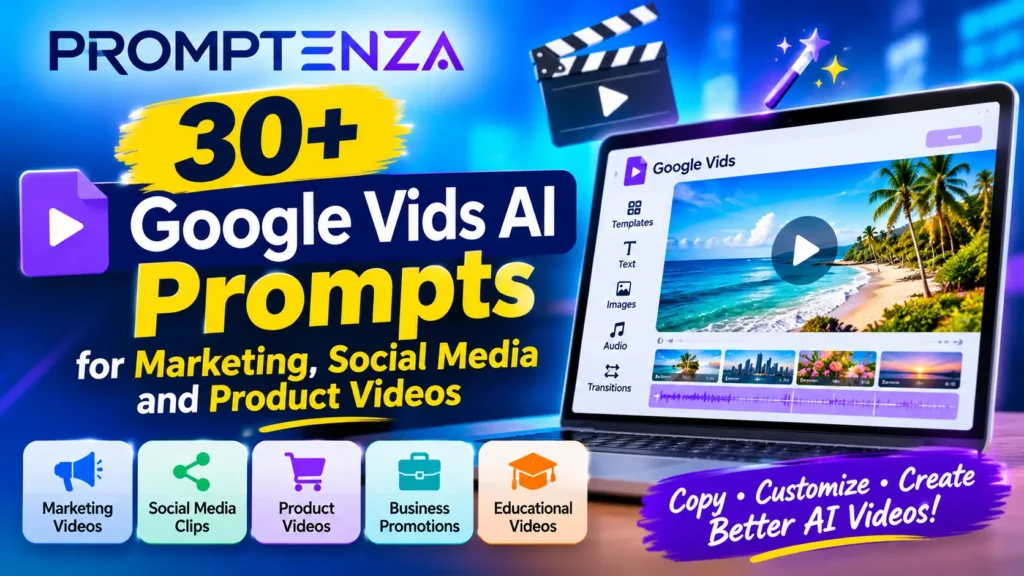
For additional inspiration, explore our collection of Google Vids AI Prompts for Marketing, Social Media and Product Videos.
Step 5: Generate Your Video Scenes
Submit your prompt and allow Google Vids to generate the available video content.
Depending on the creation workflow, you may be able to generate individual clips and add them to your project.
Review each result before using it.
If a scene does not match your idea, refine the prompt or try another generation.
For a Short with several scenes, create clips that tell one connected story rather than combining unrelated visuals.
Step 6: Arrange Your Scenes
After generating or uploading your clips, arrange them in the video timeline.
For example, a 30-second product Short could use this structure:
| Scene | Duration | Purpose |
|---|---|---|
| Scene 1 | 0–3 seconds | Attention-grabbing opening |
| Scene 2 | 3–10 seconds | Introduce the product |
| Scene 3 | 10–20 seconds | Show its features |
| Scene 4 | 20–26 seconds | Explain its main benefit |
| Scene 5 | 26–30 seconds | Closing message |
These are suggested editing durations, not fixed Google Vids limits.
Keep your opening interesting. Viewers should understand what the video is about within the first few seconds.
Step 7: Add Text Overlays
Text overlays help viewers understand your message, especially when they watch without sound.
You can add:
- Opening headlines.
- Important facts.
- Product names.
- Short explanations.
- Calls to action.
For example, a Short about productivity could use these text overlays:
Scene 1: 3 WAYS TO WORK SMARTER
Scene 2: PLAN YOUR PRIORITIES
Scene 3: REDUCE DISTRACTIONS
Scene 4: AUTOMATE REPETITIVE TASKS
Scene 5: SAVE THIS FOR LATER
Keep the text short and readable.
Avoid placing important text too close to the edges because YouTube interface elements may cover parts of the screen.
Step 8: Add AI Voiceovers
If you want narration, you can use Google Vids AI voiceover tools.
Open the Voiceover option, write or generate your narration script and select an available AI voice.
For example:
“Want to become more productive? Start by planning your priorities, reducing distractions and automating repetitive tasks. Small improvements can make your daily routine more effective.”
Choose a voice that suits the subject and audience.
For detailed instructions, read our guide:
How to Create AI Voiceovers in Google Vids.
Step 9: Add Captions
Captions make your video easier to follow, particularly for viewers who watch without audio.
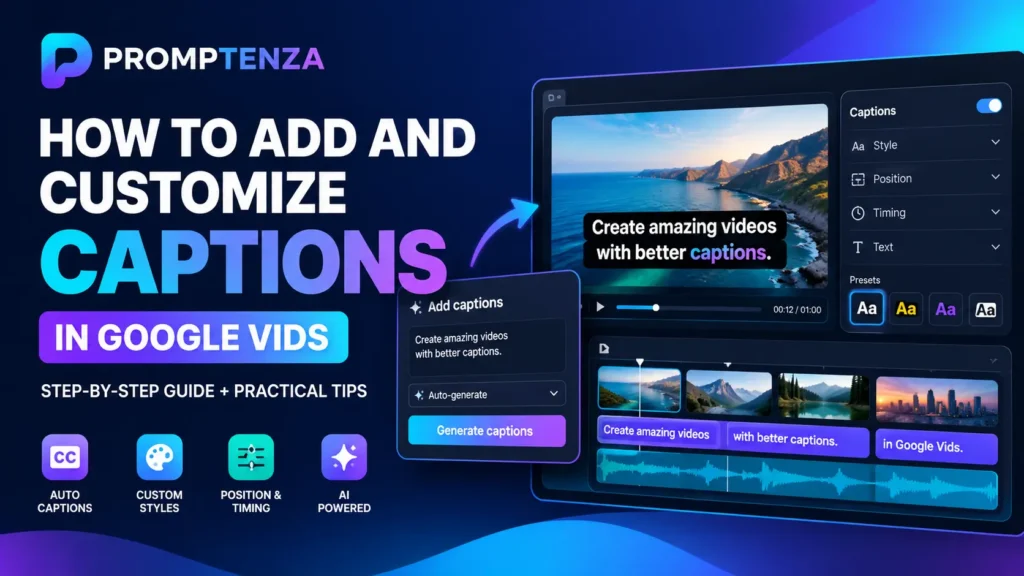
You can add text captions to your scenes and adjust their appearance, positioning and timing.
Check that the words match the narration and remain readable on a mobile screen.
For a detailed tutorial, read our guide to How to Add and Customize Captions in Google Vids.
Step 10: Add Background Music and Sound Effects
Background music can make your Short more engaging.
Choose audio that matches the purpose of your video.
For example:
| Video type | Suitable audio style |
|---|---|
| Educational Short | Light background music |
| Product advertisement | Upbeat commercial music |
| Travel video | Relaxing instrumental music |
| Business presentation | Subtle professional background music |
| Technology explainer | Modern electronic background music |
Make sure the narration remains easy to hear.
Also, use music and sound effects that you have permission to use on YouTube. Music copyright restrictions can affect whether a Short can remain available.
Step 11: Preview and Edit Your Short
Before exporting, watch the complete video.
Check:
- Is the video in portrait format?
- Does the opening communicate the topic quickly?
- Are the scenes connected logically?
- Is the narration clear?
- Are the captions accurate?
- Is the text readable?
- Is the background music at an appropriate level?
- Does the ending feel complete?
Remove unnecessary scenes and correct any mistakes.
Step 12: Export Your Video
Once you’re satisfied with your project, export it.
Google Vids supports MP4 export.
You can also use its direct YouTube export option.
To export directly:
- Open your completed Google Vids project.
- Select File.
- Choose Export to YouTube.
- Wait for the export to finish.
- Select Open now to review the uploaded video in YouTube Studio.
Google states that videos exported directly to YouTube are uploaded to your default channel with visibility set to Private.
You must review the video and change its visibility when you’re ready to publish.
You can also download the MP4 and upload it manually through YouTube Studio.
10 Google Vids AI Prompts for Creating YouTube Shorts
Here are ten practical prompts you can adapt for different types of Shorts.
Each prompt is designed to produce a vertical video concept.
1. Educational YouTube Short
Topic: Interesting science facts.
Prompt:
Create a vertical 9:16 educational video explaining three fascinating facts about the human brain. Use clean scientific visuals, animated diagrams, smooth transitions and engaging close-up shots. Use a bright, modern educational style with space for short text overlays. Make the video easy to understand for a general audience.
2. Product Advertisement Short
Topic: Skincare product promotion.
Prompt:
Create a premium vertical 9:16 product advertisement for a skincare cream. Show an elegant product container against a clean studio background, with close-up shots of its packaging and texture. Use soft lighting, smooth camera movements and a luxury commercial aesthetic. Leave space for product benefits and a closing message.
3. Business Tips Short
Topic: Small business growth.
Prompt:
Create a vertical 9:16 video explaining three practical ways small businesses can improve customer experience. Use modern business-themed visuals, animated icons, clean typography and smooth transitions. Make the presentation professional, engaging and suitable for social media.
4. Travel YouTube Short
Topic: Beautiful travel destinations.
Prompt:
Create a cinematic vertical 9:16 travel video showcasing beautiful tropical scenery. Include ocean views, green landscapes, local architecture and scenic viewpoints. Use smooth transitions, vibrant natural colours and cinematic camera movements. Leave space for location names and short descriptions.
5. Technology Explainer Short
Topic: Artificial intelligence.
Prompt:
Create a vertical 9:16 technology explainer video showing how artificial intelligence helps people complete everyday tasks. Use abstract digital visuals, clean animated graphics, connected data elements and modern technology-inspired transitions. Keep the visuals professional and easy to understand.
6. Motivational Short
Topic: Building good habits.
Prompt:
Create a vertical 9:16 motivational video about the importance of consistency. Show visual sequences representing planning, learning, practicing and completing meaningful goals. Use cinematic lighting, inspiring scenery and smooth transitions. Leave room for short motivational text overlays.
7. Food and Restaurant Short
Topic: Restaurant promotion.
Prompt:
Create a vertical 9:16 restaurant promotional video featuring a freshly prepared meal. Show close-up food photography, ingredients being prepared, steam rising from a hot dish and an attractive final presentation. Use warm lighting, appetizing colours and premium food-commercial visuals.
8. History Facts Short
Topic: Historical discoveries.
Prompt:
Create a vertical 9:16 educational video about an important historical discovery. Show relevant historical objects, illustrated timelines, museum-style visuals and animated maps. Use an informative documentary style and leave space for dates and short explanations.
9. Personal Finance Education Short
Topic: Budgeting basics.
Prompt:
Create a vertical 9:16 educational video explaining three basic budgeting principles. Use clean financial graphics, animated charts, simple illustrations and readable text overlays. Keep the visual style modern, clear and suitable for beginners.
10. App Tutorial Short
Topic: Introducing a productivity application.
Prompt:
Create a vertical 9:16 tutorial video introducing a productivity application. Show a clean interface demonstration, highlighted features, simple navigation steps and an ending summary. Use smooth transitions, clear visual instructions and space for captions.
Prompting tip: These prompts describe the intended video concept. If Google Vids generates individual short clips rather than a complete video, create the scenes separately and assemble them in the editing timeline.
5 YouTube Shorts Ideas You Can Create with Google Vids
If you’re unsure what to create, start with one of these content formats.
| Content format | Example Short |
|---|---|
| Educational facts | 5 Things You Didn’t Know About Artificial Intelligence |
| Quick tutorials | How to Organize Your Google Drive |
| Product promotions | 3 Features That Make This Product Useful |
| Business tips | 4 Ways to Improve Customer Service |
| Explainer videos | What Is Generative AI? |
Choose one topic per Short.
A focused video is generally easier to structure than one that attempts to explain several unrelated subjects.
Tips for Creating Better YouTube Shorts with Google Vids
1. Start with a Strong Hook
The opening should give viewers a reason to continue watching.
Instead of starting with a lengthy introduction, begin with a question, interesting fact or clear promise.
Example:
“Here are three AI tools that can save time on everyday tasks.”
2. Keep Your Video Focused
Avoid trying to explain too many ideas in one Short.
Choose one main topic and build the scenes around it.
3. Design for Mobile Screens
Use large, readable text and clear visuals.
Remember that viewers may be watching on relatively small screens.
4. Use Captions
Captions help viewers follow your message even when they cannot hear the narration.
Check spelling, timing and placement before publishing.
5. Use Consistent Visuals
Keep your colours, fonts and overall visual style consistent.
This makes a series of Shorts look more professional.
6. Make the Ending Useful
Finish with a summary, a question or a relevant next step.
For example:
“Which of these tips will you try first?”
7. Review AI-Generated Content
AI-generated clips and narration may contain errors or unexpected visual details.
Check every scene before publishing.
Google Vids vs Other Tools for Creating YouTube Shorts
Google Vids is one option for creating vertical videos, but other video editors may suit different workflows.
| Tool | Main strength |
|---|---|
| Google Vids | AI-assisted video creation and editing |
| Canva | Templates and graphic-based video design |
| CapCut | Social video editing and effects |
| Adobe Express | Branded visual content and video editing |
The best choice depends on whether you need AI-generated scenes, presentation-based videos, templates or detailed editing controls.
Google Vids is particularly useful if you already work with Google Workspace tools such as Google Slides and Google Drive.
Common Google Vids Problems When Creating YouTube Shorts
| Problem | What to check |
|---|---|
| Portrait option is missing | Check the video-size options and account interface |
| AI video generation fails | Review your prompt and try again |
| Video looks stretched | Check the aspect ratio and scene dimensions |
| Text is difficult to read | Increase text size and improve contrast |
| Narration does not match the scenes | Edit the script and regenerate the voiceover |
| Export to YouTube fails | Try exporting an MP4 and uploading it manually |
| Video is too long | Remove unnecessary scenes and shorten the timeline |
| Video is uploaded as private | Review its visibility in YouTube Studio |
For more troubleshooting advice, read:
Google Vids AI Not Working? 10 Ways to Fix AI Video Generation Problems.
Frequently Asked Questions
Can Google Vids create YouTube Shorts?
Yes. Google Vids supports portrait video creation in a 9:16 aspect ratio, making it suitable for creating videos for YouTube Shorts.
What size should I use for YouTube Shorts in Google Vids?
Choose Portrait (9:16) when creating your project. This is the recommended vertical format for YouTube Shorts.
Can Google Vids export videos directly to YouTube?
Yes. Google Vids has an Export to YouTube option under the File menu. Videos are uploaded to your default YouTube channel with private visibility, so you can review them before publishing.
How long can a Google Vids YouTube Short be?
YouTube accepts eligible vertical or square videos up to three minutes long as Shorts. Google Vids can create videos up to 30 minutes long, so make sure your exported video meets YouTube’s Shorts duration requirement.
Can I use AI-generated videos for YouTube Shorts?
Yes. Google Vids provides AI video creation tools that can generate video clips from prompts and other visual inputs. Review the generated content before publishing.
Can Google Vids add voiceovers to YouTube Shorts?
Yes. Google Vids supports AI voiceovers for eligible accounts. You can write a script, select an available voice and add narration to your video.
Can I add captions to Google Vids Shorts?
Yes. You can add text and captions to your scenes and customize their appearance. You should review the timing and spelling before exporting.
Can I turn Google Slides into YouTube Shorts?
You can import Google Slides presentations into Google Vids and use them as video scenes. For a Shorts project, choose a portrait layout and adjust the imported content so it works in a vertical format.
Is Google Vids free for creating YouTube Shorts?
Google Vids has different access and feature requirements. Some basic video-creation capabilities are available more broadly, while certain Gemini-powered features require an eligible Google Workspace or Google AI plan.
Can I monetize YouTube Shorts created with Google Vids?
Using Google Vids does not automatically make a video eligible for monetization. Monetization depends on YouTube Partner Program requirements, content originality and applicable monetization policies.
Final Thoughts
Google Vids AI provides a practical way to create YouTube Shorts without building every scene manually.
You can start with an AI prompt, an existing presentation or your own media, then create a vertical video, add narration, customize captions and export the finished project.
For the best results, choose the portrait format from the beginning, keep your message focused, use readable text and review every AI-generated scene before publishing.
If you already use Google Workspace, Google Vids can also help you repurpose presentations and written materials into short-form video content.