How to Convert Google Slides into Videos with Google Vids AI: Step-by-Step Guide
Do you already have a Google Slides presentation that you want to turn into a video? You don’t have to rebuild the entire presentation from scratch.
Google Vids allows you to convert existing Google Slides presentations into videos, turning individual slides into video scenes. With its AI features, you can also generate narration scripts, add AI voiceovers, apply background music and introduce animations.
This makes it easier to transform business presentations, educational lessons, product demonstrations and marketing slides into shareable videos.
In this guide, you’ll learn how to convert Google Slides into videos with Google Vids AI, how to use speaker notes for narration, how to add AI voiceovers and how to improve your presentation before converting it.
Quick Answer: Can Google Vids Convert Google Slides into Videos?
Yes. Google Vids can import an existing Google Slides presentation and convert its selected slides into individual video scenes.
To do this:
- Open your presentation in Google Slides.
- Select File → Convert to video.
- Alternatively, open Google Vids and select Convert Slides.
- Choose the presentation from Google Drive.
- Select the slides you want to import.
- Enable the AI options if you want generated scripts, voiceovers, background music and animations.
- Review the generated scripts and narration settings.
- Create your video.
- Edit and export the finished project.
Each imported slide becomes a separate scene in Google Vids. You can then edit the scenes, narration and other video elements.
What Is Google Slides-to-Video in Google Vids?
Google Slides-to-Video is a feature that allows you to transform an existing presentation into a video project.
Instead of manually recreating your slides in a video editor, Google Vids imports the presentation and converts the selected slides into scenes.
With the Gemini-powered options enabled, you can also use AI to:
- Generate scripts based on your presentation.
- Create AI voiceovers.
- Use speaker notes as narration scripts.
- Add background music.
- Add animations to imported slides.
- Use AI avatars where available.
- Edit the video before sharing it.
For example, imagine you have a 15-slide presentation explaining a new product.
You can import the presentation into Google Vids, generate narration for the slides, add background music and turn the result into a video presentation.
What Happens When You Convert Google Slides into Google Vids?
The conversion process does more than simply create a video file from your slides.
Google Vids turns the presentation into an editable video project.
| Google Slides element | What happens in Google Vids |
|---|---|
| Individual slides | Each selected slide becomes a video scene |
| Text and images | Imported as visual content in the scenes |
| Speaker notes | Can be used as scripts for narration |
| AI-generated scripts | Can provide narration for individual scenes |
| AI voiceovers | Add spoken narration |
| Background music | Can be added to the video |
| Animations | Can be added to imported slide content |
You can review and edit the generated scenes before completing your video.
Important: Google notes that Word Art and embedded video files from Slides cannot be imported through this workflow. Review the converted project to identify any missing elements.
How to Convert Google Slides into Videos with Google Vids AI
There are two main ways to start the conversion process.
Method 1: Convert Google Slides Directly from Google Slides
This method is useful when you already have your presentation open.
Step 1: Open Google Slides
Visit:
Sign in and open the presentation you want to convert.
Choose a presentation containing the content you want to turn into a video.
Step 2: Open the File Menu
At the top of the Google Slides interface, select File.
This displays the available presentation options.
Step 3: Select Convert to Video
Look for the Convert to video option and select it.
Google Vids will open the conversion workflow.
Step 4: Choose the Slides You Want to Import
Review the slides selected for your video.
You can select the slides you want to include rather than importing the entire presentation.
This is particularly useful when your presentation contains introductory slides, additional information or sections that are not necessary for the final video.
Step 5: Configure the AI Options
If available, enable the option to include AI-generated scripts, voiceovers, background music and animations.
You can also configure the narration options and choose an available AI avatar.
If you prefer to create a video without these AI features, you can turn off the AI option.
Step 6: Review the Narration Settings
Choose the available narration options.
If you have speaker notes in your presentation, Google Vids can use them as the scripts for the corresponding scenes.
You can also use the generated scripts instead.
Step 7: Create the Video
Review your selections and continue with the creation process.
Google Vids will import the selected slides and prepare the video scenes.
Step 8: Edit Your Video
After the video draft is created, review the scenes, scripts, voiceovers and other elements.
Make changes where necessary before sharing or exporting the video.
Method 2: Convert Google Slides from Google Vids
You can also begin the process directly from Google Vids.
Step 1: Open Google Vids
Visit:
Sign in using your Google account.
Step 2: Select Convert Slides
When starting a new video, choose the Convert Slides option.
If you already have an existing Google Vids project, you can use the File menu and select Convert slides.
Step 3: Choose Your Presentation
Select the Google Slides presentation stored in Google Drive.
Choose the presentation you want to convert and select it.
Step 4: Select the Slides
Choose the slides you want to include in the video.
You can import the entire eligible presentation or select specific slides.
Step 5: Configure AI Features
If your account supports the AI conversion options, enable the option to include:
- AI-generated scripts.
- AI voiceovers.
- Background music.
- Animations.
You can also configure the available narration and avatar settings.
Step 6: Review the Scripts
Check the generated narration for each scene.
You can edit the scripts, use your speaker notes instead or remove narration from individual scenes.
Step 7: Create the Draft Video
Select the option to create your draft video.
Google Vids will process the presentation and create the video project.
Step 8: Refine Your Video
Review the generated scenes and make any necessary changes.
You can edit the scripts, update the voiceovers and improve the visual presentation before sharing the finished video.
How to Use Google Slides Speaker Notes as AI Video Narration
One particularly useful feature is the ability to use your existing speaker notes as narration scripts.
If you have already written explanations for each slide, you may not need to create an entirely new script.
For example, consider a presentation about digital marketing.
Your slide might contain:
Slide title: Introduction to Digital Marketing
Visible slide content:
- Search engine optimization.
- Social media marketing.
- Email marketing.
- Content marketing.
Your speaker notes might contain:
“Digital marketing allows businesses to reach customers through online channels. Some of the most common approaches include search engine optimization, social media marketing, email marketing and content marketing.”
Google Vids can use those speaker notes as the script for the corresponding scene.
How to Replace Generated Scripts with Speaker Notes
During the conversion workflow:
- Select the presentation.
- Enable the AI script and voiceover options.
- Continue to the script-review stage.
- Find the scene whose narration you want to change.
- Select Replace with speaker notes.
- Review the imported notes.
- Continue with the video creation process.
This is particularly useful when you have already prepared detailed explanations for your presentation.
Practical tip: Write speaker notes as natural spoken sentences rather than simply repeating the bullet points displayed on each slide.
How to Add AI Voiceovers to Google Slides Videos
AI voiceovers allow you to add narration without recording your own voice.
When converting a presentation, Google Vids can generate scripts and apply an AI voiceover to the video.
Follow these steps:
- Open the Google Slides-to-Video workflow.
- Enable the AI voiceover and script options.
- Continue to the narration settings.
- Choose an available AI avatar or voiceover option.
- Review the generated scripts.
- If necessary, edit the narration for each scene.
- Select the voice you want to use.
- Create the video.
Choose a voice that matches the subject and intended audience.
For example:
| Video type | Recommended narration style |
|---|---|
| Educational presentation | Clear and instructional |
| Business presentation | Professional and measured |
| Product demonstration | Friendly and engaging |
| Marketing presentation | Energetic and persuasive |
| Training video | Calm and easy to follow |
Available voices, avatars and AI options may depend on your account and current Google Vids features.
10 Practical Ways to Turn Google Slides into Videos
The Slides-to-Video workflow is useful for more than ordinary presentations.
Here are ten practical examples.
1. Convert Business Presentations into Videos
Businesses can transform existing presentations into video summaries for employees, stakeholders and customers.
Example presentation: Quarterly business performance.
Possible video scenes:
- Introduction to the reporting period.
- Business achievements.
- Important performance figures.
- Challenges and opportunities.
- Recommendations.
2. Turn Educational Presentations into Learning Videos
Teachers and educational content creators can convert classroom presentations into narrated learning videos.
Example presentation: The water cycle.
Possible scenes:
- Introduction to the water cycle.
- Evaporation.
- Condensation.
- Precipitation.
- Summary.
This can help students review educational materials outside the classroom.
3. Create Product Demonstration Videos
Businesses can convert product presentations into promotional videos.
Example presentation: Introducing a new smartphone accessory.
Possible scenes:
- Product introduction.
- Main features.
- How the product works.
- Product benefits.
- Closing message.
You can also add additional product footage and AI-generated video clips during editing.
4. Convert Marketing Presentations into Promotional Videos
A marketing presentation can become a video explaining a campaign or introducing a new product.
Example presentation: A new product launch strategy.
The video could include the target audience, campaign objectives, promotional channels and important campaign milestones.
5. Create Employee Training Videos
Companies can use existing training presentations to produce narrated training materials.
Example presentation: Customer service training.
The video could explain communication guidelines, customer expectations, complaint handling and workplace procedures.
6. Turn Project Proposals into Video Presentations
Instead of presenting a long slide deck during a meeting, you can create a video summary.
Example presentation: A proposed website redesign.
Possible scenes:
- Current website challenges.
- Proposed improvements.
- Project objectives.
- Implementation timeline.
- Expected outcomes.
7. Create Real Estate Marketing Videos
Real estate agents can turn property presentations into video introductions.
Example presentation: A residential property listing.
Possible scenes:
- Property introduction.
- Location and surroundings.
- Property features.
- Interior highlights.
- Contact information.
Add original property footage during editing to provide more visual detail.
8. Turn Research Presentations into Explainer Videos
Research presentations often contain findings that need to be communicated to a wider audience.
You can use Google Vids to create a narrated summary.
Example presentation: Research about online shopping trends.
The video could explain the research question, important findings, statistics and conclusion.
Check all figures and claims before sharing the final video.
9. Create Online Course Introduction Videos
Course creators can turn introductory slide presentations into narrated course videos.
Example presentation: Introduction to digital marketing.
Possible scenes:
- Course overview.
- Learning objectives.
- Topics covered.
- Practical assignments.
- What students will learn.
10. Create Company Introduction Videos
An existing company presentation can become a video introducing the organization.
Example presentation: Company profile.
Possible scenes:
- Company introduction.
- Mission and vision.
- Products and services.
- Company achievements.
- Contact information.
5 Tips to Improve Your Google Slides Before Converting Them into Videos
The quality of your original presentation can influence the quality of the final video.
Before converting your slides, consider these improvements.
1. Use Clear Slide Titles
Each slide should communicate one main idea.
Instead of using a vague title such as “Information”, use a descriptive heading that tells viewers what the scene is about.
2. Avoid Overcrowding Slides
Slides containing too much text can make video scenes difficult to follow.
Use short explanations, clear headings and relevant images.
3. Write Useful Speaker Notes
Speaker notes can provide additional context for the AI-generated narration.
Write complete sentences that explain the information on each slide.
4. Use Consistent Visual Design
Maintain consistent fonts, colours and layouts throughout the presentation.
This makes the final video feel more professional.
5. Review Every Scene
After conversion, watch the video from beginning to end.
Check that the narration matches the slides and that important information has not been omitted.
Google Slides-to-Video Limits You Should Know
Google Vids has some important conversion limits.
| Feature | Documented limit or behaviour |
|---|---|
| Maximum slides without AI features | Up to 100 slides |
| Maximum slides with AI features | Up to 45 slides |
| Default scene duration without voiceover | 5 seconds |
| Scene duration with generated voiceover | Matches the voiceover length |
| Maximum video duration | 10 minutes |
| Maximum audio objects | 50 |
| Word Art import | Not supported |
| Embedded video import | Not supported |
These limits are subject to the presentation’s contents and the current interface.
For example, if your presentation contains existing audio tracks, Google Vids may allow fewer slides to be imported. The import window displays the applicable limit.
If the conversion would produce a video longer than 10 minutes, you may need to reduce the number of slides or shorten the video.
Google Slides vs Google Docs to Video: What’s the Difference?
Google Vids supports different document-to-video workflows.
Understanding the differences can help you select the correct feature.
| Feature | Google Slides to Video | Google Docs to Video |
|---|---|---|
| Starting material | Presentation | Written document |
| Main output | Video scenes based on slides | Narrated video summary |
| Visual content | Uses existing slide content | Generated video scenes based on the document |
| Speaker notes | Can be used as scripts | Not applicable in the same way |
| AI narration | Available | Available |
| Best for | Presentations and slide-based lessons | Reports, guides and written materials |
Which should you choose?
Choose Google Slides-to-Video if you already have a presentation containing visual material you want to preserve.
Choose Docs-to-Video if your starting material is a Google Doc, PDF or Word document that you want to summarize into a video.
For the document workflow, read our guide to How to Turn Google Docs and PDFs into Videos with Google Vids AI.
Google Vids Slides-to-Video: Common Problems and Solutions
You may encounter some issues when converting presentations.
| Problem | Possible solution |
|---|---|
| Convert to Video option is missing | Check whether your account has access to the feature |
| AI options are unavailable | Check your Google Workspace or Google AI plan eligibility |
| Some slides are missing | Review the selected slides and import limits |
| Speaker notes are not used | Select Replace with speaker notes during script review |
| Embedded videos are missing | Add supported video clips manually after importing |
| Word Art is missing | Recreate the text using supported text elements |
| Video is too long | Reduce the number of slides or shorten narration |
| Generated narration is inaccurate | Edit the script before creating or sharing the video |
| Conversion fails | Check your connection and try again |
If Google Vids is not working as expected, read our troubleshooting guide:
Google Vids AI Not Working? 10 Ways to Fix AI Video Generation Problems.
Frequently Asked Questions
Can Google Vids convert Google Slides into videos?
Yes. Google Vids can import an existing Google Slides presentation and turn selected slides into individual video scenes.
How do I convert Google Slides into a video?
Open your presentation in Google Slides, select File, choose Convert to video and follow the instructions. You can also open Google Vids and select Convert Slides.
Can Google Vids automatically add narration to my presentation?
Yes. When the AI options are enabled, Google Vids can generate scripts and add AI voiceovers to the imported slides.
Can I use my Google Slides speaker notes as narration?
Yes. Google Vids allows you to replace generated scripts with the speaker notes from your original presentation.
Does each Google Slide become a video scene?
Yes. Each selected slide becomes a separate scene in the Google Vids project.
How many slides can I convert into a video?
Google’s documented limits are up to 100 slides without the AI features and up to 45 slides when using the AI functionality. The actual number may be lower depending on the video and its existing audio content.
Can I edit the video after converting Google Slides?
Yes. You can review and edit scenes, update scripts and voiceovers, and make other changes to the video project.
Can Google Vids add background music to converted presentations?
Yes. The AI-powered conversion workflow can add background music when the relevant option is enabled.
Can I add an AI avatar to a Google Slides video?
Yes. Google Vids supports AI avatars in the presentation-conversion workflow for eligible accounts. Availability and usage limits may vary.
Is Google Slides-to-Video free?
The AI-powered conversion feature requires an eligible Google Workspace or Google AI plan. Basic access to Google Vids does not automatically include every Gemini feature.
Final Thoughts
Converting Google Slides into videos with Google Vids AI is a practical way to repurpose presentations without rebuilding every scene manually.
You can import selected slides, use speaker notes as narration, generate AI scripts and voiceovers, add background music and refine the finished video.
The best results come from preparing your presentation before conversion. Use clear slide titles, concise content and useful speaker notes, then review every generated scene before sharing the video.
If you already create presentations for business, education or marketing, Google Vids gives you another way to turn that work into engaging video content.
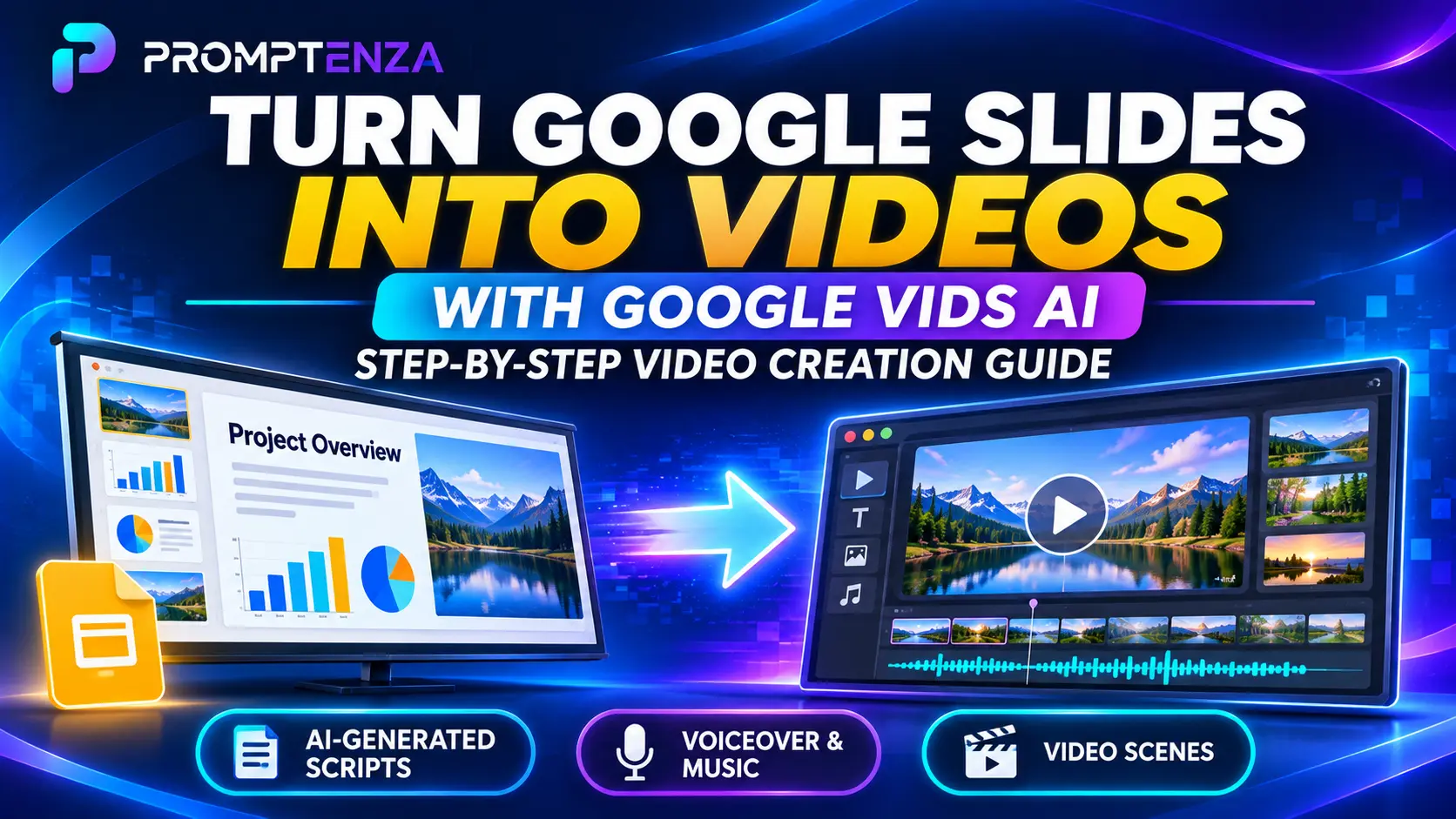
Create a premium, professional 16:9 featured image for a Promptenza.com article titled “How to Convert Google Slides into Videos with Google Vids AI.”
Main headline
TURN GOOGLE SLIDES INTO VIDEOS
Supporting headline
WITH GOOGLE VIDS AI
Subtitle
STEP-BY-STEP VIDEO CREATION GUIDE
Visual concept
Show a clear transformation from a Google Slides presentation into a finished AI-generated video.
Left side:
- Display a digital presentation screen showing a professional slide deck with charts, text, images and presentation thumbnails.
- Add a small Google Slides-inspired presentation icon without copying or inventing official branding.
Centre:
- Create a glowing AI transformation effect using electric-blue and purple light.
- Add a clear directional arrow showing the presentation transforming into a video.
Right side:
- Show a modern video-editing interface inspired by Google Vids.
- Display a cinematic video preview, scene thumbnails, a video timeline and a visible play button.
- Include subtle audio waveform graphics to represent AI narration and voiceovers.
Promptenza branding
- Place the supplied PROMPTENZA logo prominently in the upper-left corner.
- Preserve the original logo design, typography, colours and proportions.
- Do not recreate, distort or misspell the brand name.
Supporting feature labels
Include three small, readable labels near the bottom:
- AI-GENERATED SCRIPTS
- VOICEOVER & MUSIC
- VIDEO SCENES
Brand style
- Dark navy and deep indigo background.
- Electric blue, cyan, teal and purple gradient accents.
- Bright transformation effects.
- Modern, polished AI technology aesthetic.
- Strong contrast and clean visual hierarchy.
- Professional editorial design suitable for an AI education website.
Typography
- Bold, modern sans-serif fonts.
- Make the main headline the largest text.
- Keep the supporting headline clearly visible.
- Ensure all text is correctly spelled and readable at thumbnail size.
- Keep important text within safe margins.
Important restrictions
- No human faces or humanoid robots.
- Do not invent or imitate official Google or Gemini logos.
- Avoid clutter and excessive decorative elements.
- Do not distort the Promptenza logo.
- Make the Slides-to-Video transformation immediately understandable.
Output specifications
- Landscape 16:9 composition.
- 1536 × 1024 pixels.
- High-resolution, crisp typography.
- Suitable for a professional WordPress featured image.
- Optimized for Google Discover and social media sharing.