How to Edit GIFs in ChatGPT: Adjust Playback Speed and Improve Your Animations
Creating an animated GIF with ChatGPT is only the beginning. Sometimes the animation moves too quickly, the movement feels unnatural, or the final result needs a few changes before you can share it.
Fortunately, ChatGPT now provides ways to refine GIFs after generation. With its Images 2.6 capabilities, you can describe changes you want ChatGPT to make, adjust the playback speed and save or share the resulting animation.
But how do you edit a GIF in ChatGPT? Can you slow down an animation, make it loop more smoothly or change the movement of a character without starting again?
Quick Answer: To edit a GIF created with ChatGPT, open the original conversation and describe the changes you want in a follow-up message. You can also open the generated GIF and adjust its playback speed using the available controls. For larger changes, provide a more detailed editing instruction and ask ChatGPT to generate an improved version. You cannot directly edit an animated GIF uploaded from your device using this feature.
In this guide, you’ll learn how to edit ChatGPT GIFs, adjust playback speed, improve animation quality, create smoother loops and use practical prompts to get better results.
What Is ChatGPT GIF Editing?
ChatGPT GIF editing allows you to refine animations created with ChatGPT by providing additional instructions.
Instead of accepting the first result, you can ask ChatGPT to change specific elements of the animation.
For example, you could:
- Make a character wave more naturally.
- Slow down the movement of an animated object.
- Change the direction of an animation.
- Improve the transition between movements.
- Make a character’s expression more noticeable.
- Adjust the visual appearance of the animation.
- Create a more consistent looping effect.
These capabilities are part of ChatGPT Images 2.6, introduced by OpenAI on November 4, 2026.
OpenAI describes GIF creation as a way to turn text prompts, sketches and still images into looping animations. Users can also adjust playback speed and share their creations.
One important distinction is that ChatGPT can edit GIFs it created, but it cannot edit an animated GIF uploaded from your device. https://help.openai.com/en/articles/11084440-images-in-chatgpt
How to Edit GIFs in ChatGPT
You can edit a generated animation by returning to the conversation where ChatGPT created it and providing additional instructions.
Follow these steps.
Step 1: Open ChatGPT
Visit https://chatgpt.com/ and sign in to your account.
Open the conversation containing the GIF you want to improve.
If you cannot find the original conversation, check the Images section in ChatGPT for your previously generated visual content.
Step 2: Open Your Generated GIF
Locate the animation you want to edit.
Open it to access the available playback and sharing controls.
Remember that you should work with a GIF generated by ChatGPT rather than an unrelated animated GIF uploaded from your device.
Step 3: Describe the Changes You Want
Return to the conversation and send a follow-up instruction explaining what you want to improve.
For example:
“Improve this GIF by making the character’s hand movements smoother. Keep the original character design, clothing, colours and background unchanged. Make the movement more natural and preserve the looping animation.”
ChatGPT will use your instructions to generate an updated result.
Step 4: Review the Updated Animation
Once the new result is ready, open it and check whether the changes match your instructions.
Pay attention to:
- Movement consistency.
- Character appearance.
- Background details.
- Animation speed.
- Looping behaviour.
If something still needs improvement, provide another specific instruction.
Step 5: Adjust Playback Speed and Save
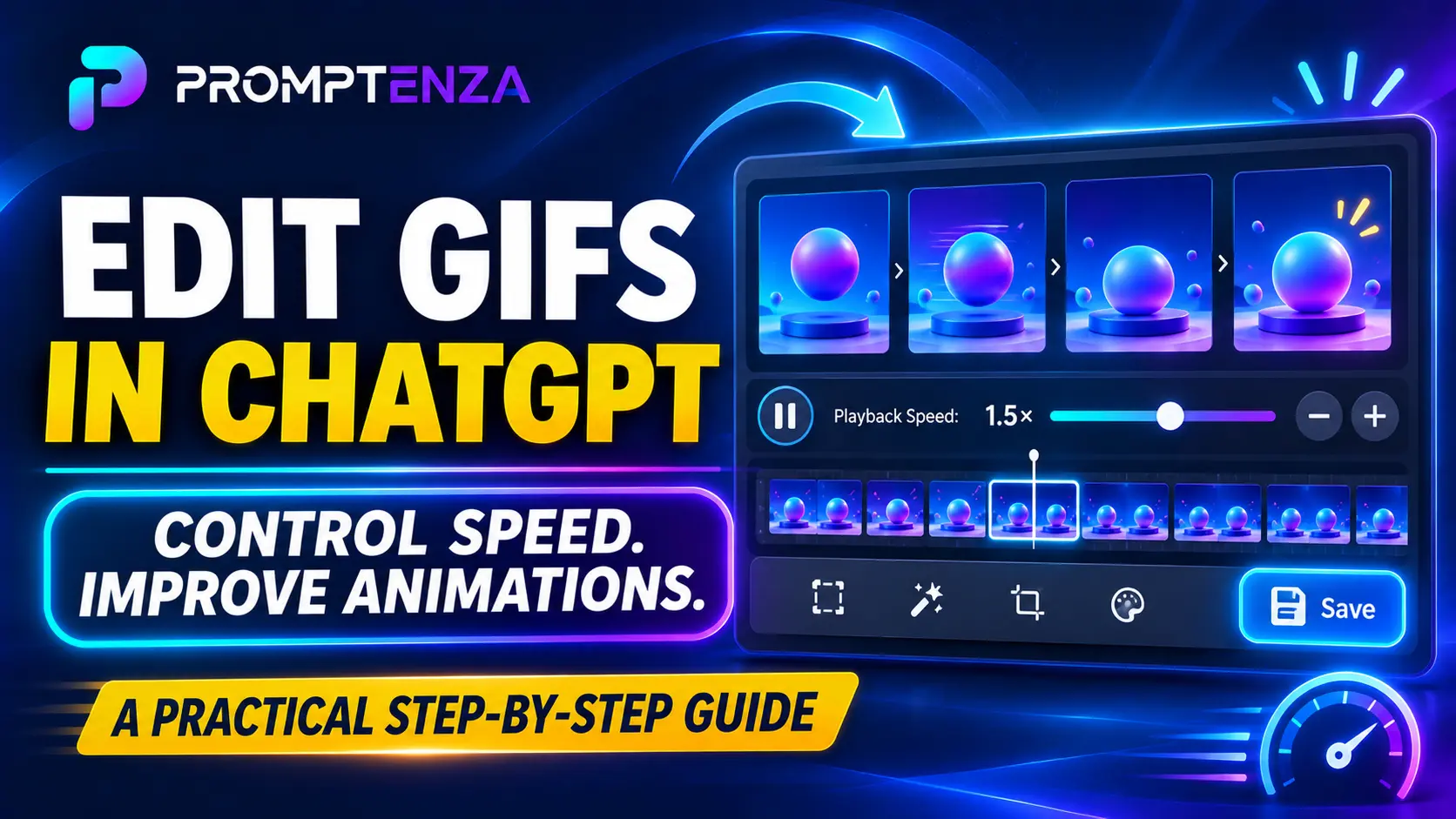
After reviewing your GIF, open its playback controls.
Choose a speed that works for your animation.
You can then save or share the updated GIF.
How to Adjust GIF Playback Speed in ChatGPT
One of the useful features of ChatGPT GIF creation is the ability to adjust playback speed.
This allows you to change how quickly an animation plays without necessarily asking ChatGPT to generate an entirely new animation.
For example, a character waving its hand might look better at a slower speed, while a funny reaction GIF may work better with faster movement.
Step-by-step instructions
- Open the conversation containing your generated GIF.
- Select the animation to open its viewer.
- Locate the playback speed control.
- Choose an available speed setting.
- Preview the animation.
- Select a different speed if the movement still feels too fast or too slow.
The available controls may vary as the feature rolls out and the interface evolves.
When should you change GIF playback speed?
| Animation type | Suggested approach |
|---|---|
| Character waving | Try slower playback for clearer movement |
| Funny reaction GIF | Experiment with faster playback |
| Floating objects | Use a moderate speed |
| Animated birthday message | Use a slower, easy-to-follow pace |
| Product animation | Use controlled, consistent movement |
| Dancing character | Experiment with different playback speeds |
These are creative recommendations rather than fixed technical settings. Preview your animation to find the speed that communicates the intended movement.
Important: Playback speed and animation quality are different things. Slowing down a GIF does not automatically create additional animation frames or make choppy movement smoother.
How to Improve GIF Animation Quality with ChatGPT
If your generated animation does not look the way you expected, you can provide more specific instructions.
The quality of your editing prompt matters because ChatGPT needs to understand which parts of the animation should change and which should remain consistent.
Here are five practical ways to improve your GIFs.
1. Make Character Movements More Natural
Sometimes an animated character may move too abruptly or appear stiff.
Instead of asking ChatGPT to make the entire animation better, describe the movement you want.
Example prompt:
“Improve the movement of the character in this GIF. Make the arm movements more natural and gradual. Preserve the character’s original appearance, facial expression, clothing and background. Keep the animation looping smoothly.”
This gives ChatGPT a clearer editing objective.
2. Improve Looping Animations
A looping GIF should transition naturally from its final frame back to its first frame.
If the transition feels abrupt, ask ChatGPT to improve the continuity.
Example prompt:
“Refine this GIF to create a smoother looping animation. Make the final movement connect naturally with the beginning of the animation. Keep the subject, colours, composition and background consistent throughout.”
This is particularly useful for reaction GIFs, animated logos and promotional graphics.
3. Make Character Expressions More Noticeable
For reaction GIFs, facial expressions help communicate emotions.
You can ask ChatGPT to make an expression more noticeable without changing the character’s identity or overall design.
Example prompt:
“Improve this animated character’s surprised expression. Make the eyes and facial movements more expressive while preserving the original character design, clothing, colours and background. Keep the animation natural.”
4. Improve Product Animations
Product GIFs are useful for showcasing items in promotional content.
If the product appears to change shape or colour during animation, ask ChatGPT to preserve its important visual details.
Example prompt:
“Refine this product animation. Keep the original product shape, packaging, label, colours and proportions consistent throughout the animation. Make the product rotation smoother and maintain the existing studio background.”
This is especially useful for product demonstrations and ecommerce graphics.
5. Improve the Overall Visual Consistency
If different parts of an animation look inconsistent, give ChatGPT instructions about what should remain unchanged.
Example prompt:
“Improve the visual consistency of this GIF. Preserve the same character proportions, outfit, colour palette, background and lighting throughout the animation. Avoid unnecessary changes to the original composition. Maintain smooth, continuous movement.”
This helps communicate which details are important to preserve.
10 Practical ChatGPT GIF Editing Prompts
You can use the following prompts to refine different types of animations.
These examples are designed for editing GIFs previously created with ChatGPT.
1. Smooth character animation
“Improve the smoothness of this animated character. Make the movements more natural and consistent while preserving its original appearance and background.”
2. Slower waving animation
“Refine the waving movement in this GIF. Make the hand movement slower and more natural. Keep the character’s original design and create a seamless loop.”
3. Funny reaction animation
“Improve this reaction GIF by making the character’s expression more noticeable. Preserve the original illustration style and make the movements more expressive.”
4. Animated logo refinement
“Refine this animated logo. Keep the original logo design, proportions and brand colours unchanged. Make the movement smooth, professional and suitable for a short looping animation.”
5. Product rotation
“Improve the rotation in this product GIF. Make the movement more consistent and maintain the original product appearance, packaging and background.”
6. Birthday animation
“Improve this birthday GIF by making the falling confetti and candle movements more natural. Preserve the original cake design, colours and celebratory background.”
7. Animated text
“Refine the movement of the text in this GIF. Keep the original wording, font style, colours and placement unchanged. Make the animation smoother and easier to read.”
8. Dancing character
“Improve the dancing movement in this GIF. Make the transitions between movements more natural while preserving the character’s original appearance and proportions.”
9. Floating object animation
“Refine the floating movement in this animation. Make the object move gently and consistently without changing its shape, colour or surrounding background.”
10. Seamless looping animation
“Improve this GIF so that the ending connects naturally to the beginning. Preserve the original subject, composition and visual style. Avoid sudden changes between the beginning and ending of the animation.”
Prompting tip: Give ChatGPT one clear editing objective at a time. If you want to change the movement, background and character appearance simultaneously, separate those instructions into manageable editing requests.
Can You Edit an Uploaded GIF in ChatGPT?
This is an important limitation to understand.
ChatGPT’s GIF editing feature is designed to refine animations created with ChatGPT. According to OpenAI’s official documentation, it cannot directly edit an animated GIF that you upload from your device.
However, you can use a different approach.
If you have an existing animated GIF that you want to recreate or improve:
- Extract or save a still frame from the original animation using a suitable image editor.
- Upload that still image to ChatGPT.
- Describe the animation you want to create.
- Explain which elements should move and which should remain stationary.
- Ask ChatGPT to generate a new looping GIF.
Example prompt for recreating an uploaded GIF
“Use this uploaded image as the visual reference for a new animated GIF. Animate the main character waving its hand while keeping the background stationary. Preserve the character’s original colours, proportions and illustration style. Create a smooth looping animation.”
This approach uses the still image as a reference rather than attempting to edit the original animated file.
What to Do When ChatGPT GIF Editing Is Not Working
Sometimes the editing process may not work as expected.
Here are common problems and possible solutions.
| Problem | What to try |
|---|---|
| GIF editing instructions are ignored | Give shorter, more specific instructions |
| Character appearance changes | Explicitly request that original details remain unchanged |
| Animation still looks too fast | Adjust playback speed in the GIF viewer |
| Looping looks abrupt | Ask for a smoother transition between the beginning and ending |
| ChatGPT cannot edit your uploaded GIF | Extract a still frame and request a new animation |
| GIF editing option is unavailable | Check whether the feature has reached your account |
| Updated animation looks different | Return to the original conversation and clarify the details to preserve |
If the GIF feature is unavailable or ChatGPT is not responding, read our troubleshooting guide:
ChatGPT GIF Maker Not Working? Common Problems and How to Fix Them.
How to Download Your Edited ChatGPT GIF
After refining your animation, you may want to keep a copy on your device.
The process is simple:
- Open the updated GIF.
- Access the available image controls.
- Select Save.
- Wait for the download to finish.
- Locate the file on your computer or phone.
- Open the saved file to confirm that the animation works.
You can also share the GIF through ChatGPT’s available sharing controls.
For a complete walkthrough, read:
How to Download and Save GIFs Created with ChatGPT.
Frequently Asked Questions About Editing GIFs in ChatGPT
1. Can you edit GIFs in ChatGPT?
Yes. You can describe changes to GIFs created with ChatGPT and ask it to generate an improved version. You can also adjust playback speed using the GIF viewer.
2. Can I slow down a GIF in ChatGPT?
Yes. Open the generated GIF and use the playback speed control to choose an available speed.
3. Can ChatGPT make GIF animations smoother?
You can ask ChatGPT to refine the movement and looping behaviour of a generated GIF. However, the result depends on the animation and the instructions provided.
4. Can I change the background of a ChatGPT GIF?
You can ask ChatGPT to modify the background of an animation it created. Explain what should change and what should remain consistent.
5. Can ChatGPT edit an existing GIF from my computer?
No. ChatGPT currently cannot directly edit an animated GIF uploaded from your device. You can instead extract a still frame and use it as the reference for a new animation.
6. Can I change the speed of a GIF without generating it again?
Yes. ChatGPT provides playback speed controls for generated GIFs, allowing you to adjust how quickly the animation plays.
7. How do I make a GIF loop smoothly?
Ask ChatGPT to refine the transition between the final and first frames. Specify that the movement should connect naturally without an abrupt visual change.
8. Can I edit a GIF multiple times in ChatGPT?
You can provide additional editing instructions in the original conversation and refine your generated animation through successive requests.
9. Can I download an edited GIF from ChatGPT?
Yes. Open the updated animation and select Save to download it to your device.
10. Is ChatGPT GIF editing available to everyone?
GIF creation is rolling out in ChatGPT. Availability can vary while the feature is being introduced, so check the Images section and your ChatGPT interface for access.
Final Thoughts
Editing GIFs in ChatGPT gives you more control over the animations you create.
Instead of accepting the first result, you can adjust playback speed, refine movements, improve looping behaviour and provide additional instructions to create a more polished animation.
The most important thing is to be specific about what you want changed and what you want preserved.
Whether you’re creating funny reaction GIFs, animated logos, product promotions or character animations, experimenting with clear editing instructions can help you get better results.
If you are just getting started, explore our ChatGPT GIF Generator guide and our collection of ChatGPT GIF prompts for more practical ideas.
Promptenza – Learn AI, Prompting & AI Tools.