ChatGPT GIF Generator: How to Create Animated GIFs with ChatGPT
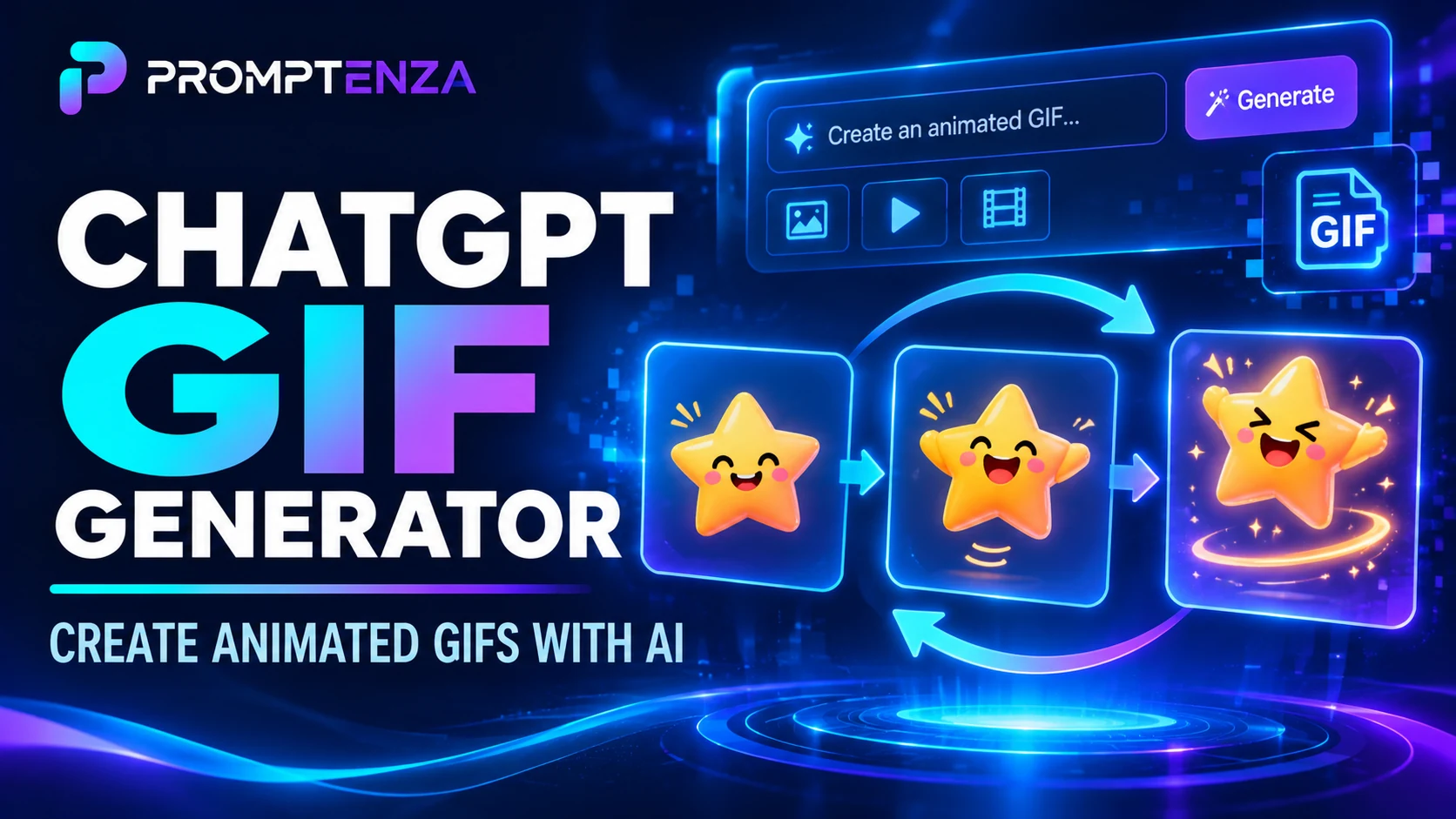
ChatGPT can now create animated GIFs from text prompts and still images. With the introduction of ChatGPT Images 2.6, users can describe an animation, turn an existing picture into a moving image, adjust playback speed and share the finished GIF.
This new capability makes it easier to create animated reactions, social media content, character animations, product loops and other short visual content without starting with traditional animation software.
In this guide, you’ll learn how to create GIFs with ChatGPT, how to animate an existing image, and which prompts to use to get better results.
Quick Answer: Can ChatGPT Create GIFs?
Yes. ChatGPT now supports animated GIF creation through its Images 2.6 experience. You can describe a looping animation in a text prompt or upload a still image and ask ChatGPT to animate it.
After generating a GIF, you can adjust its playback speed, request changes to the animation, save it to your device and share it. The feature is rolling out in ChatGPT, so availability may vary between accounts.
What Is the New ChatGPT GIF Feature?
The new GIF feature is part of OpenAI’s ChatGPT Images 2.6 update, announced on November 4, 2026.
Previously, ChatGPT could help users create individual images and edit existing pictures. The new capability extends that experience by allowing users to create animated GIFs.
For example, instead of generating a picture of a cartoon character waving, you can ask ChatGPT to create a looping animation of that character waving.
OpenAI highlights several potential uses, including:
- Creating animated brand mascots.
- Making reaction GIFs and memes.
- Animating characters from sketches.
- Creating product animations.
- Exploring character movements for storyboards.
- Producing short looping visuals for social media.
The feature is designed to make animation more accessible to people who don’t have professional animation skills.
How to Create a GIF Using ChatGPT
You can create a GIF directly from a written description or use an existing still image as your starting point.
Method 1: Create a GIF From a Text Prompt
This method is useful when you have an animation idea but don’t already have an image.
Follow these steps:
- Open ChatGPT on the web or in the mobile app.
- Start a new conversation.
- Describe the animation you want to create.
- Clearly explain the subject, movement, background and looping behaviour.
- Ask ChatGPT to generate the GIF.
- Review the result and request adjustments if necessary.
- Adjust the playback speed and save or share the finished GIF.
Example prompt:
“Create a seamless looping GIF of a cute orange cat sitting beside a window. The cat slowly blinks, moves its ears and gently wags its tail. Keep the camera stationary, maintain the same appearance throughout the animation and use soft natural lighting.”
The more clearly you describe the movement, the easier it is to communicate the result you want.
Method 2: Turn an Existing Image Into a GIF
You can also animate a still image instead of generating an entirely new scene.
This is particularly useful for portraits, illustrations, characters, product pictures and other existing visuals.
Follow these steps:
- Open ChatGPT.
- Upload the still image you want to animate.
- Describe the movement you want to introduce.
- Tell ChatGPT which parts of the image should remain unchanged.
- Ask it to create a looping GIF.
- Review the animation and request any necessary changes.
Example prompt:
“Animate this image into a short looping GIF. Make the person gently turn their head and smile naturally. Preserve the original composition, clothing, background and overall visual appearance. Keep the movement subtle and make the animation loop smoothly.”
For better results, specify exactly what should move and what should remain stationary.
Method 3: Adjust and Improve Your GIF
Creating the first version is only part of the process. You may want to refine the animation before sharing it.
You can ask ChatGPT to make changes to a GIF it generated.
For example:
- Make the movement slower and smoother.
- Make the animation loop more naturally.
- Reduce unnecessary movement in the background.
- Make the character’s expression more noticeable.
- Keep the subject consistent throughout the animation.
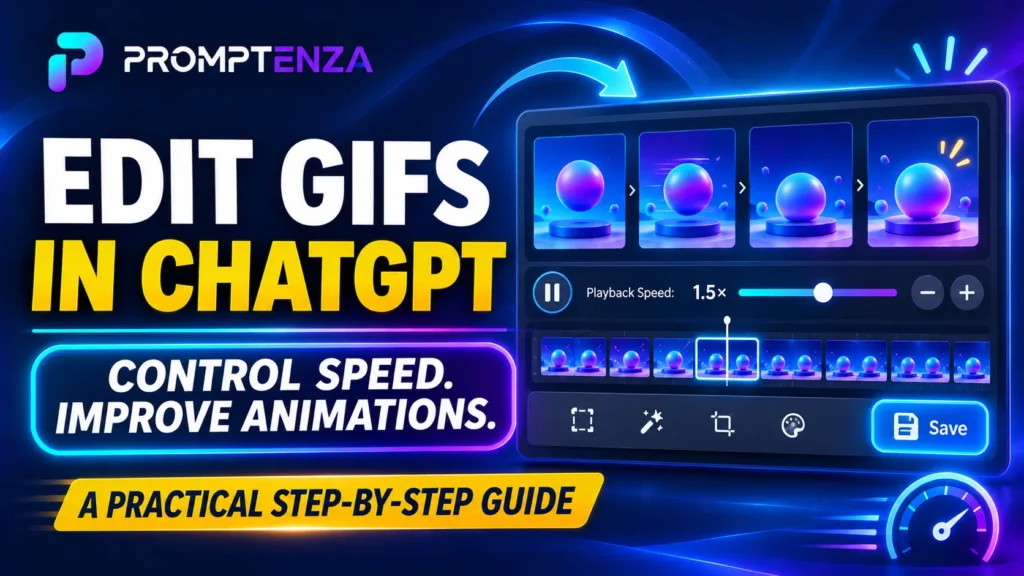
You can also open the generated GIF to adjust its playback speed.
Important: ChatGPT can animate a still image you upload, but its current Images help documentation says it cannot edit an already animated GIF that you upload.
15 ChatGPT GIF Prompts to Try
The following prompts are original examples you can adapt to create different types of animations.
1. Funny and Reaction GIF Prompts
Prompt 1: Surprised Reaction
“Create a funny looping GIF of a cartoon character reacting with exaggerated surprise. The character’s eyes widen, eyebrows rise and mouth opens slightly before returning to the original expression. Use a clean background and smooth looping movement.”
Prompt 2: Laughing Reaction
“Create a cheerful animated GIF of a cute cartoon character laughing uncontrollably. Show gentle shoulder movement, expressive eyes and a playful facial expression. Make the animation loop smoothly.”
Prompt 3: Facepalm Reaction
“Create a humorous looping GIF of a cartoon character slowly placing one hand over their face in disbelief. Use expressive body language, simple colours and a clean background.”
2. Animated Character GIF Prompts
Prompt 4: Dancing Cartoon Character
“Create a looping GIF of a cute cartoon character performing a simple happy dance. Include rhythmic arm movements, small steps and a cheerful expression. Keep the character’s design consistent throughout.”
Prompt 5: Waving Character
“Create a friendly animated GIF of a cartoon character waving hello. The character should raise one hand, wave gently and return to the starting position. Use a seamless loop.”
Prompt 6: Sleeping Character
“Create a peaceful looping GIF of a cute illustrated character sleeping on a pillow. Show gentle breathing and a small movement of the blanket. Use soft lighting and a calm atmosphere.”
Prompt 7: Walking Character
“Create a short looping GIF of a small cartoon character walking in place. Maintain consistent proportions, clothing and background throughout the animation.”
3. Social Media GIF Prompts
Prompt 8: Celebration Animation
“Create a vibrant looping GIF showing colourful confetti falling around a celebratory background. Include subtle sparkling effects and joyful movement. Make it suitable for sharing on social media.”
Prompt 9: Birthday Animation
“Create a colourful birthday GIF featuring a decorated cake, glowing candles and floating balloons. Animate the candle flames and balloons gently while maintaining a seamless loop.”
Prompt 10: Congratulations Animation
“Create an elegant animated GIF with the word CONGRATULATIONS in the centre. Add subtle glowing particles, floating confetti and a smooth looping effect. Keep the text clear and correctly spelled.”
4. Business and Product GIF Prompts
Prompt 11: Product Showcase
“Turn this product image into a professional looping GIF. Add a subtle camera movement that highlights the product’s important details. Preserve its original shape, colours, branding and proportions.”
Prompt 12: Brand Mascot
“Animate this brand mascot into a short looping GIF. Make the mascot wave, blink and smile while preserving its original design, colours and recognizable features.”
Prompt 13: Website Promotion
“Create a modern promotional GIF for a digital service. Use subtle moving graphics, clean typography and a professional visual style. Keep the animation readable and suitable for a website.”
5. Nature and Lifestyle GIF Prompts
Prompt 14: Ocean Waves
“Create a seamless looping GIF of gentle ocean waves moving towards a sandy beach. Add subtle reflections of sunlight on the water and maintain a stationary camera.”
Prompt 15: Rainy Window
“Create a relaxing animated GIF of raindrops slowly running down a window. Show a softly blurred city background and gentle lighting. Make the movement continuous and peaceful.”
These prompts are starting points. You can change the subject, visual style, colours, background and movement to suit your project.
Tips for Getting Better Results With ChatGPT GIF Prompts
A good animation prompt should explain more than just what you want to see. It should describe what happens over time.
Here are seven ways to improve your results.
1. Describe the Movement Clearly
Instead of writing “make this character move,” explain the actual action.
For example, specify whether the character should wave, blink, turn around, jump or walk.
2. Specify What Should Stay the Same
If you are animating an existing image, identify the details that must remain consistent.
These may include:
- Clothing and accessories.
- Character appearance.
- Product colours and shape.
- Background composition.
- Camera position.
3. Ask for a Seamless Loop
If you want a GIF that plays continuously, explicitly request a seamless or smooth looping animation.
4. Avoid Too Many Actions
A prompt that requests too many movements can make the animation visually confusing.
Start with one main action and introduce additional movement only when necessary.
5. Describe the Visual Style
You can specify styles such as cartoon, minimalist illustration, realistic photography, 3D animation or cinematic visuals.
6. Refine the Result
Don’t assume the first version will be perfect. Give ChatGPT specific feedback about what needs to change.
7. Check the Final Animation
Review the movement, visual consistency, playback speed and loop before sharing the GIF.
For more guidance, explore our AI Image Prompting guide and Prompt Anatomy guide.
What Can You Use ChatGPT GIFs For?
ChatGPT GIF creation has applications beyond entertainment.
| Use case | Example |
|---|---|
| Social media | Animated reactions and promotional posts |
| Marketing | Product demonstrations and brand mascots |
| Education | Simple animated explanations |
| Personal content | Birthday and celebration GIFs |
| Storytelling | Exploring character movements |
| Websites | Small looping visual elements |
| Communication | Custom reactions and greetings |
Businesses can use GIFs to make digital communication more engaging, while individual creators can experiment with animated content without needing to master traditional animation tools.
ChatGPT GIF Generator vs Traditional GIF Makers
ChatGPT and traditional GIF-making tools serve slightly different purposes.
| Feature | ChatGPT GIF creation | Traditional GIF maker |
|---|---|---|
| Text-based animation requests | Yes | Depends on the tool |
| Animate a still image | Yes | Depends on the tool |
| AI-generated visual content | Yes | Not always |
| Playback speed adjustment | Yes | Common in many tools |
| Frame-by-frame editing | Capabilities vary | Depends on the tool |
| Creative prompt assistance | Yes | Usually limited |
ChatGPT is particularly useful when you want to describe an animation in natural language. Traditional GIF editors may offer more specialised control over frame timing, cropping, optimisation and other production details.
The right choice depends on the type of animation you want to create.
For more options, see our guide to The Best AI Image, Video and Writing Tools in 2026.
Is the ChatGPT GIF Generator Free?
OpenAI’s November 4 announcement states that Images 2.6 is available globally in ChatGPT and Codex across subscription tiers on web, desktop and mobile.
However, access to the GIF feature is rolling out, and usage limits may vary. Check your ChatGPT interface for availability and any applicable generation limits.
Frequently Asked Questions
Can ChatGPT generate animated GIFs?
Yes. ChatGPT now supports animated GIF creation through Images 2.6. You can describe an animation using text or upload a still image and ask ChatGPT to animate it.
How do I make a GIF in ChatGPT?
Open ChatGPT, describe the animation you want and ask it to create a looping GIF. You can also upload a still image and describe the movement you want to add.
Can ChatGPT turn a photo into a GIF?
Yes. You can upload a still photo and ask ChatGPT to animate it. Describe the movement you want while specifying which parts of the original image should remain unchanged.
Can I control the speed of a ChatGPT GIF?
Yes. You can adjust the playback speed of a GIF generated by ChatGPT.
Can ChatGPT edit an existing animated GIF?
According to OpenAI’s current Images help documentation, ChatGPT can edit GIFs it has generated, but it cannot edit an animated GIF uploaded by the user.
Is ChatGPT GIF generation available on mobile?
The feature is rolling out across ChatGPT on web, desktop and mobile. Availability may vary while the rollout progresses.
Can I use ChatGPT GIFs for social media?
Yes. You can create reaction GIFs, promotional animations, character loops and other visual content suitable for sharing on social media.
What is the best prompt for creating a GIF in ChatGPT?
A useful GIF prompt describes the subject, movement, background, visual style and looping behaviour. It should also explain which visual details must remain consistent.
Final Thoughts
ChatGPT’s new GIF creation capability gives users another way to turn creative ideas into visual content.
Whether you want to create funny reactions, animate an existing picture, develop a brand mascot or produce promotional content, you can now describe the animation you want using natural language.
The best way to get started is to experiment with simple movements, refine your prompts and gradually try more creative animation ideas.
Explore more practical guides and examples in the Promptenza ChatGPT Prompts Library and our AI Image Prompting guide.
Official sources: OpenAI: Introducing Images 2.6 | OpenAI Help: Images in ChatGPT