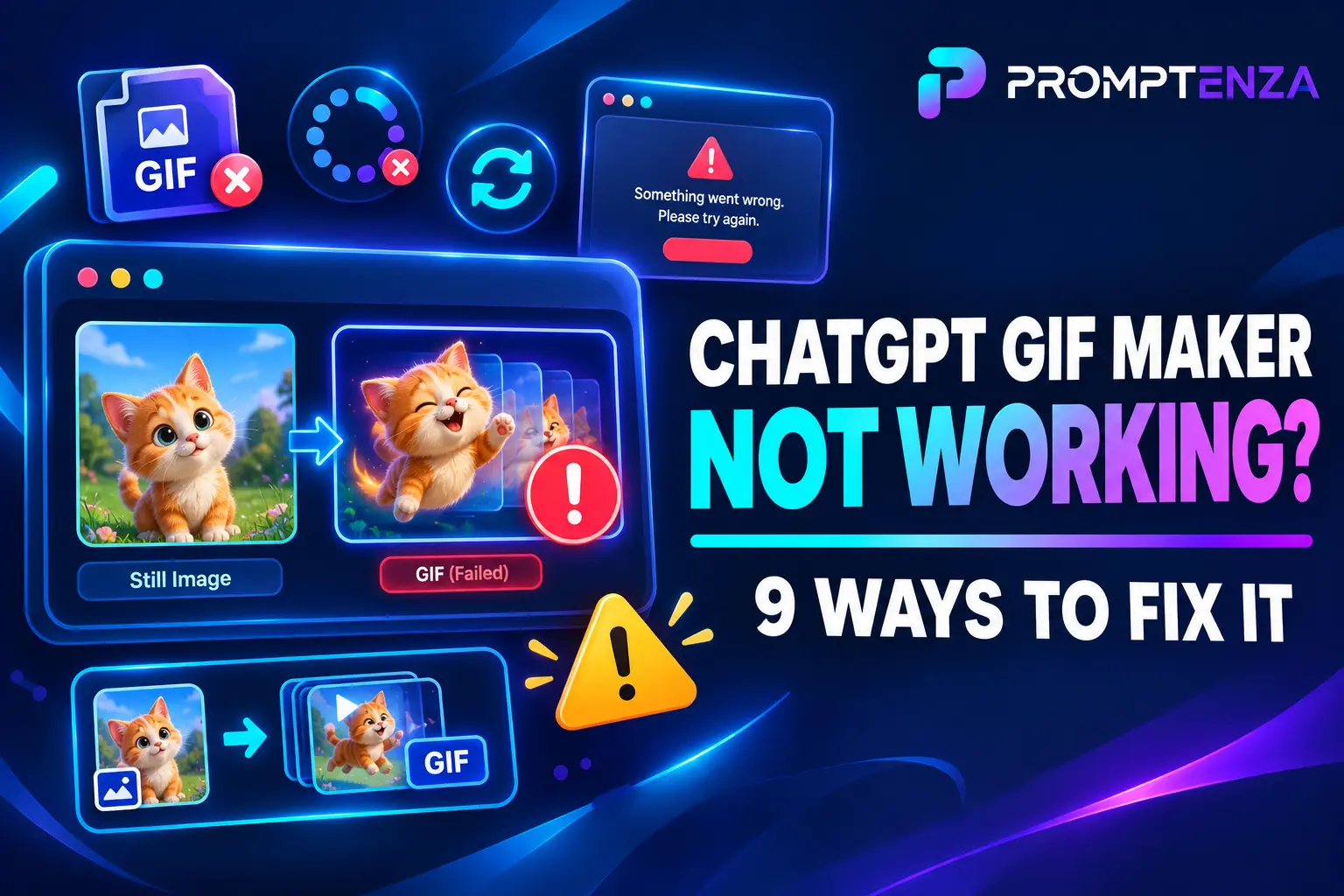
ChatGPT GIF Maker Not Working? 9 Ways to Fix It
Are you trying to create an animated GIF with ChatGPT, but the GIF maker is not working? Perhaps ChatGPT keeps generating a still image instead of an animation, the GIF creation feature is missing, or your request fails before the animation is completed.
You are not necessarily doing anything wrong.
OpenAI introduced GIF creation in ChatGPT as part of its November 2026 Images 2.6 update. However, the feature is still rolling out, which means it may not be available to every account yet.
In this guide, you will learn why the ChatGPT GIF maker may not be working, how to troubleshoot common problems, and what to do if you cannot access GIF creation yet.
Quick Answer: Why Is the ChatGPT GIF Maker Not Working?
The ChatGPT GIF maker may not be working because the feature has not reached your account, your prompt does not clearly request a looping GIF, an image-generation error has occurred, or your browser or app is experiencing a technical problem.
Try these steps:
- Confirm that GIF creation is available on your account.
- Start a new chat and explicitly request a looping GIF.
- Upload a still image rather than an existing animated GIF.
- Refresh ChatGPT or restart the app.
- Check OpenAI’s service status.
- Try another browser or network if the problem continues.
Important: GIF creation is rolling out gradually. If the feature has not reached your account, changing your prompt or browser settings may not make it appear immediately.
1. The ChatGPT GIF Feature Has Not Reached Your Account Yet
This is one of the first things to consider if ChatGPT refuses to create GIFs.
OpenAI announced GIF creation on November 4, 2026, as part of its ChatGPT Images 2.6 update. The company describes the feature as rolling out, rather than confirming that it is available to every account at once.
This means two people may use ChatGPT at the same time but have different access to GIF creation.
One person may be able to generate an animation, while another receives a regular image or a response indicating that GIF creation is unavailable.
What you can do
- Open ChatGPT and start a new conversation.
- Try a direct GIF-generation request.
- Check whether ChatGPT responds with an actual animation.
- If it only produces a still image, try again later.
- Check OpenAI’s official release notes for rollout updates.
There may not be a setting you can switch on to force access. If the feature has not reached your account, you may need to wait.
2. Your Prompt Does Not Clearly Request a GIF
Sometimes the problem is the wording of your request.
If you ask ChatGPT to create an animated picture, it may interpret your instructions as a request for a regular image. Be specific about the output you want.
Instead of writing:
“Create a funny cat playing with a ball.”
Try:
“Create a short, seamless looping GIF of a playful cat batting a small ball across the floor. Show the cat moving naturally, make the animation loop smoothly, and return the result as an animated GIF rather than a still image.”
Try these test prompts
Simple animation
“Create a looping GIF of a paper boat gently floating on a small pond. Show subtle water movement and make the animation loop seamlessly.”
Funny reaction
“Create a short looping GIF of an original cartoon character looking surprised, blinking twice, and then returning to its original expression.”
Photo animation
“Animate the uploaded still photograph into a short looping GIF. Add subtle movement to the subject while keeping the person’s identity, clothing, facial features, and background consistent. Return an animated GIF, not a still image.”
If ChatGPT still returns a still image, the feature may not be available to your account yet.
For more ideas, see our guide to 50+ ChatGPT GIF Prompts to Create Funny and Creative Animations.
3. You Are Trying to Edit an Existing Animated GIF
There is an important limitation to understand.
ChatGPT can create GIFs from text prompts and animate uploaded still images. However, OpenAI’s current documentation says ChatGPT cannot edit an animated GIF that you upload.
For example, you may upload an existing animated GIF and ask ChatGPT to change the background, add another character, or modify the movement. That is different from uploading a still photograph and asking ChatGPT to animate it.
What you can do
If you want to animate an existing GIF:
- Select a still frame from the animation.
- Save that frame as a regular image.
- Upload the still image to ChatGPT.
- Describe the movement you want.
- Ask ChatGPT to create a new looping GIF.
This approach starts with a still image rather than asking ChatGPT to edit an existing animation.
You can also read our guide to 25+ ChatGPT Prompts to Turn Photos into Animated GIFs.
4. ChatGPT Is Experiencing a Temporary Error
The GIF maker may fail because of a broader ChatGPT problem.
You might see messages such as:
- Something went wrong.
- An error occurred while generating a response.
- Unable to generate the image.
- Network error.
- The request failed.
These messages do not necessarily indicate a problem with your GIF prompt. They can also result from temporary service issues or problems with your browser or connection.
What you can do
- Refresh the ChatGPT page.
- Start a new conversation.
- Submit your GIF request again.
- If the error continues, sign out and sign back in.
- Check the OpenAI Status page for reported service interruptions.
If the service is experiencing an outage, waiting until it is resolved may be the only practical solution.
5. Your Browser or ChatGPT App Is Not Working Properly
Sometimes, the GIF feature may be available, but your browser or app prevents ChatGPT from working correctly.
Browser extensions, cached data, content blockers, and other settings can interfere with ChatGPT.
Browser troubleshooting steps
If you use ChatGPT on a desktop browser:
- Refresh the page.
- Open ChatGPT in an incognito or private window.
- Temporarily disable browser extensions that may interfere with the website.
- Try another supported browser.
- Clear your browser cache and cookies if the problem continues.
If you use the ChatGPT mobile app:
- Close and reopen the app.
- Check whether an app update is available.
- Restart your device if necessary.
- Try using ChatGPT in a browser to see whether the issue is app-specific.
If GIF creation works in another browser or device, the original browser or app may be causing the problem.
6. Your Internet Connection Is Unstable
GIF generation requires ChatGPT to process and return an animation. An unstable connection may interrupt the request or prevent the result from loading properly.
This can happen when:
- Your internet connection keeps disconnecting.
- Your network is unusually slow.
- A VPN or proxy interferes with the connection.
- A network security filter blocks part of the service.
What you can do
- Check whether other websites load normally.
- Restart your internet connection if necessary.
- Try a different network.
- Temporarily turn off a VPN or proxy if you use one.
- Submit the request again after your connection is stable.
Avoid repeatedly submitting the same request while ChatGPT is still processing it.
7. Your Image Upload Is Causing the Problem
If you are trying to turn a photograph into a GIF, the uploaded image may be part of the issue.
A very large image, an unsupported file, or a problem during upload can prevent ChatGPT from processing your request.
OpenAI’s image-input guidance lists PNG, JPEG, and non-animated GIF among supported image formats.
What you can do
- Try a JPG or PNG image.
- Use a smaller image if the original file is very large.
- Upload one image at a time while troubleshooting.
- Wait until the upload has completed before sending your prompt.
- Start a new chat if the upload appears stuck.
For the clearest test, use a normal JPG or PNG photograph and ask ChatGPT to animate it.
8. ChatGPT Creates a Still Image Instead of an Animated GIF
This is a particularly confusing problem because ChatGPT may appear to complete your request successfully.
For example, you might ask:
“Create a GIF of a dog jumping into a swimming pool.”
Instead of returning an animation, ChatGPT generates a single image of a dog beside a swimming pool.
There are two possible explanations:
- Your request was interpreted as a regular image-generation task.
- GIF creation has not reached your account yet.
How to test it
Start a new conversation and use this more specific prompt:
“Create a short, animated, seamless-looping GIF of a golden retriever jumping playfully into a swimming pool. Show the movement across the animation and return an actual animated GIF file, not a static image.”
If ChatGPT creates another still image, do not assume that adding more descriptive words will solve the problem. The feature may simply not be available to your account.
9. You May Have Reached an Image Generation Limit
ChatGPT image generation can be subject to usage limits. If you have been creating several images or animations, you may encounter a limit that prevents additional generation.
The exact availability and limits can depend on your account and plan. Do not assume that a GIF-specific limit has been reached simply because an animation failed.
What you can do
- Read any usage-limit message ChatGPT displays.
- Wait for the limit to reset if the message tells you to.
- Avoid repeatedly submitting the same failed request.
- Check the current plan and feature information in OpenAI’s Help Center.
You should not need to purchase a different plan just because the GIF feature is missing during its gradual rollout.
How to Check Whether ChatGPT GIF Creation Is Working
If you are unsure whether the problem is your account, prompt, or browser, run this simple test.
| Test | What to do | What the result tells you |
|---|---|---|
| Text-to-GIF | Request a simple looping animation | Tests GIF creation from a prompt |
| Photo-to-GIF | Upload a JPG or PNG and request animation | Tests animation from a still image |
| New conversation | Repeat the request in a fresh chat | Helps rule out a conversation-specific issue |
| Different browser | Try ChatGPT in another browser | Helps identify browser-related problems |
| Service status | Check OpenAI’s status page | Helps identify reported service issues |
If both text-to-GIF and photo-to-GIF requests produce only still images, the feature may not have reached your account.
What to Do If the ChatGPT GIF Maker Is Still Not Working
If you have tried the steps above and GIF creation still fails, use this checklist:
- Confirm that you are using ChatGPT rather than an unrelated third-party tool.
- Check OpenAI’s latest release notes.
- Try a simple request that explicitly says “looping GIF.”
- Use a still JPG or PNG when testing photo animation.
- Start a new conversation.
- Refresh ChatGPT or restart the app.
- Test another browser or network.
- Check OpenAI’s service status.
- Contact OpenAI Support if the issue continues across browsers, devices, and networks.
When contacting support, include the error message, the approximate time it happened, your device and browser, and the steps you already tried. Do not share passwords or private account details in a public post.
Frequently Asked Questions
Why is my ChatGPT GIF maker not showing?
GIF creation is rolling out gradually. OpenAI has not announced a date when every account will receive the feature. If you cannot access it, your account may not have received the rollout yet.
Why does ChatGPT create an image instead of a GIF?
Your request may have been interpreted as a regular image-generation prompt, or GIF creation may not be available to your account. Try explicitly asking for a “short looping GIF.” If you still receive a still image, the feature may not have reached your account.
Is ChatGPT GIF creation available to everyone?
OpenAI has announced GIF creation as a gradual rollout. Its availability should not be confused with general ChatGPT image generation, which has its own availability information. Check OpenAI’s latest release notes for updates.
Can ChatGPT turn a photo into a GIF?
Yes. OpenAI’s Images in ChatGPT guidance says you can upload a still image and ask ChatGPT to animate it. You can describe the movement you want and request a looping GIF.
Can ChatGPT edit an existing animated GIF?
OpenAI’s current documentation says ChatGPT cannot edit an animated GIF that you upload. You can instead upload a still image and ask ChatGPT to create a new animation.
Do I need a special prompt to make a GIF?
Use clear instructions. Tell ChatGPT what should move, how the movement should look, and that you want a looping animated GIF rather than a still image.
Is the ChatGPT GIF maker down?
Not necessarily. A missing feature may be caused by the gradual rollout, while an error may be related to a temporary service or connection problem. Check the OpenAI Status page before concluding that the service is down.
Can I use ChatGPT GIF creation on my phone?
OpenAI’s Images in ChatGPT documentation describes image features across web, iOS, and Android. GIF creation is a separate gradual rollout, so availability may vary by account and platform.
Final Thoughts
If the ChatGPT GIF maker is not working, first determine whether the feature is available to your account. Since OpenAI is rolling it out gradually, some users may be able to create animated GIFs while others still receive static images.
If you already have access, try a clear looping-GIF prompt, upload a supported still image, refresh ChatGPT, and check for temporary service issues.
Most importantly, do not confuse a missing GIF feature with a general image-generation problem. They are related capabilities, but they are not the same thing.
Keep exploring Promptenza:
- ChatGPT GIF Generator: How to Make GIFs with ChatGPT
- 50+ ChatGPT GIF Prompts to Create Funny and Creative Animations
- 30+ Funny ChatGPT GIF Prompts for Reactions and Memes
- 25+ ChatGPT Prompts to Turn Photos into Animated GIFs
Test Your ChatGPT GIF Knowledge
1. Why might the ChatGPT GIF maker be missing from your account?
A. Your account may not have received the gradual rollout
B. All GIF prompts are prohibited
C. You must upload a video first
2. What should you include in a prompt when requesting an animation?
A. A request for a PDF
B. A clear instruction to create a looping GIF
C. Only the word “picture”
3. Can ChatGPT currently edit an animated GIF that you upload?
A. Yes, without limitations
B. No, its current documentation says it cannot edit uploaded animated GIFs
C. Only if you rename the file
4. What should you check if ChatGPT returns an error?
A. OpenAI’s service status
B. Your social media followers
C. Your website theme
Answers: 1. A · 2. B · 3. B · 4. A