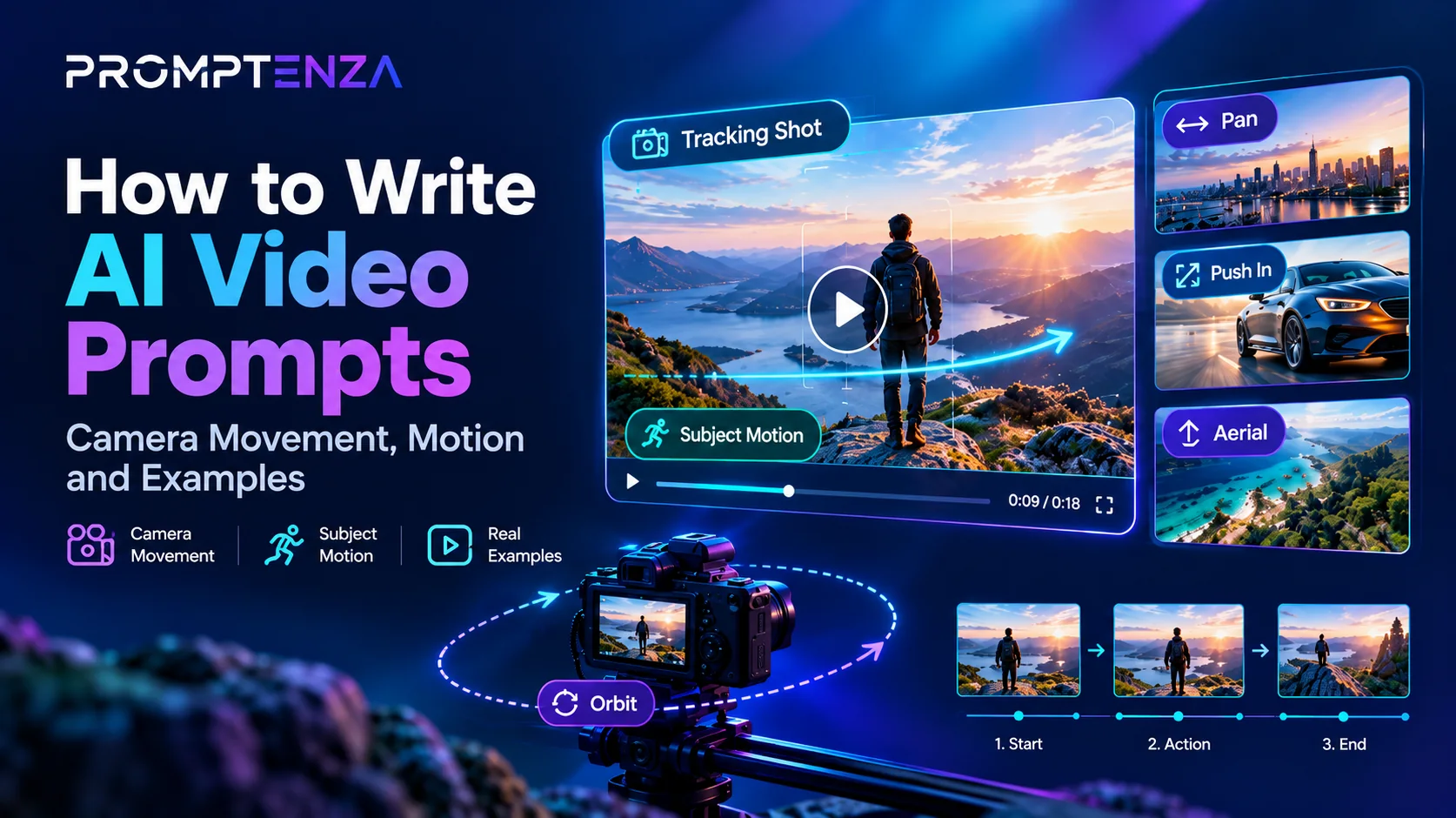
To write effective AI video prompts, describe the subject, the action, the environment, the camera movement, the speed and direction of motion, the lighting, and the intended visual style. For more control, specify what happens first, what changes during the shot, and how the scene ends.
For example, instead of writing “A car driving through a city,” try:
A black electric car drives steadily along a modern city street at sunset. The camera tracks smoothly beside the car at a low angle as buildings and streetlights pass in the background. Warm reflections move across the car’s body, with realistic wheel motion, natural lighting, and a cinematic commercial style. One continuous shot, 16:9 landscape composition.
The improved prompt explains not only what appears in the video but also how the subject and camera move.
Why Camera Movement and Motion Matter in AI Video Prompts
An AI-generated video can contain the correct subject and setting yet still feel unnatural because the movement is unclear.
A character might move too quickly, a product might rotate unpredictably, or the camera might change direction without a clear reason. These problems can occur when a prompt describes the scene but leaves important movement decisions unspecified.
Three elements help make video instructions more precise:
- Subject motion: What the person, animal, vehicle, or object does.
- Camera movement: How the viewpoint moves in relation to the subject.
- Scene progression: How the action develops from the beginning to the end of the clip.
These elements work together, but they are not interchangeable. A character can walk forward while the camera remains stationary, or the camera can track backward while the character walks toward it.
Understanding that distinction helps you create more intentional AI video prompts.
1. Understand the Main Types of Camera Movement
Camera movement describes how the camera changes its position or direction during a shot. Different movements create different visual effects.
Pan: Move the Camera Horizontally
A pan turns the camera from side to side while its position stays approximately the same.
Useful for: Revealing a landscape, following a person, or showing more of a room.
Example prompt:
A panoramic view of a coastal town at sunrise. The camera slowly pans from left to right, revealing colorful buildings, fishing boats, and the ocean beyond the harbor. Soft morning light, natural colors, smooth camera movement, and a peaceful documentary style.
Prompting tip: State the direction and pace. “Slowly pans from left to right” gives more direction than simply saying “the camera moves.”
Tilt: Move the Camera Vertically
A tilt turns the camera upward or downward.
Useful for: Revealing tall buildings, showing a character from head to toe, or introducing a large object.
Example prompt:
A towering modern skyscraper stands against a clear blue sky. The camera slowly tilts upward from the entrance to the upper floors, emphasizing the building’s height. Natural daylight, realistic architectural details, and a clean cinematic composition.
Prompting tip: Identify the starting point and the area the camera should reveal.
Dolly In or Push-In: Move Closer to the Subject
A dolly-in or push-in brings the camera closer to the subject.
Useful for: Highlighting a product, emphasizing a facial expression, or drawing attention to an important detail.
Example prompt:
A premium wristwatch rests on a dark display surface in a minimalist studio. The camera slowly pushes in toward the watch face, revealing the fine details of the dial and metal finish. Controlled studio lighting, realistic reflections, shallow depth of field, and a luxury advertising style.
Prompting tip: Specify the subject that should remain the focus as the camera moves closer.
Dolly Out or Pull-Back: Reveal the Wider Scene
A dolly-out moves the camera away from the subject.
Useful for: Revealing a location, creating a sense of scale, or ending a scene with a wider view.
Example prompt:
A young artist stands beside a completed painting in a quiet studio. The camera slowly pulls back to reveal the easel, brushes, unfinished canvases, and warm light entering through the windows. Natural movement, balanced composition, and an inspirational cinematic mood.
Tracking Shot: Follow a Moving Subject
A tracking shot moves the camera to follow a subject.
Useful for: Walking scenes, running sequences, moving vehicles, and product demonstrations.
Example prompt:
A cyclist rides along a tree-lined road in the early morning. The camera tracks smoothly alongside the bicycle, keeping the cyclist clearly framed while the trees and road move naturally in the background. Realistic cycling motion, soft morning light, and an energetic sports-film style.
Prompting tip: Specify what the camera follows, its relative position, and whether the subject should stay centered.
Orbit: Move Around the Subject
An orbit moves the camera around a subject to reveal different angles.
Useful for: Product showcases, character introductions, and cinematic reveals.
Example prompt:
A handcrafted wooden sculpture stands on a simple pedestal in a softly lit gallery. The camera makes a slow, smooth quarter-orbit around the sculpture, revealing its carved details from different angles. The sculpture remains stationary, with consistent lighting and a clean gallery background.
Prompting tip: Specify how much of a rotation you want. A partial orbit may be easier to direct than an unrestricted full rotation.
Crane or Aerial Movement: Reveal a Larger Area
A crane shot moves the camera vertically or through space to reveal a broader view. Aerial shots often provide a high or overhead perspective.
Useful for: Landscapes, city scenes, establishing shots, and large environments.
Example prompt:
A green valley stretches between distant mountains at sunrise. The camera gradually rises above the foreground trees, revealing a winding river and the full valley. Gentle morning mist, realistic landscape details, slow movement, and a cinematic nature-documentary style.
Static Camera: Keep the Viewpoint Still
Not every video needs moving camera work. A static camera keeps the viewpoint fixed while the subject or environment moves.
Useful for: Tutorials, interviews, demonstrations, animation tests, and scenes where the subject should remain the main focus.
Example prompt:
A ceramic cup sits on a wooden table beside a sunlit window. Steam rises gently from the cup while a curtain moves slightly in the breeze. The camera remains completely stationary. Soft natural light, realistic textures, and a quiet morning atmosphere.
A static camera is especially useful when you want the viewer to observe a specific action without distraction.
2. Choose the Right Camera Movement for Your Goal
Use this table as a practical starting point.
| Camera movement | What it does | Useful for |
|---|---|---|
| Pan | Turns horizontally | Revealing a scene |
| Tilt | Turns vertically | Showing height or scale |
| Push-in | Moves closer | Emphasizing a subject |
| Pull-back | Moves away | Revealing context |
| Tracking shot | Follows a subject | Walking, running, driving |
| Orbit | Moves around a subject | Product or character reveals |
| Crane or aerial | Changes height or reveals an area | Landscapes and establishing shots |
| Static camera | Keeps the viewpoint still | Demonstrations and controlled actions |
| Handheld style | Simulates small camera movements | Documentary or observational scenes |
Best practice: Choose the movement that supports the purpose of the shot. Adding camera movement simply to make a clip look more dramatic can distract from the subject.
3. Describe Subject Motion Clearly
Camera movement describes the viewpoint. Subject motion describes what happens within the scene.
Compare these instructions:
- Vague: “A woman moves.”
- Clearer: “A woman walks slowly toward the doorway.”
- More specific: “A woman in a cream jacket walks slowly toward the doorway, pauses briefly, and reaches for the handle.”
The most useful version depends on the clip’s purpose and duration.
Walking and Running
Instead of saying:
A man running.
Try:
A runner moves steadily along a park path, arms swinging naturally and feet making consistent contact with the ground. The camera tracks beside him at waist height. Early-morning light, realistic body movement, and a documentary sports style.
Turning and Looking
Instead of saying:
A woman turns around.
Try:
A woman standing beside a large window slowly turns her head toward the doorway, then shifts her shoulders in the same direction. The camera remains at eye level in a medium shot, with soft natural light and restrained movement.
Objects Moving
Instead of saying:
A bottle rotates.
Try:
A glass perfume bottle rotates slowly on a display platform, revealing its label and transparent glass edges. The camera remains fixed while soft studio lights create subtle highlights across the bottle. Clean background, controlled rotation, and premium product-advertising style.
Environmental Motion
Natural scenes often need more than one kind of movement, but each should remain coherent.
Example:
Gentle waves roll toward the beach while palm leaves sway in the coastal breeze. A few clouds drift slowly across the sky. The camera makes a gradual push toward the shoreline, maintaining a calm, realistic atmosphere.
Choose a small number of important movements instead of asking every visible object to move at once.
4. Control Motion Speed and Direction
Words describing speed and direction help communicate the intended action.
Useful speed descriptions
- Slowly
- Gradually
- Steadily
- Gently
- Smoothly
- Quickly
- Abruptly
- In slow motion
- At a consistent pace
Useful direction descriptions
- Toward the camera
- Away from the camera
- From left to right
- Upward
- Downward
- Around the subject
- Across the frame
- Into the background
- Alongside the subject
For example:
A red ball rolls slowly from left to right across a polished wooden floor, gradually losing speed before stopping near the edge of the frame. The camera remains fixed at a low angle.
This is more actionable than “a ball moving on the floor” because it defines the direction, speed, and endpoint.
Use speed descriptions that make sense for the scene. If you want slow motion, specify the intended visual effect and check whether your chosen generator supports it as expected.
5. Use Shot Types to Control What the Viewer Sees
Camera movement is only one part of directing a shot. Shot type determines how much of the subject and environment appears in the frame.
Wide Shot
Shows the subject within a larger environment.
A lone traveler walks along a broad mountain trail, surrounded by distant peaks. Use a wide shot with the traveler positioned in the lower third of the frame.
Medium Shot
Shows a subject with enough surrounding detail to understand the action.
A chef prepares vegetables at a kitchen counter. Use a medium shot that keeps the chef’s upper body and the work surface visible.
Close-Up
Emphasizes a face, object, or important detail.
A close-up of a hand carefully placing a small flower into a glass vase. Keep the flower and hand in focus while the background remains softly blurred.
Overhead Shot
Shows a scene from above.
An overhead shot of a notebook, pen, and cup of coffee arranged neatly on a wooden desk. A hand enters the frame and writes a short note while the camera remains stationary.
Low-Angle Shot
Places the camera below the subject’s eye level, making the subject appear taller or more prominent.
A modern office tower rises above the street. Use a low-angle shot that emphasizes the building’s height against the sky.
For a clearer result, combine a shot type with one primary camera movement when appropriate.
6. Combine Camera Movement and Subject Motion
The strongest prompts make the relationship between camera movement and subject movement clear.
Consider this example:
A delivery cyclist rides through a busy city street while the camera tracks alongside the bicycle at a low angle. The cyclist maintains a steady pace as buildings and pedestrians move through the background. Natural daylight, realistic movement, and a documentary style.
This describes two separate actions:
- The cyclist moves forward.
- The camera follows alongside the cyclist.
Now compare it with:
A delivery cyclist rides through a city while the camera circles around the bicycle, zooms toward the rider, and rapidly pulls back to reveal the street.
The second prompt combines several camera instructions. Depending on the generator, that may produce a more complicated or less predictable result.
For a simple shot, start with one main camera movement. Add more only when the sequence genuinely requires them.
7. Use Timing to Build a Clear Sequence
For a clip with a beginning, middle, and ending, describe the order of events.
For example:
Create a short product video of a ceramic coffee mug on a kitchen counter. Begin with a medium shot of the mug beside a window. The camera slowly pushes closer as steam rises from the coffee. Finish on a close-up of the mug’s surface and handle. Warm natural lighting, realistic steam, and a calm lifestyle-advertising style.
This gives the generator a sequence to interpret.
If your tool supports explicit timestamps, you can test a structure such as:
- Opening: Establish the subject and environment.
- Middle: Show the main action.
- Ending: Hold on the final composition.
However, timestamp instructions are not guaranteed to be followed exactly by every model. For complicated projects, create separate shots and assemble them during editing.
8. AI Video Prompt Examples You Can Copy
The following examples illustrate how camera, movement, and scene instructions can work together.
Example 1: Cinematic Walking Scene
A young professional walks along a modern city sidewalk at golden hour. Pedestrians move naturally in the background while sunlight reflects from nearby glass buildings. The camera tracks smoothly alongside the subject at eye level, maintaining consistent framing. Natural walking motion, warm light, realistic textures, cinematic color grading, and a 16:9 landscape composition.
Why it works: It identifies the subject’s action, the background activity, the camera’s position, and the visual style.
Example 2: Luxury Product Reveal
A premium wristwatch rests on a dark display surface in a minimalist studio. The camera slowly pushes in toward the watch face, then holds a steady close-up of the dial. Controlled studio lighting creates subtle highlights across the metal edges. The watch remains stationary, with realistic reflections and a refined commercial style.
Why it works: It gives the product a clear visual role and keeps the camera movement simple.
Example 3: Travel Landscape
A tropical coastline at sunrise, with gentle waves rolling toward the sand and palm trees swaying in a light breeze. The camera slowly rises above the beach to reveal the wider coastline and distant hills. Soft golden light, natural colors, realistic environmental motion, and a peaceful documentary style.
Why it works: The camera reveals the setting while environmental motion adds life to the scene.
Example 4: Food Advertisement
A freshly prepared bowl of noodles sits on a clean wooden table. Thin wisps of steam rise from the food as the camera slowly pushes toward the bowl. Keep the dish centered, with the background softly blurred and warm window light illuminating the ingredients. Realistic food textures, controlled motion, and a polished commercial style.
Why it works: The motion reinforces the subject rather than competing with it.
Example 5: Animated Educational Scene
A clean educational animation shows water flowing from a mountain stream into a river. The camera follows the water downstream before gradually pulling back to reveal the surrounding landscape. Smooth continuous movement, clear visual hierarchy, simple colors, and an accessible educational style.
Why it works: The camera movement helps explain the process and directs attention to the relevant action.
Example 6: Image-to-Video Animation
Animate the existing coastal landscape with gentle waves moving toward the shore and palm leaves swaying in the breeze. Add a subtle forward camera push. Preserve the original composition, colors, and overall visual style. Keep the movement natural and restrained.
Why it works: It focuses on what should change in the existing image and what should remain stable.
9. Before-and-After: Fixing Weak AI Video Prompts
Weak prompt: A car commercial
A car driving on a road.
Improved prompt:
A modern electric car drives steadily along a clean coastal road. The camera tracks beside the vehicle at a low angle, keeping the car in focus while the ocean and roadside scenery move naturally in the background. Bright natural light, realistic wheel motion, smooth camera movement, and a premium automotive-commercial style.
What improved: The subject, location, camera relationship, background movement, lighting, and style are now explicit.
Weak prompt: A person entering a room
A person enters a room.
Improved prompt:
A person in a dark jacket opens a wooden door and walks into a softly lit living room. The camera remains in a medium-wide position near the opposite wall as the person crosses the doorway and pauses beside a chair. Natural walking motion, consistent lighting, and a quiet cinematic style.
What improved: The action now has a sequence, a defined viewpoint, and a clear stopping point.
Weak prompt: A rotating product
Show a bottle in 3D.
Improved prompt:
A transparent glass bottle stands upright on a clean studio platform. The bottle rotates slowly through a partial turn while the camera remains fixed. Soft directional lighting reveals the glass edges and liquid inside. Neutral background, realistic reflections, and a premium product-visualization style.
What improved: The prompt separates object rotation from camera movement, making the intended action clearer.
10. Common Camera and Motion Prompting Mistakes
Giving Conflicting Camera Instructions
For example, asking the camera to remain fixed while also requesting a continuous orbit.
Fix: Decide whether the camera should move. If both behaviors are needed, describe them as separate stages.
Using Too Many Movements at Once
A pan, orbit, zoom, crane movement, and tracking shot in one short clip can make the intended sequence difficult to interpret.
Fix: Start with one primary movement and add a second only if it supports the scene.
Forgetting the Subject’s Action
A detailed camera instruction cannot replace a clear description of what the subject does.
Fix: Describe the subject’s action before specifying the camera.
Failing to Describe What Should Stay Still
Unwanted movement may affect the background, product, or character.
Fix: State important stability requirements, such as “the product remains stationary” or “keep the original composition.”
Packing Too Many Events Into a Short Clip
A short generation may struggle to represent a long chain of distinct actions.
Fix: Simplify the action or divide the sequence into individual shots.
Assuming Camera Terminology Guarantees the Result
Different video generators may interpret the same instruction differently.
Fix: Treat camera terms as guidance, test the output, and refine the prompt according to the result.
11. How to Troubleshoot Unwanted Motion
When a generation does not match your intention, identify the specific problem before changing the prompt.
| Problem | What to adjust |
|---|---|
| Camera moves too quickly | Request a slow, gradual, or steady movement |
| Subject drifts out of frame | Specify framing and ask the camera to track the subject |
| Product rotates unexpectedly | State whether the product or camera should rotate |
| Background becomes distracting | Reduce background activity and identify the main subject |
| Movement feels unnatural | Simplify the action and reduce simultaneous motion |
| Character changes during a sequence | Repeat key appearance and clothing details |
| Camera changes direction unexpectedly | Specify one movement and a clear ending |
| Scene feels static | Add one meaningful subject or environmental movement |
Use an iterative workflow:
Generate → Inspect → Identify the problem → Adjust one or two instructions → Generate again.
Changing one major variable at a time can help you understand which instruction improves the result.
12. A Reusable AI Video Prompt Template
Use this template when planning a new clip:
Subject: What is the main focus?
Action: What does the subject do?
Environment: Where does the scene take place?
Subject motion: What moves, and in which direction?
Camera movement: Is the camera static, panning, tracking, pushing in, pulling back, or orbiting?
Shot type: Wide shot, medium shot, close-up, overhead shot, or another composition?
Framing: Where should the subject appear in the frame?
Lighting: What type of light should shape the scene?
Visual style: Photorealistic, cinematic, documentary, animated, or commercial?
Timing: How should the scene begin, develop, and end?
Stability requirements: What should remain consistent or stationary?
Output: What duration and aspect ratio does the project require?
Short Copyable Formula
[Subject] performs [action] in [environment]. The camera [movement] from [perspective], keeping [main subject] [framing instruction]. [Important environmental motion]. [Lighting and visual style]. [Mood]. [Duration and aspect ratio, if supported].
Example:
A red bicycle moves along a quiet park path in the early morning. The camera tracks beside the bicycle at a low angle, keeping it centered as trees pass slowly in the background. Soft natural light, realistic movement, cinematic documentary style, calm atmosphere, 16:9 landscape composition.
13. A Practical Workflow for Better Results
Follow these steps for your next AI video generation.
- Define the purpose. Decide whether you are creating an advertisement, a tutorial, a social media clip, or a cinematic scene.
- Choose the subject and action. Write one sentence describing what happens.
- Select the shot type. Decide whether the viewer needs a wide view, medium shot, or close-up.
- Choose the camera movement. Pick the movement that supports the action.
- Describe the important motion. Identify what moves and what stays still.
- Add visual direction. Include lighting, style, mood, and composition.
- Set output requirements. Specify duration and aspect ratio where the tool supports them.
- Generate and review. Compare the output with your intended result.
- Refine selectively. Change the instructions related to the problem rather than rewriting everything.
For more on building a complete prompt, read our AI Video Prompting guide. To understand how task instructions, context, constraints, and other prompt components work together, explore Prompt Anatomy.
Frequently Asked Questions
What is the best camera movement for AI-generated videos?
There is no single best movement. A tracking shot can work well for following a moving subject, a push-in can emphasize a detail, a pan can reveal a landscape, and a static camera can help keep a demonstration clear. Choose according to the purpose of the shot.
How do I describe camera movement in an AI video prompt?
Name the movement, direction, pace, and subject relationship. For example: “The camera slowly tracks alongside the cyclist at a low angle, keeping the bicycle centered in the frame.”
How do I make AI video motion look more natural?
Describe the action clearly, specify a reasonable speed and direction, avoid conflicting movement instructions, and limit the number of simultaneous actions. Review the result and simplify the prompt if the motion appears chaotic.
Should I describe camera movement and subject movement separately?
Usually, yes. Separating them makes it clearer whether the camera, the subject, or both should move. For example, “the bottle rotates slowly while the camera remains fixed” is more precise than “the camera and bottle move around.”
Can I use multiple camera movements in one prompt?
Yes, when the sequence requires them and the video tool can interpret the instructions. For greater control, describe a simple progression or generate separate shots and combine them during editing.
How do I write an AI video prompt from an existing image?
Describe the movement you want to introduce, the camera behavior, and the elements that should remain stable. For example, ask for gentle waves and moving palm leaves while preserving the original composition. The result depends on the capabilities of the selected image-to-video tool.
Why does my AI video ignore camera instructions?
AI video generators may interpret instructions differently or prioritize some visual details over others. Use direct wording, simplify conflicting requests, and test one movement at a time. No prompt can guarantee exact camera execution.
How long should an AI video prompt be?
Long enough to communicate the important details, but not so long that instructions compete. A short, specific prompt can be effective for a simple shot, while a complex scene may need more detailed direction or separate shot prompts.
Test Your AI Video Prompting Knowledge
1. What is the main difference between subject motion and camera movement?
A. They mean exactly the same thing
B. Subject motion describes what moves in the scene, while camera movement describes how the viewpoint moves
C. Camera movement only applies to animated videos
D. Subject motion only applies to people
2. Which camera movement is useful for gradually revealing more of a landscape?
A. Push-in only
B. Static camera only
C. A pan, pull-back, crane, or aerial reveal, depending on the shot
D. None of these
3. How can you make a product rotation prompt clearer?
A. Tell the product and camera to move unpredictably
B. Specify whether the product rotates while the camera remains fixed
C. Add as many camera movements as possible
D. Avoid describing movement
4. What should you do when an AI-generated camera movement looks wrong?
A. Add unrelated details
B. Rewrite the entire prompt without checking the result
C. Identify the movement problem and refine the relevant instructions
D. Always make the prompt longer
5. Why might complicated scenes work better as separate shots?
A. Separate shots always guarantee perfect output
B. They allow you to direct and review each part of the sequence individually
C. They eliminate the need for prompts
D. They prevent all visual inconsistencies
Answers and Explanations
- B — Subject motion describes the action within the scene; camera movement describes how the viewpoint changes.
- C — The best choice depends on the landscape and the intended reveal.
- B — Separating product movement from camera movement makes the instruction clearer.
- C — Diagnosing the specific problem makes refinement more systematic.
- B — Separate shots give you more control over individual actions, framing, and continuity, although they do not guarantee perfect results.
Final Thoughts
Writing effective AI video prompts requires more than describing an attractive scene. You need to communicate what moves, how it moves, where the camera is positioned, and how the shot develops.
Start with a clear subject and action. Choose a camera movement that supports the scene. Describe speed and direction when they matter, and specify what should remain stable. Then review the generated result and refine the instructions that need improvement.
You do not need to make every prompt complicated. For many clips, one clear action, one intentional camera movement, and a few well-chosen visual details are enough to establish a strong creative direction.
The most useful skill is learning how to turn a visual idea into precise instructions, test the result, and improve it through iteration.