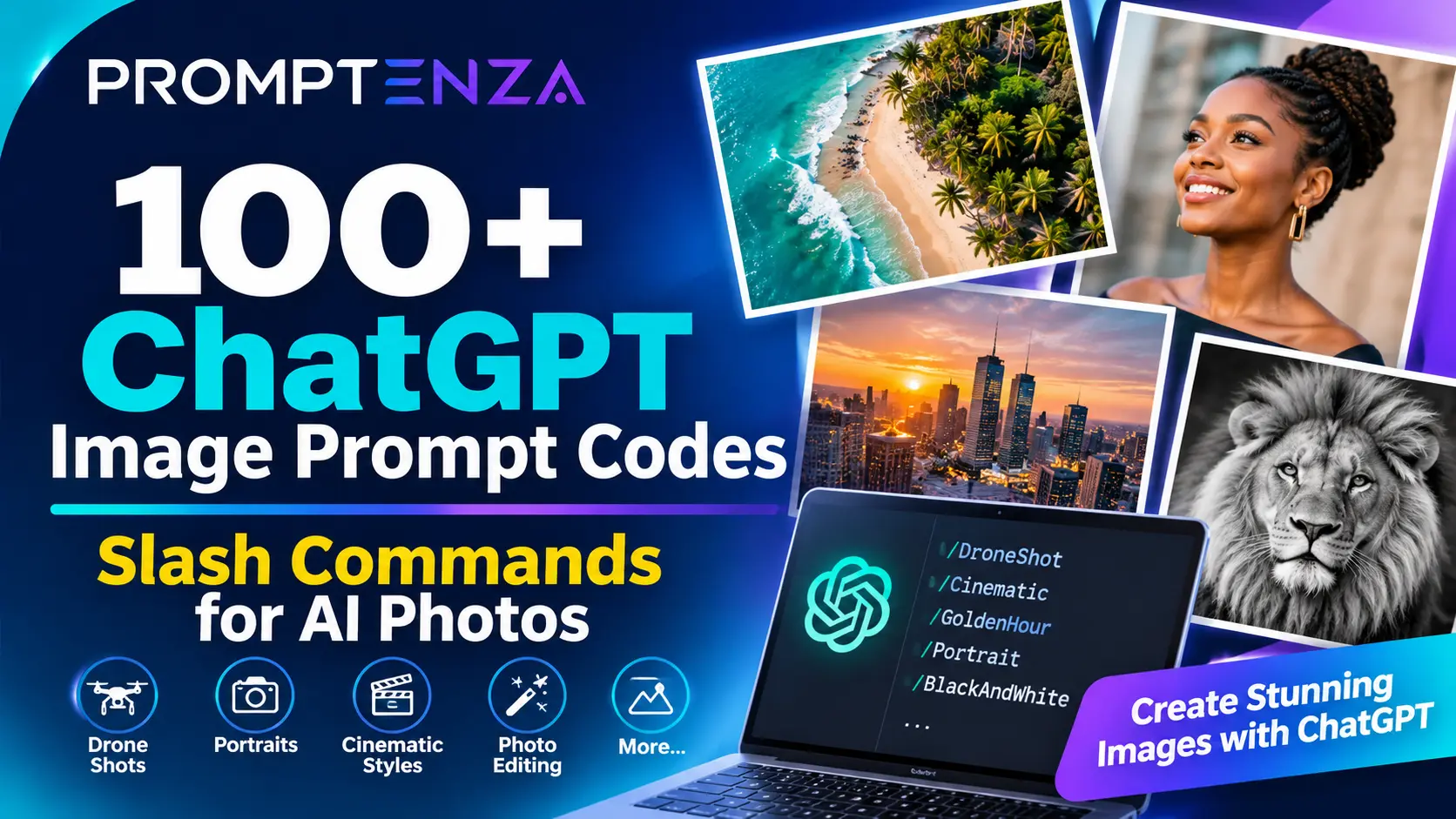
100+ ChatGPT Image Prompt Codes: Slash Commands for AI Photos
Have you seen people type shortcuts such as /DroneShot, /Cinematic, /GoldenHour or /ProfessionalPortrait into ChatGPT and use them to create different-looking images?
These are examples of image-prompt shortcuts: short text labels that describe the camera angle, photography style, lighting, composition or editing effect you want in an AI-generated image.
You can use them to make your ChatGPT image prompts easier to organize and customize. In this guide, you will discover more than 100 ChatGPT image prompt shortcuts, what they mean, and how to combine them into complete prompts for portraits, photoshoots, cinematic scenes and photo editing. You can also check out our 30+ ChatGPT Photo Editing Prompts That Actually Work , ChatGPT Prompts for Couple and Family Photos and 50+ ChatGPT Wedding Photo Prompts to Try.
Important: Shortcuts such as /DroneShot are not verified built-in ChatGPT commands. They are descriptive prompt instructions written in a shortcut format. ChatGPT may interpret them as ordinary text rather than execute a special command. The description that follows the shortcut is what communicates the actual visual direction.
Quick Answer: What Are ChatGPT Image Prompt Shortcuts?
ChatGPT image prompt shortcuts are short labels that describe the visual result you want when generating or editing an image. For example, /DroneShot can represent an aerial perspective, /CloseUp can request a close-up composition, and /GoldenHour can describe warm sunset lighting.
They are not a universal command system or a collection of hidden ChatGPT features. They work as shorthand for visual instructions. For the best results, combine them with a detailed description of the subject, setting, lighting and composition.
How to Use ChatGPT Slash-Style Image Shortcuts
You can use these shortcuts by including them in an ordinary image-generation request.
Follow these steps:
- Open ChatGPT and start a conversation with image generation available.
- Describe the image you want to create.
- Add one or more visual shortcuts to communicate the desired style.
- Explain what each shortcut should mean if the result requires precision.
- Generate the image and request adjustments if necessary.
For example, instead of writing only /DroneShot, try:
Example prompt:
Create a photorealistic aerial photograph of a beautiful tropical beach with turquoise water, palm trees and white sand. Use /DroneShot and /BirdsEyeView to create a high-altitude overhead perspective. Include natural sunlight, realistic water textures and a wide landscape composition.
The shortcut labels help organize your instructions, while the descriptive text explains the image you actually want.
100+ ChatGPT Image Prompt Shortcuts and What They Do
The following shortcuts are reusable examples, not official ChatGPT command names. You can change the wording, remove the slash or replace a shortcut with a natural-language description.
1. Camera Angle and Perspective Shortcuts
These shortcuts describe the direction or position from which a scene should appear to be photographed.
| Shortcut | What it describes |
|---|---|
/DroneShot | Aerial photography from above |
/AerialView | An elevated view of a location |
/BirdsEyeView | Direct overhead perspective |
/WormsEyeView | View looking upward from a low position |
/LowAngle | Camera positioned below the subject |
/HighAngle | Camera positioned above the subject |
/EyeLevel | Camera aligned with the subject’s eye level |
/POVShot | First-person point-of-view composition |
/OverTheShoulder | View framed over someone’s shoulder |
/DutchAngle | Tilted camera perspective |
Example prompt:
Create a photorealistic photograph of a modern city skyline at sunset. Use /DroneShot and /AerialView for an elevated perspective, with detailed buildings, glowing windows and warm sunset reflections.
2. Camera Framing and Composition Shortcuts
Use these shortcuts to control how much of the subject appears in the image and where the subject is positioned.
| Shortcut | What it describes |
|---|---|
/CloseUp | Close framing of the subject |
/ExtremeCloseUp | Very tight framing around a detail |
/MediumShot | Medium-distance subject framing |
/WideShot | Wider view showing more of the scene |
/FullBody | Full-length subject framing |
/ThreeQuarterShot | Framing that shows most of the subject |
/Headshot | Portrait focused on the head and shoulders |
/CenteredComposition | Main subject positioned centrally |
/RuleOfThirds | Composition using the rule of thirds |
/SymmetricalComposition | Balanced composition with visual symmetry |
Example prompt:
Create a professional portrait of a person wearing a tailored business outfit. Use /Headshot, /CloseUp and /CenteredComposition. Include a clean studio background, natural skin texture and soft professional lighting.
For more portrait ideas, explore ChatGPT Professional Headshot Prompts.
3. Camera Lens and Photography Effect Shortcuts
These shortcuts describe photographic characteristics such as perspective, focus and depth.
| Shortcut | What it describes |
|---|---|
/WideAngle | Wider field of view |
/Telephoto | Compressed perspective associated with longer lenses |
/MacroShot | Close photography of small subjects or details |
/35mmLook | Visual character associated with 35mm photography |
/50mmLook | Natural-looking standard-lens perspective |
/85mmPortrait | Portrait-oriented compressed perspective |
/ShallowDepthOfField | Subject in focus with a blurred background |
/DeepFocus | More of the scene kept in focus |
/Bokeh | Soft out-of-focus background highlights |
/MotionBlur | Visible movement blur |
Example prompt:
Create a close-up photograph of a red rose covered in morning dew. Use /MacroShot, /ShallowDepthOfField and /Bokeh. Show detailed petals, tiny water droplets and a softly blurred garden background.
4. Lighting Shortcuts
Lighting can significantly change the appearance and atmosphere of an image. These shortcuts describe different lighting conditions.
| Shortcut | What it describes |
|---|---|
/GoldenHour | Warm light around sunrise or sunset |
/BlueHour | Cool light shortly before sunrise or after sunset |
/SoftLighting | Gentle, diffused illumination |
/HardLighting | Strong directional light with defined shadows |
/NaturalLight | Light that appears to come from natural sources |
/StudioLighting | Controlled photography-studio illumination |
/RimLighting | Light outlining the edges of a subject |
/Backlighting | Light coming from behind the subject |
/SideLighting | Light entering from one side |
/DramaticLighting | High-contrast, expressive illumination |
Example prompt:
Create a cinematic outdoor portrait during sunset. Use /GoldenHour, /Backlighting and /RimLighting. Add warm sunlight around the subject, soft shadows and a natural outdoor background.
5. Cinematic and Artistic Style Shortcuts
These shortcuts describe the overall visual treatment of an image.
| Shortcut | What it describes |
|---|---|
/Cinematic | Film-inspired visual presentation |
/EditorialPhotography | Professional magazine-style photography |
/FashionEditorial | Fashion magazine-inspired imagery |
/DocumentaryStyle | Natural, observational photography |
/FineArtPhotography | Artistic photographic composition |
/FilmPhotography | Traditional film-inspired appearance |
/VintageAesthetic | Old-fashioned visual treatment |
/MinimalistStyle | Simple, uncluttered visual design |
/Surrealism | Dreamlike or imaginative visual elements |
/Photorealistic | Realistic photographic appearance |
Example prompt:
Create a cinematic photograph of a person walking through a quiet city street at night. Use /Cinematic, /FilmPhotography and /Photorealistic. Include realistic street lighting, subtle reflections and a dramatic urban atmosphere.
6. Color and Visual Tone Shortcuts
Use these shortcuts to describe the colors and color treatment you want.
| Shortcut | What it describes |
|---|---|
/BlackAndWhite | Monochrome black-and-white image |
/Monochrome | One-color visual treatment |
/WarmTones | Warm color palette |
/CoolTones | Cool color palette |
/PastelColors | Soft, muted colors |
/VibrantColors | Strong, saturated colors |
/MutedColors | Subdued color palette |
/HighContrast | Strong differences between light and dark |
/ColorGrading | Deliberate cinematic color treatment |
/DesaturatedLook | Reduced color saturation |
Example prompt:
Create an elegant fashion portrait with a dark background and dramatic lighting. Use /Monochrome, /BlackAndWhite and /HighContrast for a classic black-and-white editorial appearance.
7. Background and Environment Shortcuts
These shortcuts help define the location or surroundings of the main subject.
| Shortcut | What it describes |
|---|---|
/StudioBackground | Clean photography-studio background |
/WhiteBackground | Plain white background |
/BlackBackground | Dark, plain background |
/BlurredBackground | Background with reduced detail |
/OutdoorSetting | Outdoor environment |
/UrbanBackground | City or street environment |
/NatureBackground | Natural outdoor surroundings |
/LuxuryInterior | Upscale interior setting |
/MinimalBackground | Simple, uncluttered background |
/SeamlessBackdrop | Continuous studio backdrop |
Example prompt:
Create a professional birthday portrait with elegant clothing and a tasteful arrangement of balloons. Use /StudioBackground, /BlurredBackground and /SoftLighting. Keep the subject clearly separated from the background.
Explore more ideas in 50+ ChatGPT Prompts for Birthday Photoshoots.
8. Mood and Atmosphere Shortcuts
These shortcuts communicate the emotional tone of an image.
| Shortcut | What it describes |
|---|---|
/Dreamy | Soft, dreamlike atmosphere |
/Romantic | Warm, affectionate visual mood |
/Moody | Darker, atmospheric presentation |
/Elegant | Refined, sophisticated appearance |
/LuxuryLook | Premium, upscale visual styling |
/Playful | Lighthearted and cheerful atmosphere |
/Mysterious | Enigmatic atmosphere |
/Nostalgic | Reminiscent of an earlier era |
/Peaceful | Calm and relaxing atmosphere |
/DramaticMood | Emotionally intense presentation |
Example prompt:
Create a romantic outdoor photograph of a couple walking through a flower garden. Use /Romantic, /Dreamy and /GoldenHour. Add soft sunset light, natural flowers and an intimate editorial composition.
You can find more ideas in 50+ ChatGPT Prompts for Couple and Family Photos.
9. Image Detail and Quality Shortcuts
These labels describe visual qualities you may want ChatGPT to emphasize.
| Shortcut | What it describes |
|---|---|
/HighDetail | Emphasis on visible detail |
/SharpFocus | Clear, sharply focused subject |
/NaturalTexture | Realistic material and surface textures |
/SkinTexture | Natural-looking skin detail |
/FabricDetail | Visible fabric texture |
/RealisticShadows | Natural-looking shadow details |
/DetailedBackground | More environmental detail |
/CleanComposition | Clear, organized visual arrangement |
/FineDetails | Emphasis on small visual elements |
/ProfessionalFinish | Polished, professional presentation |
These are descriptive quality cues, not guarantees of resolution or technical image quality.
Example prompt:
Create a professional fashion photograph featuring a tailored outfit. Use /HighDetail, /FabricDetail, /SharpFocus and /ProfessionalFinish. Preserve natural fabric folds, realistic lighting and clear subject details.
10. Photo Editing and Transformation Shortcuts
These shortcuts describe common editing instructions for an existing photograph.
| Shortcut | What it describes |
|---|---|
/PhotoEnhancement | General image improvement |
/BackgroundRemoval | Remove the existing background |
/BackgroundReplacement | Replace the background |
/ColorCorrection | Adjust color balance |
/BrightnessAdjustment | Change image brightness |
/ContrastAdjustment | Adjust contrast |
/RemoveObject | Remove a specified object |
/RestorePhoto | Improve an old or damaged photograph |
/SharpenImage | Increase perceived image sharpness |
/ReduceNoise | Reduce visible image noise |
Example prompt:
Edit the attached photograph using /PhotoEnhancement and /ColorCorrection. Improve the lighting and color balance while preserving the person’s identity, facial features, clothing, pose and original composition. Do not add objects or change the background.
For more editing ideas, visit ChatGPT Photo Editing Prompts.
11. Creative Photography and Special Effects Shortcuts
Here are additional shorthand labels for more specialized visual directions.
| Shortcut | What it describes |
|---|---|
/LongExposure | Long-exposure-inspired movement effects |
/FilmGrain | Visible film-like grain |
/DoubleExposure | Layered double-exposure effect |
/LensFlare | Bright lens-flare effect |
/Silhouette | Subject shown mainly as a dark outline |
/ReflectionShot | Composition using a reflective surface |
/MotionFreeze | Sharp capture of a moving subject |
/TiltShift | Tilt-shift-inspired miniature effect |
/InfraredLook | Infrared-inspired color treatment |
/PolaroidStyle | Instant-film-inspired appearance |
Example prompt:
Create an artistic city photograph at night showing traffic moving through a busy street. Use /LongExposure, /LightTrails and /Cinematic. Include realistic building details, glowing vehicle lights and a dramatic night atmosphere.
How to Combine Multiple ChatGPT Image Shortcuts
You do not need to use only one shortcut per image. You can combine several visual instructions to describe the result more precisely.
However, avoid adding too many unrelated effects. Choose shortcuts that work together.
Here are five combinations you can try.
1. Cinematic Portrait
Shortcuts: /Cinematic + /85mmPortrait + /GoldenHour + /ShallowDepthOfField
Complete prompt:
Create a photorealistic outdoor portrait of a person wearing an elegant outfit. Use a cinematic photography style, an 85mm portrait-inspired perspective, warm golden-hour lighting and a softly blurred background. Preserve natural skin texture and realistic details.
2. Aerial Travel Photograph
Shortcuts: /DroneShot + /BirdsEyeView + /WideAngle + /VibrantColors
Complete prompt:
Create a photorealistic aerial photograph of a tropical island with turquoise water, white sand and green palm trees. Use a direct overhead perspective, a wide composition and vibrant natural colors. Include realistic ocean textures and clear separation between the beach and water.
3. Professional Studio Headshot
Shortcuts: /Headshot + /StudioLighting + /SoftLighting + /CleanComposition
Complete prompt:
Create a professional studio headshot of a person wearing formal business clothing. Use soft studio lighting, a clean neutral background and a centered head-and-shoulders composition. Keep the appearance natural and suitable for a professional profile.
For more examples, see Professional Headshot Prompts.
4. Vintage Film Photograph
Shortcuts: /VintageAesthetic + /FilmPhotography + /FilmGrain + /WarmTones
Complete prompt:
Create a nostalgic photograph of a person standing outside a classic café. Use a vintage film-inspired appearance, subtle film grain and warm colors. Include natural light, realistic textures and a timeless editorial composition.
5. Romantic Wedding Photograph
Shortcuts: /Romantic + /GoldenHour + /EditorialPhotography + /ShallowDepthOfField
Complete prompt:
Create a romantic wedding photograph of a bride and groom standing in an elegant outdoor garden. Use warm golden-hour lighting, editorial photography composition and a softly blurred background. Preserve realistic clothing details, natural expressions and a refined wedding atmosphere.
Explore 50+ ChatGPT Prompts for Wedding Photos for more wedding photography ideas.
Ready-to-Copy ChatGPT Image Prompts Using Shortcuts
The following examples combine multiple visual instructions into complete prompts.
1. Luxury Birthday Portrait
Create a photorealistic birthday portrait of a person celebrating a milestone birthday in an elegant studio. Use /StudioLighting, /CloseUp, /LuxuryLook and /GoldenHour. Include tasteful balloons, a beautifully decorated cake and a premium editorial photography style.
2. Graduation Photoshoot
Create a professional graduation photograph featuring a graduate wearing a cap and gown and holding a diploma. Use /FullBody, /EditorialPhotography, /NaturalLight and /SharpFocus. Set the scene on a university campus with an elegant, celebratory atmosphere.
See 40+ ChatGPT Prompts for Graduation Photos.
3. Professional Business Portrait
Create a realistic business portrait of a professional wearing a tailored suit in a modern office. Use /Headshot, /EyeLevel, /SoftLighting and /ProfessionalFinish. Keep the background clean and the composition suitable for a professional profile.
4. Fashion Magazine Photograph
Create an editorial fashion photograph featuring a model wearing a sophisticated modern outfit. Use /FashionEditorial, /FullBody, /DramaticLighting and /HighContrast. Set the scene in a minimalist architectural location with polished magazine-style composition.
5. Aerial Nature Photograph
Create a high-quality aerial photograph of a green tropical forest surrounding a winding river. Use /DroneShot, /AerialView, /DeepFocus and /VibrantColors. Show the landscape from above with realistic vegetation and natural water reflections.
6. Black-and-White Portrait
Create an expressive black-and-white portrait of a person looking directly at the camera. Use /CloseUp, /BlackAndWhite, /SideLighting and /HighContrast. Preserve natural facial details and create a timeless photographic appearance.
7. Couple Photoshoot
Create a romantic photograph of a couple walking together along a quiet beach during sunset. Use /WideShot, /GoldenHour, /Romantic and /Cinematic. Include natural movement, soft reflections and warm colors.
8. Vintage 1990s Portrait
Create a nostalgic 1990s-inspired portrait featuring casual vintage clothing and a simple indoor background. Use /VintageAesthetic, /FilmPhotography, /FilmGrain and /WarmTones. Make the photograph feel like an authentic old film portrait.
Important Things to Know Before Using These Shortcuts
Are ChatGPT Slash Codes Official Commands?
Not all slash-style text is an official command. ChatGPT has actual app slash commands in supported environments, but those are different from photography labels such as /DroneShot and /Cinematic.
Official app commands perform supported application actions. Image-prompt shortcuts describe the visual result you want. Do not assume that every word beginning with a slash activates a special feature.
Do You Need to Type the Slash?
No. You can write the instruction naturally.
For example, these two instructions communicate a similar visual direction:
/DroneShot— create an aerial photograph of a coastal landscape.- Create an aerial photograph of a coastal landscape from a high viewpoint.
The second version does not require any special syntax. Clear descriptions are more important than the slash.
Can You Combine Multiple Shortcuts?
Yes. You can combine camera angles, lighting, composition, color and photography styles in one prompt. Make sure the instructions are compatible. For example, /GoldenHour and /Cinematic can work together, while conflicting lighting instructions may produce an unpredictable result.
Do These Shortcuts Work With Every ChatGPT Image Model?
There is no guarantee that every shortcut will produce identical results across models. Treat each label as a visual suggestion and describe the intended appearance in ordinary language. Review the generated image and refine your instructions.
Frequently Asked Questions
1. What is the /DroneShot code in ChatGPT?
/DroneShot is a shorthand label for requesting an aerial photography perspective. It is not a verified built-in ChatGPT command. For clearer results, describe the height, viewing angle, subject and landscape you want.
2. What are the best ChatGPT codes for realistic photos?
You can experiment with labels such as /Photorealistic, /NaturalLight, /SharpFocus, /NaturalTexture, /85mmPortrait and /ShallowDepthOfField. Combine them with a detailed description of your subject and setting.
3. Does ChatGPT have secret image-generation codes?
There is no verified universal list of secret image-generation codes. Many online lists use slash-prefixed words as shorthand for visual instructions. They should not be confused with official application commands.
4. Can I use ChatGPT codes to edit existing photos?
You can use descriptive shortcuts as part of photo-editing instructions. Upload an image and explain exactly what you want changed and what must remain unchanged. For example, you can request a new background while preserving the original subject and composition.
5. Can I use multiple image shortcuts in one prompt?
Yes. You can combine several compatible instructions, such as /GoldenHour, /Cinematic and /ShallowDepthOfField. Add a clear description so ChatGPT understands how the visual elements should work together.
6. Do these shortcuts work for wedding and birthday photos?
Yes, as descriptive prompt instructions. You can combine photography styles and lighting directions with detailed wedding or birthday scene descriptions. For more ideas, explore our wedding and birthday prompt collections.
7. Are slash-style shortcuts better than normal prompts?
Not necessarily. They can make prompts shorter and easier to organize, but detailed natural-language instructions usually provide more context. A shortcut works best when you explain the intended visual result.
Test Your Knowledge: ChatGPT Image Prompt Shortcuts
1. What does /DroneShot describe?
A. A close-up portrait
B. An aerial photography perspective
C. A black-and-white filter
D. A studio background
2. Which shortcut describes warm sunset lighting?
A. /GoldenHour
B. /DeepFocus
C. /MacroShot
D. /BlackBackground
3. What does /ShallowDepthOfField describe?
A. A completely dark image
B. A wider camera angle
C. A focused subject with a softly blurred background
D. A direct overhead view
4. Are /Cinematic and /ProfessionalPortrait verified built-in ChatGPT commands?
A. Yes, always
B. No, they are descriptive prompt shortcuts
C. They only work in Python
D. They are database commands
5. What is the best way to use image prompt shortcuts?
A. Type random shortcuts without describing the image
B. Use as many shortcuts as possible
C. Combine compatible shortcuts with clear visual instructions
D. Avoid describing the subject
Answers
- B — An aerial photography perspective.
- A —
/GoldenHour. - C — A focused subject with a softly blurred background.
- B — They are descriptive prompt shortcuts.
- C — Combine compatible shortcuts with clear visual instructions.
Final Thoughts
ChatGPT image prompt shortcuts can make it easier to organize your instructions and experiment with different photography styles. Whether you want a drone-style landscape, a cinematic portrait, a professional headshot or a vintage photograph, these 100+ examples give you a starting point.
Remember that the shortcuts are descriptive labels, not guaranteed commands. For better results, explain the subject, camera perspective, lighting, background and overall appearance you want. Then review the generated image and refine the prompt until it matches your idea.
For even more inspiration, explore the Promptenza ChatGPT Prompts Library and our dedicated photo-prompt guides.