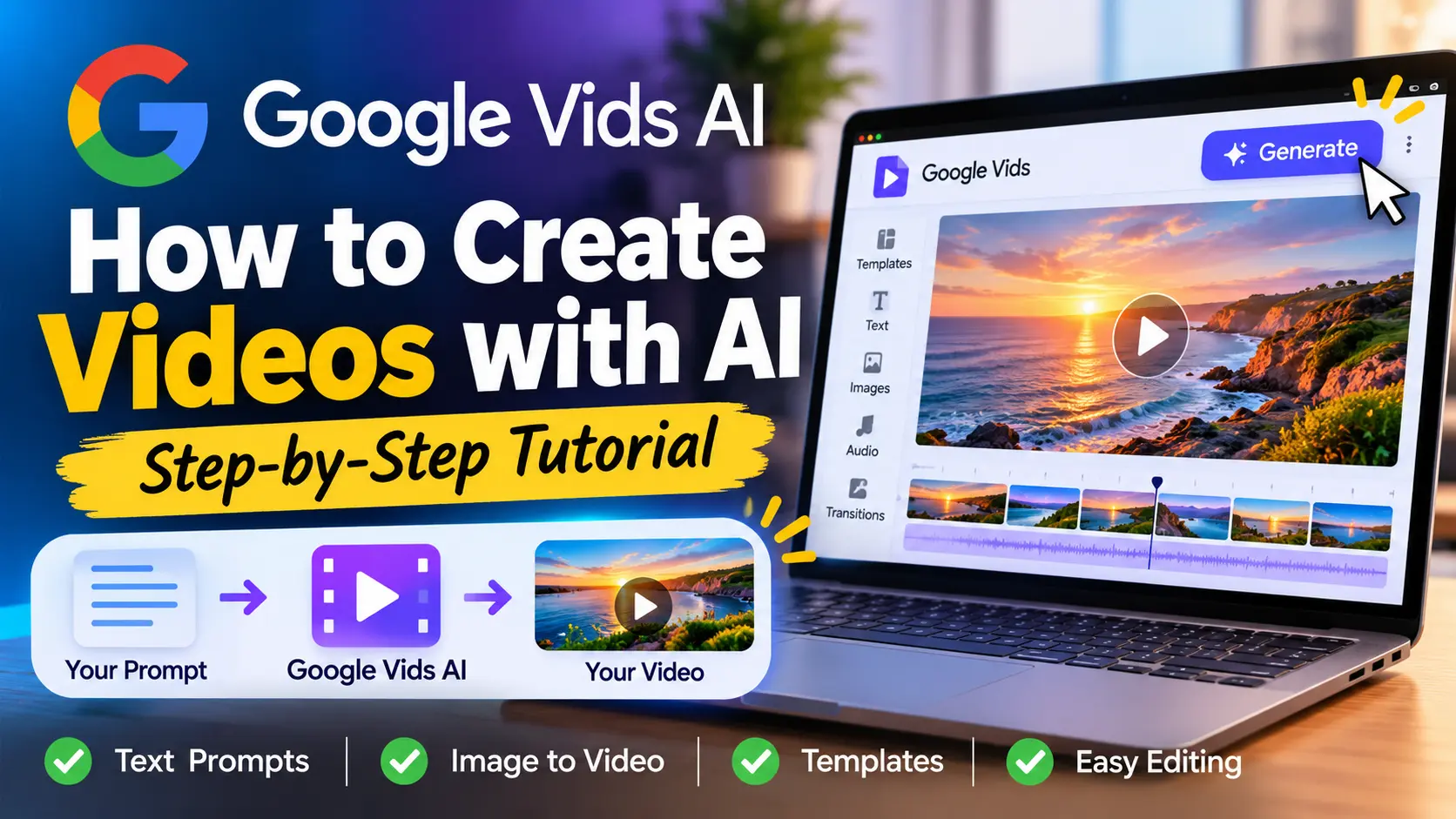
Google Vids AI: How to Create Videos with AI
Creating professional-looking videos no longer requires advanced editing skills, expensive software or hours of manual work. With Google Vids AI, you can turn written ideas, images and reference materials into video clips using artificial intelligence.
Google Vids is Google’s AI-powered video creation and editing application. It combines AI video generation, templates, narration, editing tools and collaboration features to help users produce videos for presentations, marketing, education and social media.
A major development arrived on November 5, 2026, when Google introduced Gemini Omni 1.2 Flash in Google Vids. Users with a Google account can now generate up to three 15-second videos per month at no cost.
Whether you want to create a product advertisement, animate a photograph, produce an educational video or make social media content, Google Vids offers a straightforward way to get started.
In this guide, you will learn how Google Vids AI works, how to create videos step by step, how to write effective AI video prompts, and how to improve your results.
Quick Answer: What Is Google Vids AI?
Google Vids AI is an AI-powered video creation tool from Google that allows users to generate and edit video clips using text prompts, reference images and other creative inputs.
Powered by Google’s Gemini video-generation models, it can create short video clips, animate static images, transform existing footage and help users build complete video projects.
You can access Google Vids through vids.new.
What Is Google Vids?
Google Vids is a video creation application within the Google Workspace ecosystem.
Unlike traditional video editors that require users to manually assemble every element, Google Vids combines conventional editing tools with AI-powered features.
You can use it to:
- Generate video clips from written descriptions.
- Turn static images into animated video clips.
- Use reference images to guide generated scenes.
- Create videos using AI avatars.
- Edit and transform existing video footage.
- Build videos using templates.
- Convert Google Slides presentations into videos.
- Record your screen or yourself.
- Add narration, audio and other visual elements.
- Share and collaborate on video projects.
Google Vids is particularly useful for people who want to communicate ideas visually without having extensive video-production experience.
What’s New in Google Vids AI in November 2026?
One of the most important developments is Google’s integration of Gemini Omni 1.2 Flash into Google Vids.
Announced on November 5, 2026, this update introduces improvements to AI video generation.
Here are the major developments.
1. Generate videos up to 15 seconds
Google Vids now supports video generation using Gemini Omni 1.2 Flash, with generated clips reaching 15 seconds.
This gives creators more room to develop a scene, demonstrate a product or communicate an idea within one generated clip.
2. Three free AI-generated videos every month
Anyone with a Google account can generate up to three 15-second videos per month at no cost under Google’s November 5 announcement.
Additional access and usage limits depend on the applicable Google AI or Workspace subscription.
3. Improved reference-image consistency
You can upload reference images to guide the appearance of your generated video.
This is useful when you want to maintain a consistent product, character or environment throughout a scene.
For example, a business could provide a photograph of its product and ask Google Vids to create a promotional scene featuring it.
4. Improved speech narration
Google has also highlighted improvements to generated speech narration.
This makes the tool more useful for social media clips, explainers and promotional content where spoken communication helps deliver the message.
5. More practical video-generation workflows
Google Vids supports several creative workflows, including generating new clips from prompts, animating images and editing existing footage.
The combination makes it possible to move from an initial idea to a more complete video project without relying entirely on separate applications.
Official announcement: https://blog.google/products-and-platforms/products/workspace/omni-1-2-flash-google-vids/
How to Use Google Vids AI to Create Videos
You do not need professional video-editing experience to begin using Google Vids.
Follow these steps to create your first AI-generated video.
Step 1: Open Google Vids
Visit:
Sign in using your Google account.
Google Vids opens in your browser, where you can begin a new video project.
Depending on your account and available features, you may see different creation options.
Step 2: Start a new video project
Choose the option to create a new video.
Google Vids provides different starting points, including:
- Create AI videos.
- Edit videos.
- AI avatar.
- Convert Slides.
- Record.
- Upload.
- Templates.
- Blank Vid.
For this tutorial, select Create AI videos.
You can choose a landscape, portrait or square project format when starting a new video.
Step 3: Enter your AI video prompt
This is where prompt engineering becomes important.
An AI video generator needs more than a general instruction to produce a specific result.
Instead of writing:
“Create a video of a car.”
Provide additional information about the subject, environment, movement, camera angle, lighting and visual style.
For example:
“Create a cinematic 10-second advertisement featuring a modern black electric car driving along a coastal highway at sunset. Show the vehicle moving smoothly through the scene, with a low-angle tracking camera shot, golden sunlight reflecting on its body and a premium automotive commercial aesthetic. Include realistic road movement and natural environmental lighting.”
A detailed prompt gives the AI clearer creative direction.
For more guidance, read our guide to AI Prompt Structure.
Step 4: Upload reference images (Optional)
Google Vids allows you to provide reference images to guide video generation.
For example, you could upload:
- A product photograph.
- A character reference.
- A photograph of a location.
- A brand image.
- A visual reference for a particular scene.
Google’s current instructions allow up to seven reference images for supported generation workflows.
Reference images can help the AI maintain the intended visual direction.
However, they do not guarantee perfect consistency in every generated frame.
Step 5: Adjust your video settings
Before generating your video, review the available output settings.
Google’s current AI video-generation help documentation lists:
| Setting | Available options |
|---|---|
| Resolution | 720p and 1080p |
| Aspect ratio | 16:9 landscape and 9:16 portrait |
| Generated clip duration | 3–15 seconds |
| Frame rate | 24 fps |
Availability may vary depending on the generation workflow and account access.
For a YouTube landscape video, choose 16:9.
For vertical social media content, choose 9:16.
Step 6: Generate your video
Once your prompt and settings are ready, select the Generate option.
Google Vids will process your request and produce a video clip.
Review the result before adding it to your project.
If the generated scene does not match your expectations, refine your prompt.
For example, you could specify:
- Slower camera movement.
- Brighter lighting.
- A different camera angle.
- More natural character movement.
- A cleaner background.
- A specific visual style.
The goal is to make your instructions more precise rather than repeatedly submitting the same vague prompt.
Step 7: Insert your generated clip into the project
Once you are satisfied with the generated video, insert it into your Google Vids project.
You can then work with the clip on the video timeline.
Combine generated footage with other visual elements, narration, text and audio to build a more complete video.
Step 8: Edit and export your video
After arranging your scenes, review the entire project.
Check:
- Whether the scenes follow a logical sequence.
- Whether the narration matches the visuals.
- Whether text is readable.
- Whether the audio is clear.
- Whether the transitions feel natural.
- Whether the video has the correct aspect ratio.
When everything is ready, use the available export and sharing options to finish your project.
How to Turn Images into Videos Using Google Vids AI
One of the most interesting capabilities of Google Vids is image animation.
Instead of generating an entire scene from a written description, you can upload an existing photograph and instruct AI to animate its contents.
This is useful for:
- Product photography.
- Travel photographs.
- Educational illustrations.
- Marketing graphics.
- Creative social media content.
- Visual storytelling.
Step-by-step image-to-video workflow
- Open Google Vids.
- Select Create AI videos.
- Choose the Animate option.
- Upload a JPG or PNG image.
- Describe the movement you want to see.
- Choose the available output orientation.
- Generate the video.
- Review the result.
- Insert the generated clip into your project.
Important prompting tip: When animating an existing image, concentrate on movement rather than describing the entire image again.
For example, if you upload a photograph of a beach, you do not need to describe the beach in detail.
Instead, write:
“Animate the ocean waves moving gently towards the shore. Add subtle movement to the palm leaves as a light breeze passes through. Use a slow cinematic camera push-in while maintaining the original composition, colours and lighting.”
This tells the AI what should move and how the scene should develop.
15 Google Vids AI Prompts to Create Different Videos
Prompts are among the most important parts of AI video generation.
The following examples demonstrate how you can use Google Vids for different creative projects.
These are original prompt templates to adapt to your own reference images, products and projects.
1. Product Advertisement Video
Prompt:
Create a professional product advertisement featuring a premium wireless headphone placed on a minimalist studio table. Slowly rotate the camera around the product, highlighting its design and materials. Use dramatic studio lighting, subtle reflections and a clean luxury commercial aesthetic. Keep the product clearly visible throughout the scene.
2. Fashion Promotional Video
Prompt:
Create a cinematic fashion promotional video featuring a model walking through a modern architectural setting. Use smooth tracking camera movement, natural daylight, elegant styling and a premium fashion-campaign aesthetic. Maintain consistent clothing colours and overall visual composition.
3. Restaurant Advertisement
Prompt:
Create an appetising restaurant promotional video featuring a freshly prepared plate of food on a beautifully arranged dining table. Show gentle steam rising from the meal while the camera slowly moves closer. Use warm restaurant lighting, realistic food textures and an inviting atmosphere.
4. Travel Destination Video
Prompt:
Create a cinematic travel video showing a beautiful tropical beach with turquoise water, palm trees and golden sunlight. Use a smooth aerial-style camera movement, gentle ocean waves and realistic natural lighting. Create a peaceful holiday atmosphere.
5. Real Estate Promotional Video
Prompt:
Create a professional real estate promotional video featuring a modern luxury home. Begin with a wide exterior view before moving smoothly towards the entrance. Highlight the architectural design, landscaped garden and large windows. Use bright natural daylight and a premium property-marketing aesthetic.
6. Educational Explainer Video
Prompt:
Create a short educational video explaining how the solar system works. Show the Sun and planets in a visually clear space environment. Use smooth camera movements, realistic planetary textures and an educational documentary style. Keep the composition uncluttered.
7. Social Media Promotional Clip
Prompt:
Create a dynamic promotional video for a small online business. Show an attractive product display, smooth camera transitions and visually engaging close-up shots. Use bright lighting, clean backgrounds and a modern social media advertising style.
8. Cinematic City Video
Prompt:
Create a cinematic video of a modern city at night. Show illuminated buildings, moving traffic and reflections from streetlights. Use a smooth tracking camera movement, realistic urban lighting and a dramatic cinematic atmosphere.
9. Coffee Advertisement
Prompt:
Create a premium coffee commercial featuring freshly brewed coffee being poured into a ceramic cup. Capture the rising steam and rich coffee colour using a close-up cinematic camera shot. Use warm lighting and a sophisticated café atmosphere.
10. Technology Advertisement
Prompt:
Create a futuristic technology advertisement featuring a sleek modern smartwatch rotating slowly against a dark minimalist background. Use controlled studio lighting, subtle reflections and precise product details. Create a polished premium technology-commercial aesthetic.
11. Nature Documentary
Prompt:
Create a realistic nature documentary scene showing butterflies moving between colourful flowers in a peaceful garden. Use gentle camera movement, natural sunlight and detailed environmental textures. Maintain a calm documentary atmosphere.
12. Motivational Video
Prompt:
Create a cinematic motivational video showing a person walking along a mountain trail at sunrise. Use a wide establishing shot followed by a gradual camera push-in. Show the sunlight illuminating the landscape and create an inspirational atmosphere.
13. Event Promotional Video
Prompt:
Create an energetic promotional video for a professional business conference. Show a modern event venue, an illuminated stage and an audience engaging with the presentation. Use dynamic camera movement and polished corporate-event visuals.
14. Children’s Educational Animation
Prompt:
Create a colourful educational animation showing friendly cartoon animals exploring a green forest. Use bright colours, gentle character movements and a playful educational atmosphere. Keep the characters visually consistent throughout the scene.
15. Small Business Product Showcase
Prompt:
Create a professional promotional video featuring a collection of handmade skincare products arranged on a clean display table. Slowly move the camera across the products, highlighting their packaging and textures. Use soft natural lighting and an elegant beauty-brand aesthetic.
For more inspiration, explore our AI Prompt Examples and AI Prompt Templates.
How to Write Better Google Vids AI Prompts
A good AI video prompt should communicate what you want the AI to create and how the scene should look and move.
Rather than writing a single general instruction, divide your prompt into several components.
Here is a practical structure:
Subject + Environment + Action + Camera Movement + Lighting + Visual Style + Audio
Let’s examine each component.
| Prompt component | What it describes | Example |
|---|---|---|
| Subject | Main object or character | A red sports car |
| Environment | Where the scene happens | A coastal highway |
| Action | What happens | Driving along the road |
| Camera | How the scene is filmed | Low-angle tracking shot |
| Lighting | Light and atmosphere | Golden-hour sunlight |
| Style | Overall visual appearance | Cinematic advertisement |
| Audio | Sound or narration | Natural engine sound |
Example: Weak vs Improved Prompt
Weak prompt:
Create a video of a beautiful hotel.
Improved prompt:
Create a cinematic promotional video featuring a luxury beachfront hotel overlooking a tropical ocean. Begin with a wide establishing shot of the building before slowly moving towards the swimming pool. Show gentle palm movement, sparkling water and warm sunset lighting. Use smooth camera movement, realistic architectural details and a premium travel-commercial aesthetic.
The improved prompt provides clearer creative direction.
It specifies the subject, environment, camera movement, lighting and visual style.
For additional techniques, read our guides to Prompt Anatomy and AI Prompt Constraints.
Google Vids AI vs Traditional Video Editing
How does Google Vids compare with conventional video editing?
| Feature | Google Vids AI | Traditional video editor |
|---|---|---|
| Text-to-video generation | Supported | Depends on software |
| Image animation | Supported | Often requires additional tools |
| AI-assisted editing | Supported | Varies |
| Manual timeline editing | Supported | Supported |
| AI avatars | Supported workflows | Depends on software |
| Templates | Supported | Common |
| Prompt-based creation | Supported | Not always available |
| Collaboration | Google Workspace integration | Depends on software |
The main advantage of Google Vids is its combination of AI-assisted generation and conventional video-editing capabilities in one environment.
Traditional editing software may still provide more detailed control for advanced production workflows.
Google Vids AI vs Other AI Video Generators
Google Vids is not the only platform offering AI-powered video creation.
Other tools have different strengths and workflows.
| Tool | Main use |
|---|---|
| Google Vids | AI-assisted video creation and editing |
| Runway | AI video generation and creative editing |
| Kling AI | AI-generated video scenes |
| OpenAI Sora | Generative video creation |
| Adobe Firefly | AI-powered creative workflows |
The best option depends on your project.
If you want an integrated video creation and editing workflow, Google Vids is worth exploring.
If you are comparing different AI video-generation platforms, see our guide to Best AI Image, Video and Writing Tools.
Who Should Use Google Vids AI?
Google Vids can be useful for several groups of users.
Content Creators
Creators can use Google Vids to produce short promotional clips, educational videos and social media content.
Small Business Owners
Businesses can turn product photographs into promotional videos, create advertisements and communicate their services visually.
Students and Educators
Students can create visual presentations, while teachers can develop educational videos to explain difficult subjects.
Marketing Professionals
Marketing teams can experiment with AI-generated promotional content, product demonstrations and campaign visuals.
Beginners
People without professional video-editing experience can explore AI-assisted video creation through prompts, templates and existing media.
Limitations of Google Vids AI
Although Google Vids makes video creation easier, it is important to understand its limitations.
1. Short generated clips
AI video generation is designed for short scenes. A complete video may require multiple generated clips and additional editing.
2. Generation limits
Free access is limited to three 15-second generated videos per month under Google’s November 5 announcement. Higher usage depends on eligible subscription plans and their applicable limits.
3. Imperfect results
Generated scenes may contain visual inconsistencies, unexpected movements or inaccurate details.
4. Prompt quality matters
Vague instructions can produce results that do not match your intended scene.
5. Feature availability varies
Some features require eligible Google Workspace or Google AI subscriptions. Availability can also depend on account eligibility and gradual feature rollouts.
6. Human review is still important
Generated videos should be checked for accuracy, visual quality, audio issues and misleading representations before publication.
Frequently Asked Questions About Google Vids AI
1. Is Google Vids AI free?
Yes. Google’s November 5, 2026 announcement provides users with a Google account up to three 15-second AI-generated videos per month at no cost. Other features and higher usage limits may depend on an eligible subscription.
2. How do I access Google Vids AI?
Visit https://vids.new using a desktop browser and sign in with your Google account. Select the AI video creation option if it is available to your account.
3. Can Google Vids create videos from text prompts?
Yes. You can enter a written description of a scene, including the subject, environment, actions, camera movement, lighting and visual style. Google Vids uses the prompt to generate a video clip.
4. Can Google Vids turn images into videos?
Yes. Google Vids includes an image-animation workflow that lets users upload a JPG or PNG image and describe the movement they want to generate.
5. How long can Google Vids AI videos be?
Google’s current Gemini Omni 1.2 Flash announcement supports generated clips of up to 15 seconds. A complete Google Vids project can be longer, with the overall project duration subject to its separate limits.
6. Does Google Vids support 1080p video?
Yes. Google’s current video-generation documentation lists 720p and 1080p output options for supported workflows.
7. Can I use Google Vids for YouTube videos?
Yes. You can create video projects, combine scenes, add narration and other media, and export your completed work. Choose the appropriate landscape format for standard YouTube videos.
8. Can I use Google Vids to create Instagram Reels and TikTok videos?
Yes. You can create portrait-oriented video projects using the 9:16 aspect ratio, which is suitable for vertical social media formats.
9. Does Google Vids support AI avatars?
Yes. Google Vids includes AI avatar workflows for supported accounts and features. These can be used to create narrated video content.
10. Do I need video-editing experience to use Google Vids?
No. Beginners can start with templates, prompts and AI-generated clips. However, understanding basic editing and prompt-writing techniques can help improve the final result.
Final Thoughts: Is Google Vids AI Worth Trying?
Google Vids is an interesting development in AI-powered video creation because it combines video generation, image animation, editing and collaboration features.
The integration of Gemini Omni 1.2 Flash makes the platform more useful for people who want to create short promotional videos, social media content, educational clips and product demonstrations.
Its free monthly video-generation allowance also provides an opportunity for beginners to experiment without immediately purchasing a subscription.
However, AI-generated footage should still be reviewed and edited before publication. The quality of your instructions, reference images and creative direction will influence the final result.
If you are learning how to work with AI tools, Google Vids is worth exploring as part of your wider AI prompting toolkit.
Ready to create your first AI video? Visit Google Vids, experiment with the prompts in this guide and see what you can create.