How to Turn Images into Videos with Google Vids AI: Step-by-Step Guide
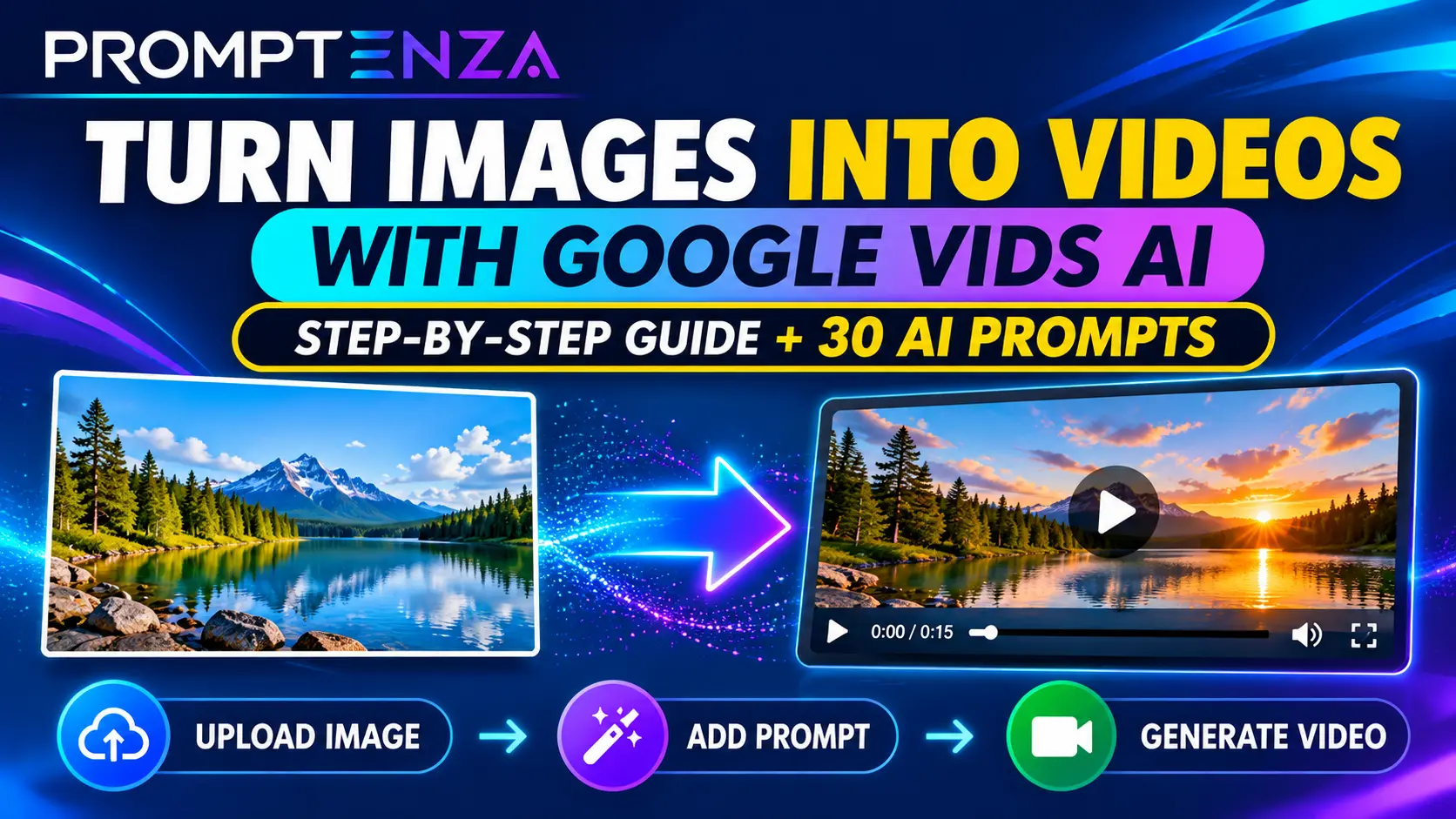
A still image can become much more engaging when you add movement, camera motion and sound. With Google Vids AI, you can upload an image, describe how you want it to move and use AI to generate a short video clip.
Whether you want to animate product photography, create social media content, bring illustrations to life or produce promotional videos, Google Vids provides a straightforward way to turn static images into AI-generated video.
In this guide, you’ll learn how to turn images into videos with Google Vids AI, write effective image-to-video prompts, improve your results and troubleshoot common generation problems.
Quick Answer: Can Google Vids Turn Images into Videos?
Yes. Google Vids includes an AI feature that can animate uploaded JPG and PNG images into short video clips.
You upload an image, choose the animation option, describe the movement you want and generate a video. You can then insert the generated clip into your Google Vids project and edit it as part of your video.
The most important prompting tip is to describe how the image should move, rather than repeating everything already visible in the image.
What Is Image-to-Video Generation in Google Vids?
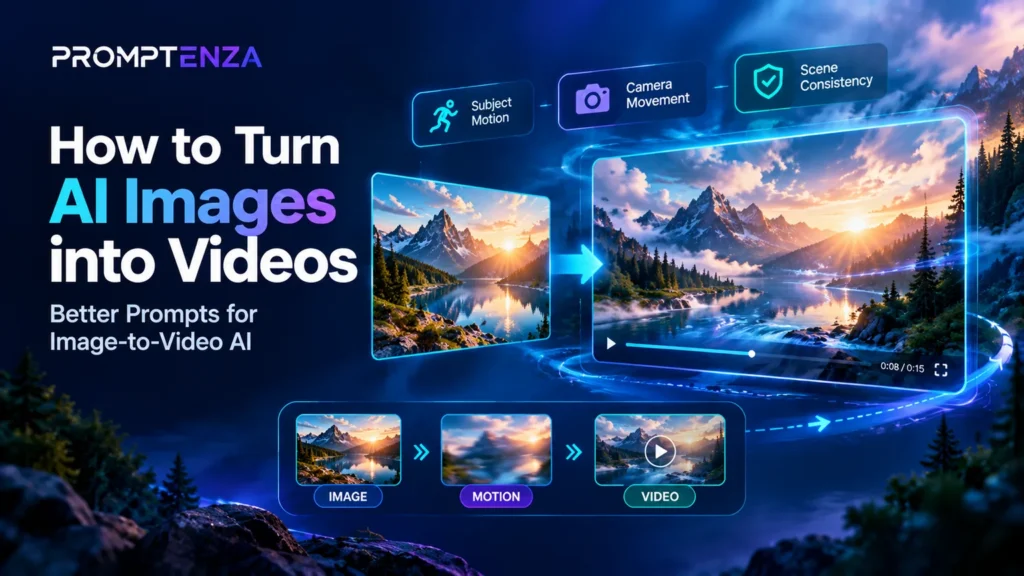
Image-to-video generation is an AI video creation process that uses an existing image as the visual starting point for a new video.
Instead of creating an entire scene from a written description, you provide a photograph, product image, illustration or another supported image file. The AI then generates movement based on your instructions.
For example:
- A photograph of a car can become a cinematic driving scene.
- A product photograph can become a promotional video.
- A landscape image can become a moving aerial-style scene.
- A food photograph can become a short restaurant advertisement.
- An illustration can become an animated visual.
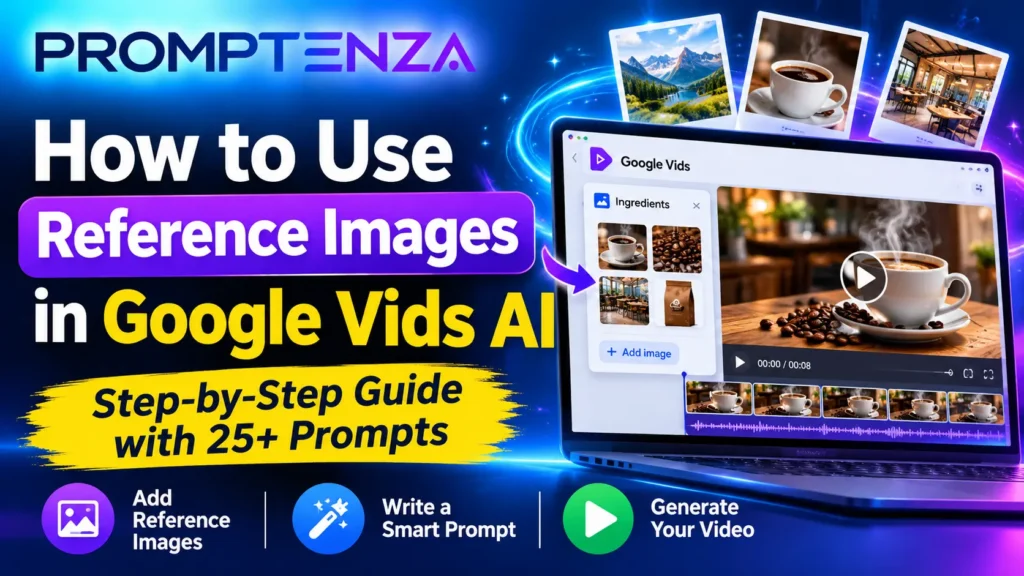
Google Vids also supports other AI video-generation workflows, including creating clips from text prompts and reference images.
For a broader introduction, read our guide to Google Vids AI: How to Create Videos with AI.
What You Need Before Turning Images into Videos
Before starting, prepare the following:
| Requirement | What you need |
|---|---|
| Google account | An account with access to the relevant Google Vids features |
| Image file | A supported JPG or PNG image |
| Internet connection | A stable connection for AI generation |
| Browser | A supported desktop browser |
| Animation prompt | A clear description of the movement you want |
| Google Vids access | Access to the AI video-generation feature |
Google’s AI video-generation features have account and plan eligibility requirements. If the Animate option does not appear in your account, check Google’s current feature availability information.
Recommended image formats:
- JPG
- PNG
Recommended aspect ratios:
- Landscape: 16:9
- Portrait: 9:16
A sharp, high-quality image with a clear subject generally provides a better starting point.
How to Turn Images into Videos with Google Vids AI
Follow these steps to animate your first image.
Step 1: Open Google Vids
Visit:
Sign in using the Google account that has access to Google Vids.
You can start a new project or open an existing video.
Step 2: Open the AI Video Creation Tool
From the starting screen, select Create AI videos.
If you are already working inside a project, open the AI video-generation option from the editing interface.
Step 3: Select the Animate Option
In the AI video panel, select Animate.
This option allows you to use an uploaded image as the starting point for an AI-generated video.
Make sure you select Animate rather than starting with a text-only video-generation workflow.
Step 4: Upload Your Image
Select Add image and upload the JPG or PNG file you want to animate.
Your image could be:
- A product photograph
- A landscape photograph
- A food image
- A fashion photograph
- A business promotional image
- An illustration
- A branded graphic
Choose an image with a clearly identifiable subject and enough visual detail for the AI to interpret.
Step 5: Choose Your Video Orientation
Select the aspect ratio that matches your intended use.
| Orientation | Best use |
|---|---|
| Landscape 16:9 | YouTube videos, presentations and website content |
| Portrait 9:16 | TikTok, Instagram Reels and YouTube Shorts |
If your original image has a different aspect ratio, Google Vids may add black bars to fit the supported video format.
Step 6: Write Your Image-to-Video Prompt
This is one of the most important steps.
Your prompt should explain how the subject, objects and camera should move.
For example, if you upload a photograph of a coffee product, avoid simply writing:
“Create a video of this coffee product.”
The AI can already see the product.
Instead, write:
“Keep the coffee package in sharp focus as the camera slowly pushes forward. A warm stream of steam rises from the coffee cup beside it. Soft morning light moves across the background, creating a premium cinematic product advertisement.”
This gives the AI clearer instructions about motion and camera behaviour.
Step 7: Generate Your Video
Review your prompt and select Generate.
Google Vids will process your image and instructions to produce an animated clip.
Generation time can vary depending on the request and service conditions.
Step 8: Review and Refine the Result
Watch the generated clip carefully.
Check whether:
- The main subject remains visually consistent.
- The movement looks natural.
- The camera motion matches your instructions.
- Important product details remain recognizable.
- The animation fits your intended video.
If the result needs improvement, edit the prompt and generate another version.
Step 9: Insert the Generated Clip
When you are satisfied with the result, select Insert to add the generated video to your project.
You can then arrange it on the timeline and combine it with other scenes, text, audio and visual elements.
Important: The available controls and generation limits can vary with account eligibility and feature updates. Check the duration selector in your current Google Vids interface rather than assuming every image-animation workflow supports the same maximum length.
30+ Google Vids AI Image-to-Video Prompts
The following prompts are designed for different image types and creative projects.
Upload the relevant image first, then paste the matching prompt into Google Vids.
1. Product Photography Animation Prompts
Use these prompts to transform product photographs into promotional clips.
Prompt 1: Cinematic Product Reveal
“Keep the product in the centre of the frame as the camera slowly moves closer. Soft studio lighting gradually illuminates the product, revealing its details. Maintain the original product design and proportions.”
Prompt 2: Premium Product Advertisement
“Create a premium commercial-style animation. The camera makes a smooth, controlled movement around the product while subtle reflections move across its surface. Keep the product clearly visible throughout.”
Prompt 3: Rotating Product Display
“Animate the product with a slow, smooth rotation while maintaining its original shape, colour and proportions. Use clean studio lighting and a minimal background.”
Prompt 4: Floating Product Effect
“Make the product appear to float gently in place. Add subtle shadows and soft lighting changes while the camera slowly moves forward. Preserve the product’s original appearance.”
Prompt 5: Luxury Product Showcase
“Create a sophisticated product showcase with a slow camera push-in, elegant lighting and subtle background movement. Keep the product as the main focal point.”
2. Food Photography Animation Prompts
These prompts can help turn food photographs into engaging restaurant and food promotional clips.
Prompt 6: Restaurant Food Advertisement
“Keep the plated meal in focus as the camera slowly moves closer. Gentle steam rises from the food while warm restaurant lighting creates an inviting atmosphere.”
Prompt 7: Coffee Advertisement
“Animate the coffee scene with gentle steam rising from the cup. The camera slowly pushes forward, highlighting the coffee’s texture and presentation. Use warm morning lighting.”
Prompt 8: Dessert Showcase
“Create a cinematic dessert advertisement. The camera slowly moves around the dessert while soft highlights reveal its texture and presentation. Keep the original dessert appearance.”
Prompt 9: Fresh Fruit Animation
“Create a vibrant food commercial with a slow camera movement across the fruit arrangement. Natural light shifts gently across the scene while the fruit remains in its original position.”
Prompt 10: Restaurant Promotion
“Use a smooth cinematic camera push-in towards the food. Add subtle atmospheric movement in the background and maintain the original presentation of the dish.”
3. Landscape and Travel Image Prompts
Use these prompts to animate travel photographs, outdoor scenes and landscape images.
Prompt 11: Cinematic Landscape
“Create a cinematic landscape animation. Clouds move slowly across the sky, nearby trees sway gently in the wind and the camera gradually moves forward through the scene.”
Prompt 12: Beach Scene
“Animate the ocean with gentle waves moving towards the shore. Palm leaves sway naturally in the breeze as the camera slowly pans across the beach.”
Prompt 13: Mountain Landscape
“Create a peaceful cinematic scene. Clouds drift slowly across the mountain peaks while the camera makes a gentle forward movement. Preserve the original landscape.”
Prompt 14: City at Sunset
“Animate the city scene with subtle movement in the clouds and changing sunset reflections on nearby buildings. Use a slow cinematic camera pan.”
Prompt 15: Nature Photography
“Bring the natural environment to life with gentle movement in the leaves and surrounding vegetation. The camera slowly moves through the scene while maintaining the original composition.”
4. Fashion and Lifestyle Image Prompts
Prompt 16: Fashion Campaign
“Create a premium fashion campaign animation. The camera slowly moves closer while the fabric moves gently in the breeze. Preserve the original clothing design, colours and styling.”
Prompt 17: Fashion Product Showcase
“Use a smooth camera movement to highlight the clothing details, fabric texture and overall presentation. Keep the original outfit consistent.”
Prompt 18: Luxury Accessories
“Create an elegant commercial-style animation of the accessories. Use subtle reflections and a slow camera orbit while preserving their original design.”
Prompt 19: Lifestyle Photography
“Add subtle environmental movement to the scene. Use a slow camera push-in and natural lighting changes while keeping the original composition intact.”
Prompt 20: Beauty Product Promotion
“Create a polished beauty advertisement with a gentle camera movement and soft studio lighting. Highlight the product’s packaging and preserve its original appearance.”
5. Business and Marketing Prompts
Prompt 21: Business Promotional Video
“Create a professional promotional animation from this image. Use a slow camera push-in, subtle background movement and clean lighting to give the scene a polished business presentation style.”
Prompt 22: Real Estate Property Showcase
“Animate the property photograph with a smooth cinematic camera movement. Add subtle movement in the surrounding trees and clouds while maintaining the building’s original structure.”
Prompt 23: Technology Product Promotion
“Create a modern technology advertisement. The camera slowly moves towards the product while subtle light reflections travel across its surface. Preserve the original product design.”
Prompt 24: Event Promotion
“Bring this event image to life with subtle movement in the lighting and background. Use a smooth camera push-in while keeping the main visual elements recognizable.”
Prompt 25: Brand Introduction
“Create a polished brand introduction using the original image. Add subtle background movement and a slow cinematic camera movement. Preserve all visible brand elements and avoid changing the logo.”
6. Creative and Artistic Image Prompts
Prompt 26: Illustration Animation
“Animate the illustration with gentle, natural movement. Preserve the original drawing style, colours and character design while adding subtle environmental motion.”
Prompt 27: Fantasy Landscape
“Create a cinematic fantasy animation. Clouds drift slowly, glowing particles move gently through the environment and the camera slowly travels forward. Preserve the original artistic style.”
Prompt 28: Abstract Art Animation
“Bring the abstract artwork to life with slow, fluid movement. Allow the colours and shapes to shift subtly while preserving the original artistic composition.”
Prompt 29: Architectural Visualization
“Create a cinematic architectural animation. Use a slow camera movement across the building while natural lighting changes gently. Preserve the original architectural structure.”
Prompt 30: Minimalist Animation
“Create a clean, minimal animation using subtle object movement and a slow camera push-in. Preserve the original colours, composition and visual style.”
How to Write Better Google Vids Image-to-Video Prompts
A good image-to-video prompt should focus on movement rather than describing the entire image again.
Here is a useful structure:
Subject movement + Camera movement + Environmental movement + Visual style + Consistency instructions
| Prompt element | What to describe | Example |
|---|---|---|
| Subject movement | How the main subject moves | Fabric moves gently |
| Camera movement | How the camera moves | Slow push-in |
| Environment | What changes around the subject | Clouds drift slowly |
| Visual style | Desired appearance | Cinematic commercial |
| Consistency | What should remain unchanged | Preserve product design |
5 Prompt-Writing Tips
1. Describe movement clearly
Use specific instructions such as:
- Slowly moves forward
- Rotates gently
- Pans from left to right
- Moves naturally in the breeze
- Gradually zooms closer
2. Avoid unnecessary scene descriptions
The uploaded image already provides the visual starting point. Focus your prompt on the animation you want.
3. Keep movement realistic
A simple camera push-in or gentle environmental movement may produce a more coherent result than asking several objects to move in different directions.
4. Protect important visual details
For product images, logos and branded graphics, tell the AI to preserve their original appearance. Always review the output because generated results may still alter details.
5. Match the prompt to the image
A landscape photograph needs different movement instructions from a product photograph. Choose motion that makes sense for the original scene.
For more prompting techniques, explore our guides to Prompt Anatomy and AI Prompt Structure.
Google Vids Image-to-Video vs Text-to-Video
Google Vids supports different approaches to AI video generation. The best option depends on what you already have.
| Feature | Image-to-video | Text-to-video |
|---|---|---|
| Starting point | Uploaded image | Written prompt |
| Visual reference | Existing image | AI interprets the description |
| Main purpose | Animate a specific image | Generate a new scene |
| Best for | Product images and photography | Creative concepts and new scenes |
| Prompt focus | Movement and camera direction | Subject, environment, action and style |
Which should you choose?
Choose image-to-video when you already have a photograph, product image or illustration that you want to animate.
Choose text-to-video when you want the AI to create a new visual scene from your description.
You can also explore our Google Vids AI Prompts article for more ready-to-use video-generation ideas.
Common Google Vids Image-to-Video Problems and Fixes
Sometimes the generated video may not look exactly like the original image or the generation option may not work as expected.
Here are common problems and possible solutions.
| Problem | Possible solution |
|---|---|
| Animate option is missing | Check your Google account and feature eligibility |
| Image upload fails | Use a supported JPG or PNG file |
| Video generation fails | Try a clearer prompt and check your connection |
| Image looks distorted | Use a sharper source image with a clear subject |
| Movement looks unnatural | Simplify the animation instructions |
| Black bars appear | Prepare an image matching 16:9 or 9:16 |
| Product details change | Add instructions to preserve the original design |
| Generated video has no sound | Check the generated clip’s audio settings and track volume |
For a more detailed troubleshooting guide, read Google Vids AI Not Working? 10 Ways to Fix AI Video Generation Problems.
Frequently Asked Questions
Can Google Vids turn a photo into a video?
Yes. Google Vids has an AI Animate feature that can turn an uploaded JPG or PNG image into a short video clip using a text description of the desired movement.
How do I animate a picture in Google Vids?
Open Google Vids, select Create AI videos, choose Animate, upload your image, describe the movement and select Generate. You can insert the finished clip into your video project.
What image formats does Google Vids support for image animation?
Google’s image-animation instructions specify JPG and PNG files.
Can I turn product photos into AI videos with Google Vids?
Yes. You can upload a product photograph and describe camera movement, lighting changes and other animation effects. Review the output to make sure important product details remain accurate.
Can I use Google Vids to create Instagram Reels?
Yes. Google Vids supports portrait video projects and AI-generated video clips in a 9:16 format, making it suitable for creating vertical social media content.
How long can an image-to-video clip be?
The duration options depend on the specific generation workflow and account features. Google’s image-animation instructions describe short clips, while newer Omni-powered video generation supports longer clips. Check the duration selector in your interface for the available options.
Is Google Vids AI free?
Google offers a no-cost option for certain Google Vids AI video-generation usage. Its November 2026 announcement states that eligible Google account holders can generate up to three 15-second videos per month at no cost. Other account and plan limits may differ.
Why does Google Vids change parts of my original image?
AI-generated video may reinterpret some visual details when adding movement. Start with a clear image, avoid overly complicated animation instructions and explicitly ask the model to preserve important elements.
Final Thoughts
Turning images into videos with Google Vids AI gives creators another way to produce engaging visual content without building every scene from scratch.
The process is straightforward: upload a clear image, choose Animate, describe the movement and generate your clip.
For the best results, focus your prompts on camera movement, subject motion and environmental changes. Start with simple animations, review the output and refine your instructions until the result matches your creative goal.
Explore more Google Vids tutorials and AI prompting guides on Promptenza to improve your video creation workflow.